
Perfect365: Face Makeup Editor review
 Analysis by Appsdrops
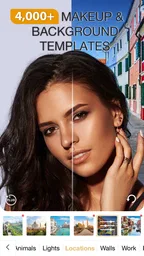
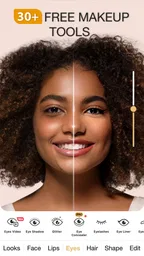
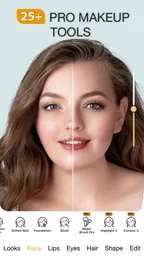
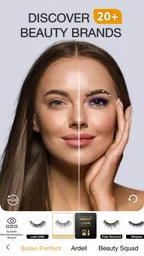
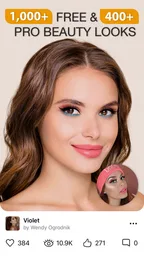
I find face-editing apps most useful when they help me make a small, deliberate change rather than turn a familiar face into a different one. Perfect365 is aimed squarely at that kind of photo makeover: it gives you a place to try makeup looks and retouch a selfie, then decide how much of the result you actually want to keep. Its appeal is convenience, but getting a natural finish depends on treating the suggested look as a starting point, not a final answer.
Start with a photo you would actually share
My best results begin with a clear, evenly lit portrait. That may sound obvious, but it matters more here than it does in a general photo editor. When the face is visible and the lighting is uncomplicated, makeup choices are easier to judge. A shadow across the eyes or a strong color cast can make a look seem wrong even when the edit itself is not the problem.
I would first choose a photo that already looks reasonably good, rather than expecting editing to repair blur, poor focus, or an awkward angle. Then I would try a complete look to get a sense of the style before adjusting individual elements. The useful question is not “Which option changes the most?” but “Which parts still look like me?” That mindset helps avoid the familiar over-retouched result.
Perfect365 is a beauty app from Perfect365, Inc., and its focus is narrower than that of a full photo-editing suite. I see it as a way to experiment with face makeup and selfie retouching, not as a replacement for an editor built around cropping, color correction, or detailed image work. If makeup is the main thing you want to preview, that focused approach is convenient; if you want to do everything to a photo in one place, it may feel limited.
Build a natural-looking result in passes
Instead of accepting a full makeover all at once, I recommend working in passes. Start with a look that is close to what you would wear, then ease back anything that catches your eye for the wrong reason. Check the image at its normal viewing size as well as close up. A detail that looks striking when enlarged can dominate a small profile photo, while a subtle adjustment may disappear once the image is viewed on a phone.
This step-by-step approach is also helpful when comparing options. Keep the original image in mind and ask whether the edit improves the photo for its intended use. A polished portrait for a social post can support a more noticeable style than a picture meant to look like an everyday candid. I would not use the same level of retouching for both.
One practical habit is to make only one kind of change at a time. If the overall look feels too strong, changing several elements together makes it hard to identify what caused the problem. Adjusting one area, pausing, and reassessing gives you a clearer sense of what is working. It may take a little longer than tapping through looks quickly, but it makes the final image easier to control.
Check the choices that affect the whole image
Before spending time on an edit, I would check the photo itself and the app’s available adjustment controls. The interface and options can change between releases, so I would avoid building a routine around a particular control until I had confirmed it was present in my version. The current version is 10.33.22, and the app supports devices running Android 8.0 or later.
It is worth checking the image at more than one size while editing. A change can look balanced when the face fills the screen but appear heavy once the whole portrait is visible. I also recommend taking a short break before settling on a result. Returning with fresh eyes makes it easier to spot when skin texture or makeup has started to look less believable.
For everyday use, the intended destination should guide the strength of the edit. If I were preparing a small avatar, I would prioritize a clear face and restrained changes; for a larger portrait, I would inspect edges and fine details more carefully. That simple distinction prevents a common disappointment: an edit that looks appealing in the editor but does not hold up in the format where it will actually be seen.
The app is free to install, with in-app purchases ranging from $0.99 to $89.99 per item. I would explore the experience before paying for anything and check what a purchase covers in the app at the time. If you only want occasional makeup experiments, there is little reason to assume you need a paid item. If a particular option is locked, decide whether that specific choice matters to your workflow rather than buying on impulse.
Make repeat edits faster without rushing
For someone who edits portraits regularly, speed comes from consistency more than from tapping quickly. I would use the same basic sequence each time: choose a suitable photo, preview a look, reduce anything that feels too strong, and inspect the finished image at its likely display size. Once that becomes familiar, you spend less time bouncing between options and more time judging the result.
A useful shortcut is to keep a simple personal standard in mind. For example, decide that an edit should still resemble the lighting and makeup you might plausibly choose in person. That is not a special app feature; it is a repeatable decision rule. It helps when several looks are attractive in different ways and keeps a quick session from drifting into increasingly dramatic changes.
Another efficient habit is to edit from the most important area outward. Begin with the feature that motivated you to open the app, then review the rest of the face for balance. If the original photo only needs a subtle lift, there is no benefit in changing every available element. A focused edit is often both quicker and more convincing than a complete makeover.
Consider a realistic example: you have a selfie taken before a video call or a social gathering, and the light is fine but you want to preview a more finished makeup look. I would open the image, compare a few overall styles, choose the closest one, and then soften the parts that look unlike my usual appearance. After checking the portrait at the size people will see it, I would save only if the change still feels plausible. That workflow makes the app useful as a quick confidence check, rather than a reason to retouch every photo.
Where the app’s approach has limits
Perfect365 is not the right choice for every kind of photo problem. Makeup-oriented tools cannot make a badly lit or out-of-focus picture suddenly look like a carefully shot portrait. Nor would I choose this as my main tool for detailed compositing, extensive color grading, or edits that need precise control across the entire frame. A general photo editor is a better fit when those are the goals.
The convenience of trying a look also carries a trade-off: it is easy to keep adding changes because each one is only a tap away. That can make a portrait feel more artificial than intended, especially if the original lighting and the edited makeup do not seem to belong together. I get better results when I stop as soon as the photo meets its purpose. More editing is not automatically better editing.
Results can also depend on the source image. A front-facing, well-lit portrait gives you a fairer basis for judging makeup than a dim snapshot or a face partly hidden by hair, accessories, or shadow. If a preview looks odd, I would try a better source photo before concluding that the style itself is unsuitable. On the other hand, if the same kind of edit repeatedly feels too polished for your taste, a simpler editor or leaving the photo untouched may be the better choice.
There is a broader preference to consider, too. Some people want to see possible makeup on a selfie; others would rather edit the photo’s light and color while leaving facial appearance alone. This app serves the first group more directly. If your priority is preserving an entirely unretouched look, it may be more useful as an occasional style experiment than as part of your regular camera routine.
Popularity, suitability, and my verdict
The app has been available since February 19, 2013, and it has grown to more than 50 million installs. Its average rating is 3.5 from around 747,000 ratings, alongside roughly 48,000 written reviews. Those figures suggest a widely used product with mixed reactions, which feels consistent with an app whose results depend heavily on the chosen photo, the look, and how restrained the user is.
It is rated for Everyone, so the stated audience is broad. I would still use ordinary care with personal photos and review the choices presented inside the app before making a purchase. The free starting point makes it easy to see whether the style of editing suits you, while the range of optional purchases means it is sensible to check costs before committing to anything.
I would recommend Perfect365 to someone who enjoys trying makeup styles on portraits and is willing to make small adjustments rather than accept every effect at full strength. It can also suit a person who wants a quick visual comparison before choosing a look for an occasion. I would steer away from it if you need a comprehensive photo editor, want precise manual control over every part of an image, or simply do not want beauty retouching in your workflow.
My strongest advice is to treat it as a preview and refinement tool. Start with a good photo, compare looks with a clear purpose, and stop when the image still feels like yours. With that approach, the app’s focused beauty editing can be handy without turning a simple selfie into an overworked portrait.
What we like
- Easy-to-use controls make quick makeup edits approachable.
- A range of looks helps users try different styles.
- Editing tools can enhance selfies without a full photo editor.
- Virtual makeup previews let users experiment before applying products.
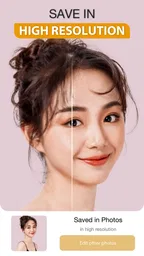
- The app supports saving edited photos for sharing.
What could be better
- Some looks and tools may require a paid subscription.
- Results can look artificial when makeup effects are too strong.
- Face detection may struggle with unusual angles or poor lighting.
- Many features depend on an internet connection.
- The app may request access to personal photos and camera.





