PDF Reader - Annotate Docs review
 Analysis by Appsdrops
I approach a PDF reader differently from a note-taking app or a general file manager: I want to open a document quickly, find my place, and make useful changes without turning a simple task into a project. PDF Reader - Annotate Docs is a free personalization app from The Galaxy Info, built around reading, marking up, editing, and managing PDFs. Its promise is practical, but whether it suits you depends on how much control and clarity you need while working through documents.
Reading and finding your place
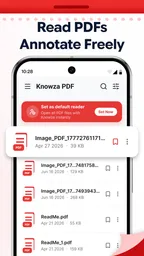
Reading is the foundation here. A PDF can be a short form, a long manual, or a document you need to revisit later, and a useful reader should make those different jobs feel manageable. This app is intended to bring reading and document handling together, so you can approach it as a place to work with PDFs rather than merely view them.
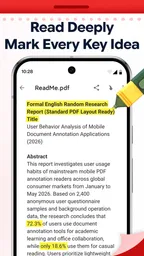
Annotation is most valuable when it serves a specific purpose. I find it helps to mark only what I will act on: a date to enter in a form, a question to ask, or a passage to return to. That keeps a document useful instead of covering it in marks that become another thing to decipher. If you are using the app for study or review, a good habit is to annotate while reading, then revisit the document with a clear question in mind.
The app’s tools are aimed at the document itself, but a reader’s comfort also depends on how easily they can move around a file. Before committing to a long reading session, open a document you know well and check whether its pages and text are comfortable to follow on your device. This is a simple way to judge the experience for yourself, especially if you often read dense forms or lengthy instructions.
At version 1.0, the app is still at an early point in its development. That does not make it unsuitable for basic PDF work, but it does mean I would test it with a low-stakes file before making it part of an important routine. The difference between “it opens my document” and “it reliably supports my daily workflow” matters most when you depend on annotations later.
Marking up without making a mess
A useful annotation workflow is selective rather than exhaustive. For a bill or application form, I would first read the whole page, then mark the fields or clauses that need attention. For a study document, I would use marks to separate key points from questions, rather than highlighting every sentence that feels relevant at first glance. This approach is especially helpful on a small screen, where dense markup can make the original text harder to scan.
Editing and annotation are related but not interchangeable. If you need to alter the contents of a PDF itself, check that the available editing options match the kind of change you intend to make before relying on the app. A small correction to a working document is a different job from changing a signed or officially submitted file. I would keep an untouched copy of important documents so that experimentation never replaces the version you may need to refer back to.
For managing several documents, a little preparation can save more time than repeatedly searching. Give files meaningful names before opening them, and keep related paperwork together in whatever file organization you already use. The app’s management purpose makes it a plausible part of that routine, but your own naming habits remain important: a reader cannot compensate for a folder full of indistinguishable files.
Comfort, motor control, and sensory needs
PDF reading can demand sustained visual attention and precise interaction. That makes readability more than a matter of taste: small text, crowded pages, and frequent tapping can become tiring. I would assess the app with the kinds of PDFs you actually use, not just a clean sample page. A well-designed document may be comfortable in almost any reader, while a scanned form or tightly packed manual can expose friction quickly.
For someone who finds repeated precise taps difficult, annotation can be the most demanding part of the experience. Marking a narrow line or selecting a specific passage requires more control than simply turning pages. Try a short, nonessential document first and notice whether you can place marks accurately without repeated corrections. If that interaction feels tiring, a workflow that lets you read on the phone but annotate later on a larger screen may be a better fit.
Sensory comfort varies from person to person. Some readers prefer a quiet, uncluttered page; others need stronger contrast or larger text to stay comfortable. I would not assume that every PDF can be made equally easy to read: the document’s layout and the app’s available controls both shape the result. If a file is an image scan rather than selectable text, it may also behave differently from a digitally created document. That distinction is worth checking before you plan to search, select, or mark particular wording.
One practical technique is to divide a long task into short passes. Read a few pages, add only the marks you need, then pause and review what you have changed. This reduces the chance of losing your place or making a page harder to understand through over-annotation. It is also a sensible approach when you are working in an environment where you cannot concentrate continuously.
Using PDFs in everyday situations
Imagine receiving a rental form while travelling to an appointment. You may need to read the instructions, note a missing detail, and return to the relevant page later. A PDF tool that combines reading and annotation can help keep those steps connected. I would still avoid making a last-minute change to a document that must be submitted in a particular format until I had checked the result carefully.
For students, the app may be useful for marking passages in reading material and keeping comments close to the source. The trade-off is that a phone is not always the best device for comparing several pages or writing extensive notes. If your work involves long research sessions, a computer or tablet with a larger display and a dedicated note system may be more comfortable. This reader makes more sense for quick review and portable reference than as an automatic replacement for a full study setup.
At work, it could suit someone who regularly reviews straightforward PDFs and wants a single mobile place to read and make notes. It is less compelling if your process depends on complex collaboration, strict document controls, or a particular editing workflow. In those cases, use the software already required by your workplace for final changes, and treat a mobile reader as a convenient way to inspect documents rather than the definitive tool.
It may also help with personal records, such as instructions you want to revisit or forms you need to check before a call. A useful habit is to annotate questions rather than sensitive details you do not need to mark. For anything consequential, keep a clear original and verify the finished file before sharing it. These small safeguards are worthwhile regardless of which PDF reader you choose.
Where the experience may fall short
The strongest reason to try this app is its focused combination of PDF reading, annotation, editing, and management. The main reason to be cautious is the modest average rating: it stands at 2.9 from 144 ratings, with 28 written reviews. That is not enough by itself to explain the causes of user frustration, but it is a signal to test the features you care about instead of assuming every part will feel polished.
The app has reached 100K+ installs, which suggests it has found a substantial audience, but popularity does not guarantee a good fit for your needs. Its free price makes a trial easier to justify, while the Everyone age rating means it is positioned for a broad audience. Neither point changes the practical question: can you read and mark your own documents comfortably and reliably?
Compared with a basic PDF viewer, this app’s appeal is that it aims to do more than display pages. Compared with a full desktop PDF editor, a mobile-focused reader is naturally better suited to quick review than elaborate document work. And compared with using a file manager plus a separate reader, having reading and markup in one app may reduce switching for simple tasks. If you need advanced document workflows or consistently precise editing, a more established editor may be the safer choice.
My recommendation is to begin with a document you can afford to test. Open it, try the reading and annotation actions you expect to use, then save or revisit the result and confirm that your changes remain useful. Do this before relying on the app for a deadline, an official submission, or a file that would be difficult to replace. This small trial answers more than a long feature checklist because it reflects your documents and your hands-on needs.
A practical verdict on inclusion and fit
Accessibility is about whether the task feels workable for the person using it, not just whether a reader can open a file. PDF Reader - Annotate Docs has a relevant role for people who want a mobile tool for reading and marking documents, but individual comfort will depend on screen size, document layout, and the precision its controls demand. I would not recommend it as the only option for someone whose work requires extensive, highly controlled editing without first testing those actions.
The clearest audience is someone who handles ordinary PDFs, wants to keep reading and markup together, and is willing to check the result before depending on it. It is less suitable for readers who need a carefully tailored accessibility setup, a larger workspace for long documents, or a specialized professional editing process. In those situations, another app or a computer-based workflow may better support the task.
Overall, I see this as a low-cost way to explore a focused PDF workflow, not a guaranteed answer for every reading need. The Galaxy Info has made a practical kind of app, and its free access makes a personal trial straightforward. Start with a short, familiar document, pay attention to visual and motor comfort, and keep a separate original for important files. If those checks go well, it could become a handy everyday reader; if they do not, choosing a tool designed around your specific access needs is the better decision.
What we like
- Opens PDFs quickly for convenient reading on the go.
- Annotation tools make it easy to mark important passages.
- A clean interface helps keep document navigation simple.
- Useful for reviewing documents without printing them.
- Supports a paperless approach to everyday reading.
What could be better
- Some advanced features may require a paid upgrade.
- Large PDFs can take longer to load on older devices.
- Small screens can make detailed annotations difficult.
- Editing options may be limited compared with desktop PDF software.
- The app may request access to files stored on your device.





