

Night Owl Protect review
 Analysis by Appsdrops
Home security apps are only useful when they fit smoothly into everyday routines. Night Owl Protect is designed to help you secure, protect, and connect your world, but getting value from any security app depends on more than opening it once. Setup, a reliable connection, and knowing how to respond when something does not work as expected all matter. My take is that this app is best approached as one part of a broader home-security setup: start with the basics, check each step calmly, and avoid assuming every problem comes from the app itself.
Getting comfortable with Night Owl Protect
Night Owl Protect is a free app from Night Owl Sp LLC in the house-and-home category. Its purpose is straightforward: help users manage a more connected approach to securing and protecting their world. That makes it relevant to people who want their home-security experience close at hand, rather than treating it as something they only think about when a problem occurs.
The app has an average rating of 4.6 from around 28,000 ratings, with roughly 6,800 written reviews and over one million installs. Those figures suggest that it has reached a substantial audience, though a rating alone cannot tell you whether its workflow will suit your household. I would treat the app as a practical tool to evaluate in the context of your own setup, not as a substitute for checking that the rest of your security equipment and network are working as expected.
One useful way to approach a home-security app is to think in stages. First, get the app installed and ready. Then make sure the relevant equipment and connection are in place. Finally, build a simple routine for checking the app and recovering from hiccups. That approach is more helpful than tapping through screens quickly and hoping everything has connected automatically.
Where users can get stuck
The first snag with a security app is often not a dramatic failure. It may be a confusing setup step, an account detail that needs another look, or uncertainty about whether the phone, network, or security equipment is responsible. Since the app is intended to connect you with a home-security experience, each part of that chain matters. A phone can be online while another part of the setup is not ready, so it is worth checking the whole picture before repeating the same action.
I recommend moving through setup one step at a time. Read each prompt before continuing, check that you are using the intended account details, and give each screen a moment to respond. If something appears stuck, note what you were doing and where the process stopped. That small habit makes troubleshooting less random: you can retry the relevant step instead of starting over without knowing what changed.
It also helps to keep expectations realistic. The app’s broad purpose is to help secure, protect, and connect your world, but the result depends on the equipment and conditions around it. A security app cannot make an unreliable home connection reliable by itself, and an app screen cannot resolve a physical issue with a device. Thinking of the app as a control point within a larger setup makes it easier to identify the likely source of trouble.
Setup checks that save time
Before troubleshooting, I would check the basics on the phone. Confirm that the app has finished installing, that the device is connected to the internet, and that you can access the account you intend to use. If the phone is switching between networks or has a weak connection, try again once the connection is steadier. This is general troubleshooting rather than a special app function, but it often helps distinguish a temporary phone or network issue from a setup problem.
Next, check the security equipment and its readiness using the instructions that came with your system. Make sure it is powered and connected as intended, then return to the app and try the relevant step again. If the equipment is not ready, repeated taps in the app are unlikely to help. Taking a moment to verify the physical setup can prevent needless sign-outs, reinstallations, or repeated attempts that leave you less certain about what happened.
Keep your account information accurate and consistent, and avoid rushing through prompts. If you are setting things up for someone else in your household, agree on which account and phone will be used before beginning. A clear plan can prevent confusion about whose details are being entered or which device should be used for a particular step. For a shared home, a little coordination upfront can make later use feel much more straightforward.
The app is rated for Everyone and supports devices running Android 8.0 or later. If you are using an older phone or considering installing it on another device, check compatibility before making that device part of your routine. Keeping the operating system and app reasonably current is also a sensible general practice for security and stability, while remembering that updates may change how a screen looks or where a control appears.
Recovering a routine when something goes wrong
When a step fails, pause before repeating it several times. Look at the message on screen, check the phone’s connection, and confirm that the equipment is still powered and connected. Then retry once. If the issue remains, close and reopen the app, and check whether the same problem occurs. Changing one thing at a time gives you a clearer sense of whether the issue is temporary or tied to a particular part of the setup.
If the app seems unresponsive, restarting the phone can be a reasonable general troubleshooting step. You can also check whether an update is available through the app store. Reinstalling should not be the first move: before doing that, make sure you know the account details needed to sign back in and understand any setup steps you may have to repeat. A careful sequence is usually less disruptive than making several changes at once.
For a recurring problem, write down the action that triggers it, what you see, and what you already tried. This gives you a useful summary if you contact the appropriate support channel, and it reduces the chance of repeating the same unsuccessful fix. Keep the description factual: for example, note whether the problem appears during setup or during ordinary use, without guessing at the cause.
It is also sensible to have a backup way to follow your household’s security routine. An app can be convenient, but important everyday plans should not rely on one phone behaving perfectly at every moment. Make sure household members know what to do if the phone is unavailable or the connection is interrupted, using the instructions for the security equipment and system they have.
When the app may not be the cause
A problem that appears inside an app can originate elsewhere. A weak internet connection, a phone that has lost network access, equipment that is not powered, or a change in the home setup may all affect the experience. That is why I would avoid immediately blaming the app whenever something fails. Check the phone, connection, and equipment in a simple order, and see whether the problem changes when one of those conditions is corrected.
It is equally important not to assume that a particular screen or response means the security system is fully working. An app can be one part of a connected setup, but it does not replace basic checks of the equipment or the home network. If you are unsure whether the system itself is ready, use the manufacturer’s instructions for the equipment and seek support through the appropriate channel rather than relying on guesswork.
Changes to a router, phone, account, or household arrangement can also introduce confusion. If the app worked before a change, consider what changed and test the setup in a deliberate order. Avoid resetting equipment or altering multiple settings unless the relevant instructions call for it. Preserving the current setup while you investigate makes it easier to undo an unnecessary change.
Everyday use and practical expectations
Once setup is complete, the most useful approach is to make the app part of a consistent routine. Check it when it makes sense for your household, keep the phone and equipment in their normal working condition, and respond to problems methodically. A familiar routine can help you notice when something has changed without turning every ordinary day into a troubleshooting session.
I also like to keep expectations grounded. The app’s central promise is to help users secure, protect, and connect their world; how well that fits your needs depends on your equipment, connection, and preferred way of managing home security. Before making it central to your routine, spend time learning the setup and confirming that the parts you rely on work together in your own home.
Night Owl Protect was released on March 19, 2020, and its current version is 1.6.40. It is free to install, so trying it does not require paying for the app itself. The practical question is whether it works comfortably with your existing Night Owl setup and whether its day-to-day flow feels clear to you. Ratings and install figures are useful context, but your own setup experience is the more meaningful test.
My practical verdict
Overall, I see Night Owl Protect as a useful app to consider if you want a connected way to support your home-security routine. Its stated purpose is easy to understand, and its broad adoption gives prospective users a reason to take a closer look. The best experience, though, comes from treating setup as a process: verify the phone, account, connection, and equipment, then establish a straightforward way to handle interruptions.
The main friction to anticipate is the kind that affects connected tools generally: setup steps can be unclear, a network can be unreliable, or the equipment may need attention. Those are not reasons to dismiss the app, but they are reminders to troubleshoot carefully and avoid assuming that every issue has the same cause. If you like keeping home-security tasks accessible on your phone and are comfortable checking the surrounding setup when needed, this app is worth exploring.
My bottom line is simple: Night Owl Protect is most useful when the app, phone, network, and security equipment are treated as parts of one routine. Take a measured approach during setup, keep account details handy, and use the system’s instructions when a problem goes beyond the app. For households looking for an app connected to Night Owl’s home-security offering, it is a reasonable option to try and assess against the way you actually manage your home.
What we like
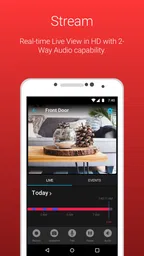
- Live video lets you check cameras remotely.
- Motion alerts can help you notice activity quickly.
- Two-way audio supports conversations through compatible cameras.
- Recorded clips make it easier to review past events.
- Camera controls and monitoring are available in one app.
What could be better
- Features depend on owning compatible Night Owl equipment.
- Remote viewing requires a reliable internet connection.
- Frequent motion alerts may become distracting.
- Cloud and recording options vary by camera and plan.
- Video quality can suffer with weak Wi-Fi or poor lighting.





