Neon Brush - Glow Draw & Paint review
 Analysis by Appsdrops
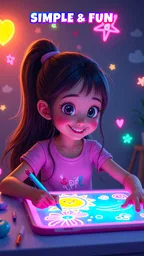
I can see Neon Brush working best as a shared creative diversion: one person sketches a glowing outline, someone else adds color, and the screen becomes a small, low-pressure art project. It is an Art & Design app from Neli Creative, built around luminous brushwork and vivid color rather than the broad toolset of a full digital painting studio. That focus makes it easy to understand, but it also sets expectations: this is for playful visual experiments, not a replacement for a serious illustration workflow.
Taking turns on a glowing canvas
In a household, the appeal is that the idea is immediately legible. You do not need to explain layers, complex settings, or a professional drawing process before someone can try a bright line or shape. I would use it for a quick doodle while waiting for dinner, a playful greeting card sketch, or a collaborative drawing where one person makes the outline and another adds accents. The neon look gives simple marks a clear identity, so even a rough drawing can feel intentional.
That simplicity can make the app a useful shared-device activity, especially when people want to create side by side rather than compete over a score or finish a structured task. A practical approach is to agree on a tiny prompt before handing over the device: draw a night sky, make a glowing sign, or add one detail to someone else’s picture. A specific prompt helps avoid the familiar shared-screen problem where everyone taps at once and the result becomes difficult to follow.
I would still treat a shared drawing as a casual session rather than a carefully managed family project. The value is in trying colors and seeing how bright strokes change the picture. If your household wants a long, guided art lesson, a drawing app with structured lessons or more conventional painting tools will be a better fit.
What the visual style is good at
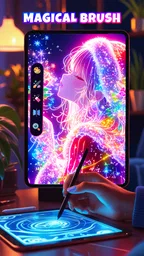
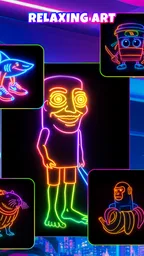
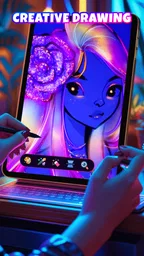
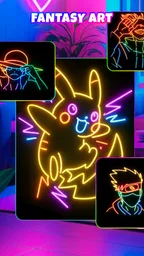
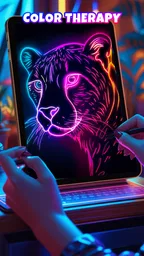
The central strength is its distinctive glow. Neon effects can make a simple line feel like a sign, a light trail, or a decorative accent, which is a different creative starting point from a plain pencil-and-paper simulator. I find that especially useful for small compositions with strong contrast: a dark-looking scene, a bold symbol, or a few bright shapes can communicate more effectively than a busy image with many competing details.
A useful tip is to plan the drawing around the effect instead of treating it as a finishing filter. Start with the main silhouette or lettering, then add a limited number of supporting marks. Too many glowing strokes can make the image feel crowded, because the bright treatment draws attention to every line. Leaving open space gives the luminous parts room to stand out and makes a quick sketch look more deliberate.
The trade-off is that a signature neon treatment naturally narrows the range of styles. If you want soft watercolor textures, precise technical diagrams, realistic shading, or a large collection of traditional media, this is not the tool I would reach for first. Its appeal comes from leaning into a particular visual mood, not from covering every kind of art.
Keeping a shared device comfortable to use
On a device used by several people, I would set a simple boundary before opening the app: decide who is drawing, whether the picture is a joint effort, and when the device goes back to its usual owner. That is not a special app feature; it is just a practical way to keep a quick creative session from turning into an argument over who gets the next turn. A short prompt and a clear handoff work better than trying to coordinate after everyone has already started drawing.
It is also worth being deliberate about what gets made on a shared screen. A child may want to experiment freely, while an adult may be using the same device for personal projects. If the device or the artwork matters to someone, agree beforehand on whether the session is just for disposable doodles or whether the finished image should be kept. I would not assume that a shared app automatically creates separate personal spaces or keeps each person’s work apart.
For a small group, taking turns on one drawing can be more satisfying than passing the device after every mark. One person can establish the subject, another can add a border or highlights, and a final person can decide when to stop. This makes the neon style a prompt for cooperation: each contributor can add a visible accent without needing to master a complicated set of tools.
Age, trust, and spending awareness
The app is rated for Everyone, which makes its stated age context broad, but I would still make the first session a shared one for younger children. That gives an adult a chance to see how the child approaches the drawing experience and to explain the household’s usual rules for device use. The age label is useful context, not a substitute for the boundaries a family chooses for its own devices.
Neon Brush is free to download, and it includes in-app purchases ranging from $2.99 to $23.99 per item. I would mention that clearly before handing a device to a child, particularly if the device can make purchases. An adult can review the available purchase choices in the app store and use the device’s normal purchase safeguards. This is a sensible precaution for any free app with paid items, not a reason to assume that a child will encounter a particular prompt or be able to buy something without permission.
For adults, the same price information is useful when deciding whether to keep the experience casual or spend more on it. I would first see whether the free version suits the kind of glowing sketches I want to make, then consider paid items only if they clearly improve a regular creative routine. The app’s central style is already easy to understand without turning the decision into a commitment to a full art suite.
Where it sits among drawing apps
Compared with a general-purpose painting app, this one has a narrower identity and a quicker visual payoff. Broad art tools are preferable when I need precision, detailed editing, or a range of media. A basic doodling app may be preferable for the simplest possible mark-making. Neon Brush occupies a more playful middle ground: it gives a casual sketch a bright, finished-looking character without asking the user to begin with a professional workflow.
That focus also helps answer who should skip it. If you are learning anatomy, preparing polished portfolio work, making diagrams that must remain readable, or looking for deep control over a complex illustration, choose a more comprehensive drawing tool. If your priority is a distinctive glowing look and a short creative session, the specialized approach is more appealing than a long menu of features you may never use.
A practical workflow is to make the main subject large, use the brightest strokes selectively, and reserve the final moments for cleanup rather than adding detail indefinitely. This is particularly helpful on a shared device, where another person may want a turn soon. A small, finished image is often more satisfying than an unfinished canvas crowded with extra marks.
What to expect from the app itself
The current version is 1.4.13, and the app has a 4.0 average rating from around 270 ratings. It has been installed over a million times, which suggests that its straightforward visual premise has broad appeal, while the rating leaves room for the usual variation in what people expect from a creative app. I would read those figures as context rather than proof that it suits every artist: the important question is whether the glow-centered style matches what you want to make.
It is free, with paid in-app items, and its minimum operating-system requirement is Android 9. Those details matter when a household shares older devices or when an adult is deciding which device to use for a drawing session. Before planning an activity around it, check that the device meets the requirement and consider whether the person using it is comfortable drawing on that screen. Small screens can make collaboration awkward, while a larger shared display gives people more room to see the composition as it develops.
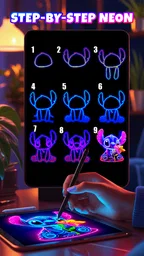
Because the app’s main appeal is visual rather than instructional, I would not hand it to someone expecting a step-by-step art course. It is better suited to experimentation: testing a color combination, making a quick decorative image, or seeing how a few luminous marks can transform a basic shape. That distinction helps set expectations and makes the first session more enjoyable.
My household verdict
Neon Brush is a good choice when the goal is a quick, cooperative burst of colorful drawing, not a complete digital art setup. I would recommend it to people who enjoy bold effects, casual doodling, and passing a creative prompt around a shared device. Its visual identity is clear, and that makes it easier for different experience levels to contribute to the same small project.
I would be more cautious if the household needs separate personal workspaces, a structured teaching experience, or advanced control for finished illustrations. Those needs call for a different kind of app, and the focused neon treatment may become limiting once the novelty wears off. For a simple evening activity, though, agreeing on turns, keeping purchase decisions with an adult, and giving each drawing a small goal can make the app feel thoughtful rather than chaotic.
Overall, I see it as a light creative tool with a distinct style and a useful role in shared-device downtime. Neli Creative has made an app whose strongest point is not breadth but atmosphere: a few bright strokes can turn an ordinary doodle into something worth showing around. If that is the kind of art you want to make, it is an easy option to try; if you need precision or a broad professional toolkit, I would look elsewhere.
What we like
- Glowing effects give sketches a distinctive neon look.
- Simple controls make it approachable for casual drawing.
- A dark canvas makes bright colors stand out clearly.
- Useful for creating quick decorative images.
- Multiple brush styles add variety to artwork.
What could be better
- Fine details can be difficult to draw with a finger.
- The neon style may not suit every art project.
- Small screens can make precise edits challenging.
- Some tools or content may require in-app purchases.
- Saving artwork in other formats may be limited.





