



My HomeScreen review
 Analysis by Appsdrops
I like the idea behind My HomeScreen: a phone’s home screen is where everyday tasks begin, so even small improvements to how it looks and feels can make a device more pleasant to use. This Android personalization app brings together a smart launcher, built-in tools, and a live news feed, aiming to make the home screen more than a place to park app icons. Its appeal is practical as well as visual: the launcher can shape a daily routine, while the extra content and tools offer more to explore without changing the purpose of the phone.
A home screen built around your routine
My HomeScreen is a free app from Tiki Media LTD, and its central pitch is easy to understand: transform your phone with a launcher, useful tools, and news in one place. Rather than treating personalization as a purely cosmetic exercise, it puts the home screen at the center of the experience. That makes the app worth considering if you want to adjust how you move between common tasks and prefer to make your first screen feel more tailored to you.
My first recommendation with any launcher is to begin with the way you already use your phone. Notice which apps you open most often, what you want to see at a glance, and which actions you tend to repeat. Then use the launcher’s available options to make those routines easier to follow. This approach is more reliable than changing everything at once: a home screen that looks striking but hides familiar choices can slow you down, while a few considered adjustments can make the device feel more natural.
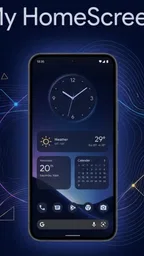
The app’s combination of a smart launcher, built-in tools, and a live news feed gives it a broader role than a simple icon makeover. The launcher is the foundation; the tools and feed are additional parts of the same home-screen experience. I’d treat those elements as things to organize around your actual habits, not as reasons to fill every available space. A useful screen should make the next action obvious, not turn each glance at the phone into another browsing session.
That balance matters especially for people who check their phones frequently. A home screen can be both a quick starting point and a place to discover information, but those purposes can compete. I’d keep the most frequently used actions easy to reach and make room for the news feed only if it genuinely fits the way I like to catch up. Personalization works best when it supports a routine rather than asking you to adopt a completely new one.
Start with a simple baseline
When setting up a launcher, I find it helpful to establish a dependable baseline before experimenting. Begin with a layout that feels familiar, place the apps you use most where you can reach them comfortably, and spend some time using the phone normally. That gives you a clear sense of what is helping and what is merely different. If a change makes a daily action easier, keep it; if it adds friction, revise it.
This gradual method is also a sensible way to judge whether My HomeScreen suits you. The app is designed for Android personalization, so the most meaningful test is not whether a layout looks impressive for a moment. It is whether the arrangement still feels clear after repeated use. A good launcher should help you recognize where things are and make common transitions feel straightforward.
Check the choices that shape daily use
Once the basic layout feels comfortable, I’d take time to review the settings that influence how the launcher behaves and appears. The exact choices worth changing depend on what the app presents on your device and on your own preferences. The useful principle is to adjust one thing at a time, then use the phone for a while before moving on. That makes it easier to tell whether a setting has improved the experience or simply changed it.
Think about visibility, familiarity, and attention. A home screen should be easy to scan, and the items you rely on should not get lost among decorative or less important elements. If a setting lets you make the interface feel more comfortable, consider whether the result helps you spot what you need quickly. For the live news feed, ask the same question: does it add value to your everyday screen, or would you rather keep the first view focused on apps and tools?
I also recommend keeping a mental note of the changes you make. You do not need a complicated setup plan; simply remember what you adjusted and how it felt during normal use. If the screen becomes harder to navigate, you can retrace your steps instead of making a string of unrelated changes. That kind of deliberate tuning is more useful than chasing a perfect arrangement in one sitting.
Build faster patterns through repetition
Experienced users often get more from a launcher by creating consistent habits than by constantly redesigning it. Once you settle on a useful arrangement, give yourself time to learn it. Repeatedly moving familiar items can undermine the benefit of having a personalized screen, because you have to relearn where things are. I prefer to make a purposeful adjustment, live with it, and only revisit the layout when a real need appears.
You can also think of the home screen as a map of priorities. Keep the actions you perform most often easy to find, and avoid giving equal prominence to everything. If the built-in tools fit into your normal routine, arrange your attention around the tasks they support. If the news feed is useful to you, decide when you want to check it rather than letting every glance become an open-ended scroll. These are simple habits, but they help the launcher remain a practical starting point.
Shortcuts are valuable when they reduce hesitation. Even without overcomplicating the setup, a consistent place for familiar apps can make everyday navigation feel quicker. The aim is not to create an elaborate system that takes effort to maintain. It is to make the screen predictable enough that you can reach the next step without searching. That’s the kind of convenience I’d look for in any smart launcher.
My HomeScreen’s live news feed adds another possible rhythm to the experience. Some people like seeing current stories as part of their first screen; others prefer to separate news from the tools and apps they use to get things done. Neither preference is inherently better. I’d judge the feed by whether it fits my attention and daily routine, and I’d keep the rest of the home screen clear enough that essential actions remain easy to spot.
Where a launcher can feel limiting
A launcher can reorganize the starting point of your phone, but it does not automatically make every part of the device simpler. The real benefit depends on how well its available options match your needs and how consistently you use the layout you create. If your expectations are modest and practical, My HomeScreen’s combination of launcher, tools, and news may be appealing. If you want a highly specific workflow, take time to explore the app itself and see whether its choices support that routine.
It is also worth remembering that personalization has a trade-off: more content and more choices can make the screen feel busier. A live feed may be handy, but it can compete with the main purpose of a home screen if it draws attention away from the apps you need. Likewise, frequent layout changes can make a carefully arranged screen less useful. I’d treat clarity as the priority and add only the elements that earn their place through regular use.
The app is rated for Everyone and is free to download, with in-app purchases listed at $7.99 per item. Its current version is 2.1.7, and it requires Android 8.0 or later. These details make it straightforward to check whether it fits your device and expectations before installing. My HomeScreen has a 3.1 average from 530 ratings, with 58 written reviews and more than 100,000 installs. That reception suggests it is worth approaching with your own priorities in mind rather than assuming a launcher will suit every Android user equally.
When evaluating any home-screen app, I’d focus on the experience after the novelty wears off. Does the layout remain understandable? Do the tools fit into your day? Is the news feed something you actually want nearby? Those questions are more useful than making lots of changes just to explore every option. A launcher earns its place when it supports a repeatable routine and makes the phone feel easier to approach.
My verdict after looking at the workflow
My HomeScreen has a clear, approachable idea: bring a launcher, built-in tools, and live news together to give your phone’s starting screen a more personalized role. I like that the concept can serve both practical and visual preferences, but I’d get the best result by keeping the setup deliberate. Start with familiar priorities, check the settings that affect everyday use, and make changes gradually instead of trying to reinvent the whole screen at once.
For someone who wants a fresh home-screen experience and likes the idea of having tools and news alongside a launcher, it is a reasonable app to explore. It may be less compelling if you prefer a minimal screen or want a very particular workflow that depends on options the app does not offer. In either case, the right test is how it feels during ordinary use, not how many adjustments you can make in a single session.
Overall, I see My HomeScreen as a personalization app best approached with a plan. Decide what you want to reach quickly, keep the layout consistent long enough to learn it, and let the feed and tools earn their space through everyday usefulness. That steady approach is what turns a new launcher from a temporary visual change into a home screen that genuinely feels like yours.
What we like
- Simple controls make it easy to personalize your home screen.
- Customizable layouts help give your device a distinct look.
- A lightweight design can keep the interface feeling responsive.
- Quick access to shortcuts can make everyday navigation easier.
- Useful for refreshing a phone without changing its core features.
What could be better
- Some customization options may require in-app purchases.
- Available features can vary between Android devices.
- Ads may interrupt the setup or browsing experience.
- Launcher changes may take time to configure to your liking.
- It may not offer the depth of more established launchers.





