

Learn how to draw - ArtWorkout review
 Analysis by Appsdrops
Learning to draw is easier to stick with when the next step is clear, and Learn how to draw - ArtWorkout is built around that idea. It is an art-learning app rather than a full digital illustration studio: its emphasis is guided practice, with lessons for painting, sketching, handwriting, and more. I’d recommend it to someone who wants a manageable way to practise regularly, especially if a blank page usually makes it hard to begin. I would not treat it as a substitute for professional drawing software or a personal teacher, though. Its value is in giving practice structure, not in promising instant results.
Getting oriented and choosing a lesson
ArtWorkout, made by developer ArtWorkout, sits in the art and design category. Its lesson-led approach makes the basic purpose easy to grasp: choose an area to practise, follow a guided activity, and build a habit through repetition. That is a more welcoming starting point than opening a general-purpose drawing app full of tools before you know what to do with them.
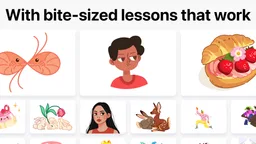
The app’s breadth is appealing, but it also creates a choice problem. A large library can help you move between sketching, painting, and handwriting as your interests change; it can also make it tempting to jump around instead of finishing a sequence. My practical advice is to pick one skill for a few sessions before sampling others. That gives you a better sense of whether the teaching style works for you, and makes it easier to notice progress than switching topics every time you open the app.
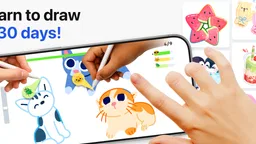
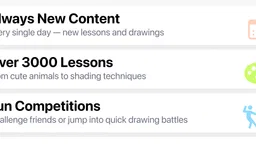
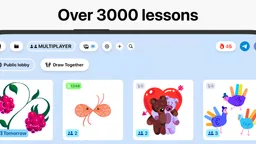
The scale is substantial: there are more than 2,500 lessons, and the app is described as a multiplayer drawing game as well as a place to learn. That combination may suit people who respond to playful practice, but it is worth separating the two ideas in your mind. A game-like framing can make starting feel less formal; it does not remove the need to slow down, observe, and repeat a technique if you want to improve.
Readability is about more than text size
For a learner, a clear task matters as much as a readable label. Guided lessons can reduce the mental effort of deciding what to draw next, leaving more attention for the movement and shape being practised. This is particularly useful if you are a beginner who gets stuck translating a broad goal such as “learn perspective” into an actual exercise. A lesson gives practice a narrower starting point.
Still, a guided format is not automatically clear for every person. Drawing instructions often ask you to divide attention between looking at an example and making marks yourself. If you need more time to process visual directions, pause between steps rather than trying to keep up with a brisk session. A phone screen may also feel cramped for close inspection, so a larger compatible screen can be the more comfortable choice when you have one.
I would use the app as a route through practice, not as proof that every lesson will suit every learning style. Some people learn best by watching a demonstration; others need written explanations, a teacher’s feedback, or room to experiment without prompts. If you already know that you prefer open-ended exploration, a blank-canvas drawing app may feel less restrictive. If you need a nudge to begin, the lesson structure is more likely to help.
Motor and sensory comfort during practice
Drawing asks for controlled movement, and a touchscreen introduces its own physical demands. If you use a finger, small details can be awkward; a stylus may offer a more natural grip and finer control, depending on your device and what you already own. I would not buy extra equipment before trying a short lesson with your usual setup. That quick test can reveal whether the screen, hand position, and amount of precision feel comfortable enough for regular practice.
For someone with limited dexterity, fatigue, or pain, the most useful adjustment may be pacing rather than technique. Try a brief session, rest your hand, and stop before discomfort becomes the reason you avoid the app altogether. Short practice windows can still be worthwhile: repeating a simple exercise with relaxed movement may be more productive than forcing a long session. The app is not a replacement for an adaptive tool or individualized instruction when those are needed.
Visual comfort deserves similar attention. Looking between a lesson and the drawing area can be tiring, especially in a bright room, on a small display, or when you are already experiencing eye strain. Take breaks and choose a setting where you can see the screen without leaning close. If sensory overload makes animated or competitive framing unpleasant, focus on the lesson itself and use only the parts of the experience that help you practise. The app’s overall concept may appeal to playful learners, but not everyone wants art practice to feel like a game.
Where it fits into an ordinary day
A realistic use case is a student waiting between classes, or an adult taking a few quiet minutes after work. Instead of deciding to “get better at art” and then postponing it, you can open a focused lesson and use that small window for one exercise. The benefit is not that a short session transforms your drawing; it is that the app can make practice easier to start. For that reason, I’d keep it somewhere convenient and choose a lesson before you have a spare moment, rather than spending the whole break browsing.
It can also work as a low-pressure way to explore handwriting alongside visual art. Someone who wants to practise lettering may appreciate having that interest under the same roof as sketching and painting. But if your goal is a specific professional workflow—layer-heavy illustration, detailed image editing, or preparing finished artwork for a client—you will likely want a dedicated creative tool. ArtWorkout is better understood as a practice companion than as the place to complete every stage of an art project.
Context matters, too. A quiet home setting gives you room to concentrate and adjust posture; a crowded commute may not. Drawing while moving or surrounded by distractions can make careful motor practice frustrating, even if the lesson itself is approachable. I would save detailed exercises for a stable moment and use spare time only when the activity is simple enough to enjoy without rushing.
What it does well—and where it may fall short
Compared with a typical free-form drawing app, ArtWorkout’s strongest distinction is that it puts learning activities ahead of an open canvas. That is a meaningful advantage for beginners who need prompts, and for returning artists who want a reason to practise rather than another set of tools to explore. In contrast, a broad drawing editor is usually the better fit if you already have a clear idea and want maximum control over the finished image.
The trade-off is that structured lessons can narrow the experience. You may want to make a detour, try an unusual subject, or spend a long time on one detail; a guided exercise is not always designed around that personal agenda. Nor does the presence of a large lesson library mean you will enjoy every topic or teaching approach. Treat the breadth as a menu, not an obligation, and move on when a lesson is a poor fit.
There is also a cost consideration. The app is free to download, while optional in-app purchases range from $4.99 to $69.99 per item. That is a wide span, so I would explore the free experience and decide whether the teaching style fits your routine before paying for anything. If you mainly want an occasional drawing prompt, a purchase may be harder to justify than it is for someone who expects to return to lessons often.
Its audience rating is Everyone 10+, which is useful context for families considering it for a younger learner. I would still make the first session a shared one if the child needs help navigating lessons or handling a touchscreen comfortably. The app has an average rating of 4.5 from around 476,000 ratings, and more than 10 million installs; those figures suggest broad interest, but they cannot tell you whether its pace or presentation will suit a particular learner.
Version, compatibility, and choosing the right fit
The current version is 0.1.91, and it requires Android 8.0 or later. Before building a routine around it, check that your device can run it and that the screen is comfortable for close visual work. The app is free to start, but the optional purchases make it sensible to understand what you personally use before spending. I would judge value by whether you return to practise, not by how many lesson topics are available in theory.
ArtWorkout is a strong candidate if you are new to drawing, want prompts instead of an empty canvas, or enjoy switching among sketching, painting, and handwriting exercises. It may also suit someone who benefits from a playful framing and needs practice to feel approachable. If you learn best through detailed written instruction, need substantial accessibility adaptations, or want advanced control over finished artwork, another tool—or a mix of a drawing editor and human instruction—may serve you better.
A useful invitation, not a universal solution
Overall, I see Learn how to draw - ArtWorkout as a practical way to make art practice less intimidating. Its strongest quality is the invitation to start with a specific activity instead of waiting for inspiration. Its limits are equally important: touchscreen comfort varies, guided lessons will not match every learning preference, and the playful format may not be ideal for focused professional work.
If you are curious, try a short lesson in the area you most want to improve, using the device and hand position you would normally rely on. Notice whether the instructions are easy to follow, whether you can work at a comfortable pace, and whether you want to practise again. That simple test is more useful than chasing a perfect setup. For the right learner, this free art-learning app can turn a spare moment into a small, repeatable step; for someone who needs freedom, detailed control, or specialized support, a different approach is the better choice.
What we like
- Offers guided drawing lessons for different skill levels.
- Provides a broad range of subjects and drawing styles.
- Interactive exercises help users practice at their own pace.
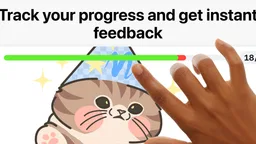
- Progress tracking makes it easier to see improvement over time.
- Suitable for short practice sessions on a mobile device.
What could be better
- Some lessons and features may require a subscription.
- A touchscreen stylus can improve precision over finger drawing.
- Beginners may find certain lessons challenging without basic skills.
- Drawing exercises can feel restrictive for users who prefer freehand practice.
- A stable internet connection may be needed to access some content.





