

Infinite Painter review
 Analysis by Appsdrops
I judge a drawing app not only by how many brushes it offers, but by whether I can find the right tool, make a controlled mark, and keep working when my hands, screen, or surroundings are less than ideal. Infinite Painter is a serious art-making app from Infinite Studio LLC, and its appeal is clear: it puts a broad painting and sketching workspace on a mobile device. In my experience, that flexibility is also its main challenge. The app can suit many kinds of creators, but a dense creative workspace is not automatically comfortable for every person or situation.
Finding your way around the canvas
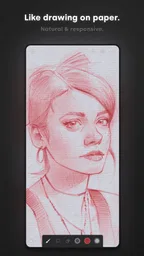
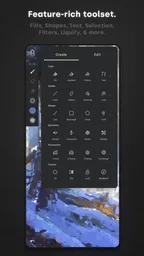
The first thing I would tell a new user is to treat the app as a toolset to learn gradually, rather than expecting every option to feel obvious on the first opening. Drawing apps need to keep the canvas prominent while making brushes, colors, and editing controls available. Infinite Painter aims at that demanding balance, and the result can feel capable without being instantly simple. If you are used to a bare-bones sketchpad, there is more to explore; if you already draw digitally, that depth may feel welcome.
I recommend beginning with a small, low-stakes sketch and learning only the controls you need for it. Choose a brush, make a few marks, undo them, and test how you move between drawing and adjusting the image. This is a more useful first session than trying to understand every tool at once. It also reveals whether the interface’s visual density works for you before you invest time in a larger illustration.
The app is in the Art & Design category and is built for painting, drawing, and sketching rather than for general-purpose note taking. That distinction matters when choosing it for a particular person: someone who wants a quick place to jot a reminder may prefer a simpler notes app, while someone who wants to develop a sketch into a more considered piece has a stronger reason to learn this workspace. Its store presence reflects a substantial audience, with an average rating of 4.5 from around 248,000 ratings and more than 10 million installs.
One practical navigation habit is to make a personal “starter routine” for recurring work. For example, I would use the same early steps for each character sketch: open a canvas, lay down a rough shape, refine the outline, then add color only if the drawing needs it. Keeping the routine consistent reduces the need to hunt through controls while concentrating on the image. This is especially helpful for beginners who can otherwise mistake a large toolset for a requirement to use everything.
Learning without getting lost
Infinite Painter is most approachable when you learn through a specific task. A few minutes spent drawing a mug, leaf, or simple room can teach more than browsing menus without a goal. I would also keep an early sketch deliberately disposable: experimentation feels less stressful when the result is not meant to be finished. That approach gives you room to learn how the app responds to your choices and where you personally need a slower pace.
The app’s version is 7.2.11, and its long-running presence in the category makes it a familiar option for mobile art-making. It was released on April 2, 2012, but longevity should not be confused with effortless usability. A mature creative app can offer depth and still require practice. If a user needs a very plain interface with almost no learning curve, I would not recommend choosing it solely because it is popular.
Comfort, control, and different ways of working
Motor comfort is central to drawing on a touchscreen. A fine line asks for steadiness; repeated small adjustments can tire a hand; and working directly on glass may feel less natural than using paper. Infinite Painter is therefore best judged with the device and input method the person actually plans to use. I would test a short drawing session before deciding whether the controls feel manageable, especially for someone who has pain, tremor, limited range of motion, or fatigue.
A useful way to reduce physical strain is to separate a task into short passes instead of trying to finish a detailed image in one sitting. First block in large shapes, then pause; return to refine the linework; add color in another session if needed. This workflow is not just about stamina. It also makes revisions easier because each pass has a clear purpose. The trade-off is that a multi-stage process may feel slow to someone who wants to capture a quick idea in one go.
For people who find precise finger drawing difficult, the key question is not whether the app is “accessible” in the abstract, but whether their device and preferred input make the canvas comfortable. I would try the same simple shape with the normal drawing method and compare how much correction it takes. If the input itself is the barrier, switching between apps may not solve it; a different device, stylus, or simpler drawing approach could matter more. I would avoid buying anything just on the assumption that it will remove every control challenge.
Sensory comfort deserves equal attention. A busy canvas and many visible choices can be energizing for an experienced illustrator but distracting for someone who is sensitive to visual clutter. I find it useful to focus on one operation at a time: draw, inspect, adjust, then continue. If the interface feels overwhelming, a narrow task—such as sketching only in one color—can make the session calmer and clarify whether the app itself suits the user.
When the setting changes
A phone makes it possible to sketch during a commute, in a waiting room, or beside a reference object at home. That convenience is real, but it comes with context-dependent limits: a small screen leaves less room for both the artwork and the controls, and drawing in a moving or crowded environment can make precise work frustrating. I would use a phone for thumbnails, visual notes, and rough ideas, then reserve detailed finishing for a larger screen if one is available.
Consider an everyday scenario: I want to remember the shape of a plant I saw while out. I can make a quick outline and note its broad proportions rather than trying to produce a polished botanical drawing on the spot. Later, I can revisit the idea and refine it when I have more space and attention. This is where a mobile art app earns its place: it helps preserve a visual thought before it disappears, without demanding that every session become a finished illustration.
Lighting and attention also affect usability. Glare can make a screen harder to inspect, while a noisy or interrupted setting can break concentration during careful linework. For that reason, I see short sketching sessions as a better fit for unsettled surroundings than intricate coloring or detailed cleanup. If a user needs to work for long stretches in a highly controlled, comfortable setup, a desktop drawing program or a tablet-focused workflow may be the more sensible choice.
Choosing it over simpler alternatives
Compared with a basic sketch app, Infinite Painter makes more sense when the user wants room to grow beyond quick doodles. A plain app can be the better choice for children just starting out, casual note-taking, or anyone who finds menus and tool choices tiring. On the other hand, a person who already paints digitally may value having a more substantial environment in one mobile app instead of switching tools for every stage of a drawing.
It is also different from a traditional paper sketchbook in a practical way: paper has no interface to learn and can be easier to use when screen interaction is uncomfortable, but it does not provide the same digital editing process. I would choose between them based on the task, not on a claim that one is universally superior. Paper is excellent for low-friction marks and tactile comfort; Infinite Painter is a better fit when the work benefits from digital revision and a more developed art workspace.
For a person comparing several digital art options, I would make a small test image in each candidate rather than relying on feature lists. Draw the same object, revise one part, and see which app lets you work with less strain and confusion. That test catches an important difference: an impressive set of tools is useful only if the person can find and control them. A simpler alternative may produce a better experience even if it offers less room for elaborate work.
Cost, audience, and practical limits
Infinite Painter is free to install, and it is rated for Everyone. In-app purchases range from $1.99 to $9.99 per item, so I would check what is included in the free experience and decide whether any paid option addresses a real need before spending. The app has around 11,000 written reviews as well as its large rating count, but popularity is not a substitute for trying the interface on the device and with the input method the intended artist will use.
The strongest candidate is someone who enjoys drawing, wants a mobile workspace with room to explore, and is willing to learn through practice. It can also work for a student building visual ideas, a hobbyist making personal illustrations, or an experienced artist who wants to sketch away from a desk. I would be more cautious recommending it to someone who needs extremely simple navigation, has difficulty making controlled touchscreen movements, or mainly wants a fast place to write text and reminders.
For inclusive use, I would not promise that one app can suit every ability or environment. A person should test readability and navigation at their usual screen size, try a brief drawing session, and notice whether the controls or visual density cause fatigue. A successful setup is the one that lets them make the art they want with a comfortable level of effort; if the app keeps getting in the way, a less complex tool is a valid and often better choice.
My inclusive verdict
I recommend Infinite Painter to people who want a capable mobile art app and are comfortable spending time learning its workspace. Its scale and established audience suggest that it has found a place among digital drawing tools, while its broad purpose gives users room to move from rough sketches toward more developed work. My honest reservation is that depth can become friction: the app is not automatically the easiest option for a new artist, a person with motor fatigue, or anyone drawing in a cramped, distracting setting.
My advice is to start with a simple, repeatable sketch and judge the experience by comfort as much as by the image you produce. If the controls make sense after a few focused sessions, the app offers a useful space for ideas that would otherwise stay in your head. If you find yourself fighting the interface or the touchscreen, choose a simpler drawing app, paper, or another input setup instead. The right choice is the one that makes drawing feel possible and enjoyable for you.
What we like
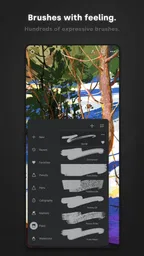
- Customizable brushes make it easy to shape a personal painting style.
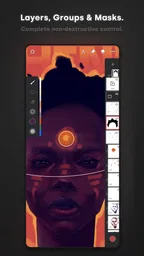
- Layers support non-destructive editing and more complex compositions.
- Symmetry tools help create balanced designs quickly.
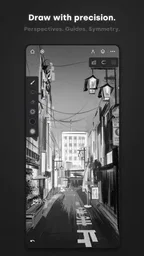
- Perspective guides are useful for architectural and scene sketches.
- The interface keeps many painting controls within easy reach.
What could be better
- The large toolset can feel overwhelming to beginners.
- Some features require a paid upgrade.
- Detailed projects can use substantial device memory.
- Small screens can make precise brushwork more difficult.
- Export options may not suit every professional workflow.





