HiPaint: Sketch, Draw & Paint review
 Analysis by Appsdrops
I like drawing apps most when they make the act of getting an idea onto the screen feel straightforward. HiPaint: Sketch, Draw & Paint is a free art-and-design app from HiPaint, aimed at people who want to sketch, paint, illustrate, or explore animation design on a tablet. Its appeal is not simply that it puts digital art tools in one place; it is that you can treat a tablet as a working canvas for moving from a rough idea toward a finished image. That makes it worth considering if you want to draw regularly without first committing to a paid desktop-style setup.
A canvas that encourages you to keep drawing
The central strength I would look for in HiPaint is its role as a hands-on drawing space. A digital canvas is useful only when it lets you concentrate on the marks you are making, rather than turning every small decision into a setup task. This app is built around painting and illustration, so it makes more sense as a place to create images than as a general photo editor or a tool for laying out polished documents.
That distinction matters if you are choosing among the usual alternatives. A basic sketching app can be quick to open but may feel limited once you want to develop a drawing. A larger professional art program can offer a deeper production environment, but that complexity may be unnecessary when you just want to sketch a character, test a color idea, or make a personal illustration. HiPaint sits in the drawing-focused part of that decision: it is for making art, not for replacing every creative app on your device.
I would also think of it as a tablet-first kind of experience, even though the app’s suitability depends on the device and the way you like to draw. A larger screen gives your hand room to work and makes a canvas feel less cramped; on a smaller screen, the same task can become more fiddly. If you mostly want to make quick notes or mark up screenshots, a lightweight markup tool may be more convenient. If you want to spend time shaping a drawing, a dedicated art app is the more natural fit.
HiPaint has an average rating of 4.3 from around 65,000 ratings, with about 1,700 written reviews and over 5 million installs. Those figures suggest that it has found a substantial audience, but I would not treat popularity as a substitute for checking whether its drawing approach suits you. The meaningful question is whether you want a focused canvas for illustration and painting, and whether you are comfortable learning the controls of a creative app.
What the drawing focus changes
In a drawing app, the important difference between “having tools” and “being useful” is how those tools support a workflow. I find it helpful to approach HiPaint with a specific goal rather than opening it and expecting the interface to explain every possibility at once. Start with a small sketch, establish the main shapes, and only then spend time refining details. This keeps the early work loose and makes it easier to judge whether the image is working before you invest effort in polish.
That sequence is especially useful for illustration. A character concept, for example, often benefits more from clear silhouettes and readable poses than from careful finishing at the start. I would use the first pass to explore proportions, then make a more deliberate pass over the version I like best. The practical insight is simple but easy to overlook: treat the first drawing as a decision-making stage, not as a near-final image. It reduces the temptation to overwork a direction that is not yet convincing.
For painting, the same principle applies to color. I would settle the broad relationships first—what feels warm, what needs to stand forward, and where the eye should go—before fussing over tiny edges. A screen can make a detailed image feel exciting while you are zoomed in, but the composition may still be hard to read at normal size. Periodically viewing the whole canvas is a useful habit in any digital painting workflow and helps prevent detail from hiding a weak overall arrangement.
How I would build a practical workflow
For a regular drawing session, I would begin by deciding what the finished image needs to do. A quick personal sketch has different demands from an illustration intended to share with friends. For the sketch, speed and experimentation matter; for a more finished piece, I would leave time to revise the composition and check whether the color and shape hierarchy still work when viewed as a whole. Thinking about the purpose first keeps the app from becoming a place where you endlessly tweak without making a clear choice.
A useful workflow is to divide the session into three mental passes: explore, clarify, and finish. In the exploring pass, try several rough approaches instead of committing to the first one. In the clarifying pass, choose the strongest idea and make its main forms easier to read. In the finishing pass, add only the details that help the image communicate. This is not a feature claim about the app; it is a practical way to get more value from a digital canvas and avoid mistaking activity for progress.
One non-obvious trade-off of drawing on a tablet is that convenience can encourage short, interrupted sessions. You may start a sketch while waiting for something, return to it later, and then lose the visual thread that made the first marks feel promising. I would leave a brief note for myself about the next step—such as “check the pose” or “simplify the background”—before closing the session. That small habit makes it easier to resume without staring at the canvas wondering what to fix.
Another useful approach is to keep reference and invention separate in your mind. If you are drawing from a photo or a real object, the reference is there to help you understand shape and proportion, not to force a literal copy. I would look away from it occasionally and ask whether the image still works as a drawing. This is especially valuable for beginners, who can otherwise spend most of their time tracing details and little time learning how forms fit together.
A realistic everyday use
Imagine you have a few minutes between tasks and want to develop an idea for a small poster or a character. I would open a blank canvas, block in a few possible compositions, and choose the version with the clearest focal point. Later, when there is more time, I would revisit that choice, make the shapes more deliberate, and test whether the colors support the mood. That is a realistic use for a portable drawing app: not necessarily finishing a major project in one sitting, but keeping a creative idea moving when a desktop setup is not nearby.
The same kind of staged use can help with personal projects. You might make a rough illustration for a birthday card, explore a new style, or sketch a scene before deciding whether it deserves a more polished treatment. The advantage is that the app gives you a place to work through those decisions instead of jumping straight from an idea to a finished-looking image. If your goal is a highly controlled publication workflow with specific production requirements, though, you should check that your chosen app and device suit those needs before building a larger project around them.
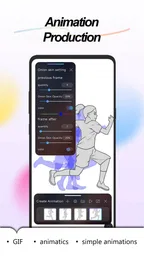
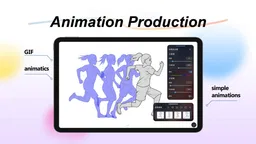
Animation design is also part of HiPaint’s intended creative territory, but I would be careful not to choose it solely on the assumption that it will replace a specialist animation package. A person exploring movement in drawings may find an art-oriented environment appealing, while someone producing a complex animated project may need a tool designed around a more dedicated production pipeline. The distinction is about the job you need done: experimenting with visual ideas is not the same as managing a demanding animation workflow.
Where the experience asks for patience
A drawing app can be frustrating even when its purpose is clear, because creative controls take time to become familiar. If you are new to digital art, expect a learning period: drawing on glass does not feel exactly like drawing on paper, and a screen-based workflow can make it easy to spend too long adjusting rather than practicing. I would give yourself a few low-pressure sessions to learn how you prefer to work before judging whether the app feels natural.
There is also a real difference between creating a picture and managing a complete creative project. People who need a highly specialized environment, a precise handoff process, or a familiar professional workflow should compare their requirements carefully with what they use now. HiPaint may be a sensible place to sketch and paint, but no single art app is automatically the best choice for every stage of a commercial project. If your current process depends on specialized tools, switching just for the sake of having another canvas may add friction rather than remove it.
Cost deserves a practical look too. The app is free to install, with in-app purchases ranging from $0.99 to $16.99 per item. I would begin by testing the free experience against the kind of drawing you actually want to do, then consider any purchase only if it addresses a concrete need. That is more useful than buying extras in anticipation of a project you may never start. The age rating is Everyone, which makes the audience broad, though younger artists may still benefit from an adult helping them understand any optional purchases.
HiPaint is currently at version 6.4.2 and requires Android 9 or later. If you are considering it for an older device, check your operating system before planning a workflow around it. That is a small but important practical step: creative apps are most useful when they run comfortably on the hardware you already intend to use. The developer is HiPaint, and the app was released on December 25, 2022.
Who is most likely to enjoy it
I would recommend giving HiPaint a try if you want a dedicated place to sketch, paint, and develop illustrations on a tablet, especially if your current habit is to capture ideas in a basic notes app and then abandon them. It is also a reasonable option for someone learning to think through a drawing in stages: rough shapes first, stronger structure next, and details only when they earn their place. Beginners can use that approach without needing to treat every canvas as a finished piece.
It may be less suitable if you mainly need photo editing, graphic layout, or a specialized animation workflow. In those cases, an app built around the specific task is likely to be more efficient than trying to bend a painting-focused tool into a different role. Likewise, if you strongly prefer working with physical materials, a tablet may not replace the feel and spontaneity of paper, no matter how convenient it is to carry.
For someone comparing it with other drawing apps, I would focus less on a long feature checklist and more on a short trial project. Make one rough sketch, revisit it later, and see whether the process helps you make decisions or distracts you with setup. That experiment tells you more than simply opening the app and browsing its controls. If the canvas encourages you to return and improve your idea, it is doing the most important job a drawing app can do.
My overall view is that HiPaint is most appealing as an accessible, art-focused workspace rather than an all-purpose creative suite. Its free entry point lowers the risk of trying it, while optional purchases mean you can decide later whether spending anything makes sense for your use. I would choose it for regular sketching and illustration practice, and I would look elsewhere when a project depends on specialized production tools. If you want a tablet canvas that gives ideas room to develop, it is worth a thoughtful try.
What we like
- The interface keeps core drawing tools easy to reach.
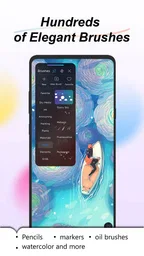
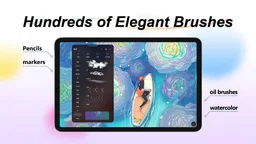
- Custom brushes allow a range of line textures.
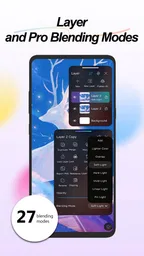
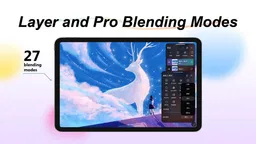
- Layers make complex artwork easier to organize.
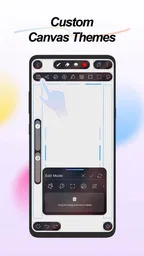
- Canvas settings support different project sizes.
- The app works well for quick sketches and detailed illustrations.
What could be better
- Some advanced features may take time to learn.
- Large canvases can demand more device memory.
- A stylus is preferable for precise drawing.
- Brush options may feel limited compared with desktop software.
- Some tools or content may require in-app purchases.





