

Google Home review
 Analysis by Appsdrops
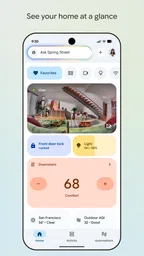
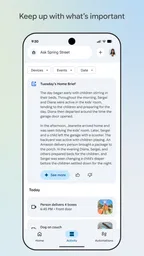
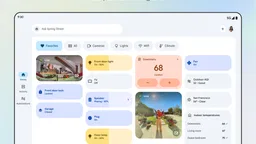
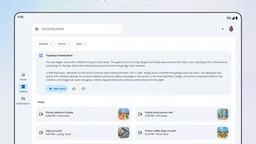
I see Google Home as a practical control panel for a connected home, but its value depends on what devices you already use and how comfortable you are managing them from a phone. It is a free lifestyle app from Google LLC, intended to bring compatible home devices into one place. In everyday use, the main appeal is having a single screen for checking and controlling supported Nest, Chromecast, and Google Home equipment instead of hunting through separate controls.
Finding your way around the home controls
The app’s central idea is straightforward: organize compatible devices so you can reach the controls you need from your phone. That can make a real difference when the alternative is remembering which device belongs to which separate app. I find this approach most useful when a household has several kinds of Google-compatible equipment and people need a shared point of reference.
Its interface is most comfortable when the home has been set up thoughtfully. Clear room and device names matter: “Living room lights” tells everyone more than a vague label, especially when multiple devices do similar jobs. I’d spend a few minutes naming devices consistently and grouping them by room at the start. That small bit of housekeeping makes later navigation less dependent on memory.
The app is not just useful for the person who originally connected everything. A family member or guest can understand a room-based arrangement more easily than a collection of unfamiliar model names. Still, the first person setting up a household may need to make decisions about device names and organization that affect everybody else. A tidy setup is part of making the app approachable, not an optional finishing touch.
For readers who want a sense of its reach, Google Home has a 4.0 average from around 3.7 million ratings, with over a billion installs. Those figures suggest broad use, but they do not guarantee that every home will have the same experience: compatibility and the devices in your own setup shape what the app can actually control.
Useful habits for clearer navigation
I recommend using names that describe a device’s purpose or location rather than relying on technical labels. If you have more than one display or speaker, a room name can reduce the chance of choosing the wrong one. When another person in the household needs to use the controls, ask them to try the layout before you consider the setup finished. Their hesitation can reveal confusing names or an arrangement that only makes sense to the person who built it.
Another useful habit is to treat the app as a control surface, not as a substitute for understanding the devices themselves. If something does not appear or respond as expected, check that it is a compatible device and that the issue is not with the device or its connection. The app gathers controls; it cannot make unsupported equipment part of the same system.
Different abilities, different ways of using it
Phone-based control can help people who find it easier to tap a screen than to reach a wall switch or operate a small physical control. It can also be useful when a user wants to make a change from another part of the home. For someone with limited mobility, being able to manage supported equipment from a familiar phone may reduce unnecessary movement, although that benefit depends on having the phone nearby and the relevant device working.
That convenience does not make the app equally easy for every motor ability. Touchscreens require accurate selection, and controls presented on a phone can be difficult for someone who has trouble making precise taps or holding a device steadily. I would not assume that every action can be completed without touch. If tapping is a barrier, the practical question is whether the particular household devices can also be managed through another control method that suits the person.
For people with low vision, the most helpful steps are often organizational: use distinctive device names, avoid creating several nearly identical entries, and keep the layout predictable. Those choices reduce the amount of visual searching and guesswork. The app may still be harder to use if text, icons, or screen layouts are not comfortable for an individual reader; I would test the actual controls on the person’s own phone rather than assume a single experience works for everyone.
Sensory needs vary just as much. A person who prefers quiet, visual interaction may appreciate controlling devices from a screen rather than relying on spoken commands. Someone who finds screens tiring may prefer another way to interact with their equipment. The important distinction is that Google Home is one route into a connected setup, not a guarantee that every device or task can be handled in the same sensory-friendly way.
My practical advice is to test the whole action that matters, not just whether the app opens. For example, ask the person who will use it to find a particular device, identify the right control, and complete a routine adjustment. A setup that seems obvious to its installer may be confusing to someone with different vision, motor control, or experience with smartphones.
When the phone is not the easiest route
There is a useful trade-off here: a central phone interface reduces the need to learn several control systems, but it also makes the phone a point of dependence. If the phone is elsewhere, unavailable, or difficult to operate, the benefit is reduced. I would keep familiar physical controls available where they are useful, rather than making the app the only way a household member can operate an important device.
This is especially relevant in a shared home. One person may enjoy managing everything from a screen, while another prefers a simple, familiar switch or a different interaction style. A good setup leaves room for both where the connected equipment allows it. That is a more inclusive arrangement than expecting everyone to adopt the same phone-based routine.
Access across everyday situations
Consider coming home with shopping bags and wanting to adjust a supported device without walking to its physical control. A phone-based dashboard can be convenient in that moment, provided the phone is accessible and the device is connected. Or imagine a household member in another room who wants to check a device without asking someone else to do it. Bringing several controls together can make those small tasks less dependent on another person.
These are modest benefits rather than dramatic transformations, but they matter because home controls are used repeatedly. The app can be especially helpful for people who already carry a smartphone and want one familiar place to manage compatible Nest, Chromecast, and Google Home devices. It is less compelling for someone with only one device and no interest in centralized control; the setup effort may outweigh the convenience.
It can also help visitors or relatives who are unfamiliar with a home’s equipment, if the owner has made the device layout understandable. I would not hand over a phone and expect the arrangement to explain itself. A short orientation—showing the room names and the controls that matter—can prevent mistakes and make the system feel less intimidating.
Google Home is rated for Everyone, and it is free to download. The app also includes in-app purchases, listed in a broad range from five cents to just under a thousand dollars per item; that range is not a reason to assume the core control experience itself requires a purchase. I would review any purchase prompt carefully and distinguish it from the basic purpose of controlling compatible devices.
The app has been available since July 2013, and its long presence has helped establish it as a familiar option for people using Google’s home-device ecosystem. That history alone is not a reason to choose it, though. For a household built around equipment from another ecosystem, the manufacturer’s own app or a different central platform may offer a more natural fit. I would choose based on the devices already in the home, not on the appeal of having one app in theory.
Where friction remains
The biggest limitation is the word “compatible.” Google Home cannot serve as a universal remote for every smart device, and a mixed-brand home may still require separate apps for products that do not work with it. Before rearranging a household around one control panel, check whether the actual devices you care about are supported. That is the difference between a genuinely useful hub and an extra app that only covers part of the home.
There is also a learning curve when the setup becomes complicated. A crowded device list, unclear names, or rooms that do not match how people think about the home can make navigation slower. This is not a problem unique to one person’s ability; it affects anyone trying to find the right control quickly. Regularly reviewing the layout can help, but it asks someone in the household to maintain it.
Another friction point is relying on a smartphone for tasks that might otherwise have a dedicated physical control. A screen is flexible, but it can require unlocking the phone, finding the right place, and accurately selecting an option. In a hurried moment, a familiar switch may be simpler. I would treat app control as an additional route rather than automatically replacing every existing one.
Compared with using each device maker’s own app, Google Home’s strength is consolidation for supported equipment. The trade-off is that a central interface may not be the best place for every device-specific task. If you only need detailed controls for one product, its own app may be clearer. If your home contains several supported Google-connected devices, the convenience of a common control point is more persuasive.
There are situations where I would skip it: if your devices do not fit its ecosystem, if you dislike controlling household equipment by phone, or if a family member needs an interaction method that the available devices and phone setup cannot comfortably provide. In those cases, a manufacturer’s app, a different home platform, or dependable physical controls may be the better choice. Choosing not to centralize everything is a reasonable decision, not a failure to use the app properly.
My recommendation for an inclusive setup
I recommend Google Home to people who already have compatible devices and want a shared, phone-based way to manage them. It can make daily control more approachable when the device list is organized around rooms and familiar names. Before relying on it, I would check the devices that matter most, then let each regular user try the setup with their own phone and preferred way of interacting.
For a more inclusive household, keep names plain, remove confusing duplication, and avoid making the app the only route to essential controls when another option is available. Test it in the situations where it will actually be used—while moving around, under time pressure, or by someone who did not set it up. Those checks reveal more than a quick glance at the home screen.
Overall, I find this a useful organizer for a compatible Google-oriented home, with real potential to reduce friction for people who benefit from remote, centralized control. Its limits are equally important: compatibility is selective, phone interaction will not suit everyone, and a messy setup can undermine the convenience. If those trade-offs fit your household, the app is worth trying; if they do not, keeping device-specific or physical controls in the mix is the more sensible choice.
What we like
- Set up and control compatible smart home devices from one app.
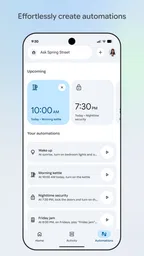
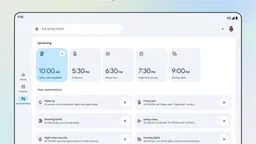
- Create routines to automate multiple actions with a single command.
- Manage speakers and displays across different rooms.
- Invite household members to control shared home devices.
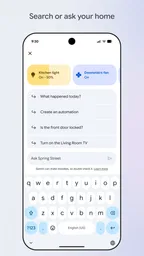
- Works with Google Assistant for convenient voice control.
What could be better
- Many features require compatible devices and a reliable Wi-Fi connection.
- Some devices need their manufacturer's app for setup or advanced controls.
- Routine options and device integrations can vary by region.
- The app may request access to personal data and device permissions.
- Troubleshooting connection problems can take several steps.





