






Amazon Alexa review
 Analysis by Appsdrops
I would think of Amazon Alexa as a companion for managing Alexa-enabled devices and services, rather than as a general-purpose lifestyle app that happens to answer questions. Its appeal is convenience: once the pieces are working together, a spoken request can be easier than opening several apps or walking across the room to adjust a device. The catch is that this convenience depends on setup, connectivity, and compatible equipment. When something goes wrong, the app can feel less like a simple remote and more like a control panel that needs a little patience.
Where Alexa users can get stuck
Amazon Alexa is a free lifestyle app from Amazon Mobile LLC, and its scale is reflected in its 4.1 average from around 5.9 million ratings. That gives me a useful broad signal, but it does not guarantee a smooth experience on every phone or with every connected device. The app has more than 100 million installs, yet the day-to-day experience still depends heavily on what you are trying to connect and how your home network is behaving.
The first source of confusion is often the difference between the app and the device. Installing Alexa does not, by itself, make a phone or an ordinary household appliance respond to voice commands. The app is most useful when you already have an Alexa-enabled device or a compatible service to connect. If you only want a digital assistant on your phone and do not plan to use connected hardware, it may not offer enough reason to become part of your routine.
Another sticking point is that a request can involve several links: the phone, the app, an internet connection, an Alexa device, and sometimes a separate service or connected product. If a command fails, it is tempting to assume the app is broken. In practice, the failure may be somewhere else in that chain. I find it more useful to identify exactly where the request stops than to repeat the same command or reinstall the app immediately.
There is also a learning curve in deciding what should be controlled through Alexa and what is simpler in its original app. A dedicated device app may offer more detailed settings, while Alexa can be a quicker place for routine voice interaction. Trying to use one as a perfect replacement for the other can lead to frustration. I would treat Alexa as a convenient shared control point, not assume it exposes every setting from every connected product.
Check the setup before blaming the app
When setting up a device, I would first confirm that the phone and the device are using the expected network and that the device is powered and ready to connect. Then I would follow the device’s own setup instructions and use Alexa to complete the connection. Small mismatches can make discovery confusing: a device may not be in pairing mode, may already be associated with another setup, or may simply need another attempt after its connection is restored.
It helps to work on one device at a time. Give it a clear name that is easy to say and distinguish from the names of other devices. If two lights or speakers have nearly identical labels, a voice request can be ambiguous even when everything is technically connected. A distinct room or purpose in the name can make later commands more reliable and reduce the temptation to troubleshoot a problem that is really just unclear naming.
If a connection stalls, I would avoid changing several things at once. Check power, confirm the device is ready for setup, and make sure the phone has a working connection. If the device has a manufacturer’s companion app, that app can help establish whether the product itself is online before Alexa is involved. Once the product works on its own, return to Alexa and retry the linking steps. This simple order separates a device problem from an Alexa setup problem.
The app is rated for Teen users, which is worth keeping in mind if it will be used on a family phone or around younger household members. It is available for free, though in-app purchases are listed from $0.99 to $99.99 per item. Those purchases are not a reason to assume that every basic interaction requires payment, but I would still check the details of any offered purchase before confirming it, especially on a shared device.
Recover a routine without starting over
When a command that used to work stops working, I recommend narrowing the test. First try the device directly, if it has a physical control or its own app. Then try a simple command through Alexa rather than a longer request involving several actions. If the simple request works, the issue may be with the particular wording, the device name, or one part of a more complicated routine rather than the whole connection.
For a household with several connected products, keeping names and responsibilities tidy is a practical form of troubleshooting. Use names that sound different when spoken, and avoid giving a device a label that could be mistaken for a room or a common command. If a request affects the wrong item, adjust the naming before rebuilding everything. That is a low-effort fix many people overlook because they expect the problem to be technical.
I would also keep a mental distinction between a device being absent and a device being unresponsive. If it no longer appears where you expect, revisit the connection and setup path. If it is visible but does not act, check whether it has power and whether it responds through its own controls. Repeating setup for a device that is already connected can add confusion; testing the simpler path first makes it easier to choose the right next step.
For recurring tasks, I would begin with one dependable use rather than trying to automate the whole home at once. A single routine request, such as controlling a connected light or asking for a piece of information while getting ready, shows whether the setup is stable. Once that works consistently, add another use. This staged approach makes it easier to notice which new connection or command introduced friction.
Know when the cause is outside Alexa
Alexa cannot make an offline device respond, restore a weak internet connection, or resolve a problem in a separate service simply by repeating a request. If several connected products stop responding at the same time, I would check the shared parts of the setup first, especially the network and the power supply, rather than treating each product as a separate app failure.
If only one product has stopped working, its own status and setup are better places to start. Check that it is powered, connected, and still operating through its own controls or companion app. If it fails there too, Alexa is unlikely to be the underlying cause. If it works independently but not through Alexa, then it makes sense to revisit the connection between the product and the assistant.
Voice recognition can create a different kind of false alarm. A request may be heard differently than intended, particularly when a device name is similar to an everyday word or another item in the home. I would try a clearer, shorter phrase and a more distinctive device name before assuming the assistant has lost access. That approach is especially useful in a busy room, where background conversation can make a command less clear.
For situations where precision matters more than speed, the product’s own controls may be the better choice. A dedicated app can be preferable when you need a specific setting that Alexa does not expose, while a physical switch is often the quickest fallback for a basic action. Alexa earns its place when voice access or a shared control point saves effort; it does not need to replace every other way of operating a device.
How it fits into everyday life
A realistic use for me is a morning routine: I can use a voice request to control a connected device while getting ready, then ask a quick question without stopping to search on the phone. The benefit is not that every task becomes effortless; it is that a few repeated actions can require less attention once the setup is dependable. If the device name is unclear or the connection drops, that advantage disappears quickly, which is why a careful initial setup pays off.
Compared with using each product’s own app, Alexa can be more convenient for quick, repeated actions across compatible devices. The trade-off is depth: the original app may be better for product-specific configuration, and a phone’s built-in assistant may be a more natural choice if you want help without connecting Alexa-enabled hardware. I would choose Alexa when the household already has devices or services it can bring together, and skip it if I had no intention of using those connections.
The current version is 2.2.730155.0 and requires Android 10 or later. That makes the phone’s operating system an important first check before troubleshooting installation or performance. The release date is November 17, 2014, so this is a long-running app rather than a new experiment, but the version and device compatibility still matter more to an individual user than its age or popularity.
My practical verdict
I would recommend Amazon Alexa to someone who already owns Alexa-enabled hardware or wants a shared way to control compatible products by voice. Its strongest use is reducing small bits of friction in repeated household tasks, not replacing every app or acting as a universal fix for connected devices. Start with one product, give it an unmistakable name, and test a simple command before building more elaborate habits around it.
I would be less enthusiastic about it for someone who only wants an assistant on a phone, dislikes troubleshooting connected devices, or needs detailed controls that live in a manufacturer’s app. Those users may be better served by the phone’s built-in assistant or by the individual product apps. For everyone else, the balance is straightforward: Alexa is useful when the connected setup is sound, but it is only as dependable as the devices and network behind it.
Overall, I see it as a practical convenience rather than a must-have for every phone. It is free to install, carries a Teen content rating, and offers a clear role in a connected home, but its value depends on whether that role matches your equipment and habits. If you are willing to do a little setup and keep a simple fallback for essential actions, it can make everyday controls feel more natural. If you expect it to fix device or network problems on its own, you are likely to be disappointed.
What we like
- Works with Alexa-enabled speakers and displays.
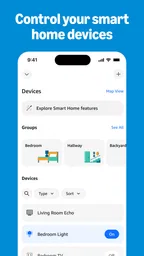
- Lets you control compatible smart home devices remotely.
- Supports routines for automating repeated tasks.
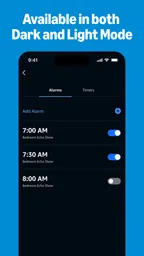
- Can manage timers and alarms from your phone.
- Offers voice shopping and package tracking features.
What could be better
- Many features require an Alexa-enabled device.
- Some smart home devices need a separate hub.
- Voice controls depend on a reliable internet connection.
- Shopping features may encourage accidental purchases.
- Some features vary by country and language.





