Glow Art Drawing - Doodle App review
 Analysis by Appsdrops
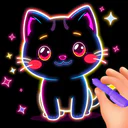
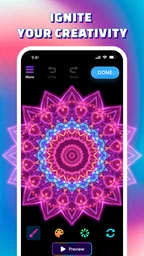
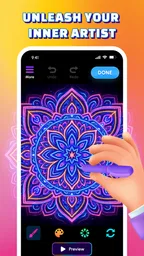
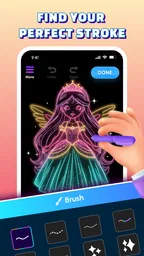
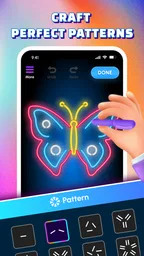
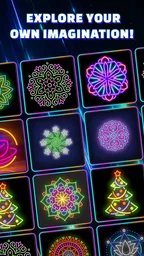
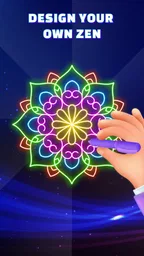
I’d approach Glow Art Drawing - Doodle App as a casual creative tool, not a full digital-art studio. Its appeal is the glow-focused drawing idea: it gives doodling a playful visual identity, which can make a blank screen feel less intimidating than a conventional canvas. I find that useful when the goal is to make something expressive quickly, rather than learn a complicated illustration workflow.
A playful drawing app, with a trust question worth asking
The app is in the Art & Design category and is developed by Braly JSC. It is free, rated for Everyone, and has an average rating of 4.1 from around 3,600 ratings. More than 5 million installs suggest that many people have tried it, but popularity alone does not tell me how it handles personal information or what choices it offers inside the app. I would treat those as practical questions to check during setup, not assume the answers.
That distinction matters because drawing can feel personal even when the subject is simple. A child might sketch a name or a favorite character; an adult might use the canvas to unwind or draft an idea. If I were installing it, I would pay attention to any permission request and ask whether it makes sense for the task I’m doing. A drawing app does not automatically need access to every part of a phone just because it creates images.
What the glow-first approach is good for
The central appeal is straightforward: make doodles that look bright and decorative instead of treating every mark as a step toward a polished painting. That changes how I would use it. I’d reach for it to fill a few spare minutes, make a playful image, or experiment with a visual effect—not to produce detailed line art that needs exact control and professional finishing.
Compared with a general-purpose sketching app, a glow-centered tool can be more inviting when atmosphere matters more than precision. The trade-off is that a specialized look may become limiting if I want subtle shading, natural media, or a carefully layered illustration. If your priority is a broad toolkit and fine control, a more established drawing workspace is likely a better fit. If you want an easy entry point for luminous doodles, this concept is more focused.
Use it with a small, deliberate workflow
For an everyday session, I would start with a simple subject that reads clearly at a glance: a star, a flower, a small icon, or a loose abstract pattern. A glow effect can make decorative marks feel energetic, but it can also make a crowded image hard to read. Leaving empty space around the main shape is a useful way to keep the result from turning into a tangle of bright strokes.
One practical habit is to decide what the drawing is for before starting. If it is only a few minutes of relaxation, exploratory marks are the point. If I want to share or keep the result, I would first make a simple composition and avoid adding detail just because the visual treatment makes each mark look exciting. That restraint helps the finished image feel intentional rather than busy.
Another useful approach is to treat the canvas like a quick idea board. I might sketch a rough motif for a card or a personal wallpaper concept, then stop once the shape and mood are clear. That keeps expectations realistic: a doodle app can help me explore an idea, but it is not automatically the right place to prepare a print-ready design or a precise client asset.
Check choices rather than guessing about privacy
I can’t responsibly infer a privacy policy, account system, or permission list from the app’s name or category. Instead, I’d make the first launch a deliberate check. Read each permission prompt in context, decline anything that is not needed for the activity you intend to do, and see whether the core drawing experience still works. If the app offers a privacy notice or settings for data and account choices, review those before adding personal details.
This is especially sensible if a child will use the app. The age rating is Everyone, but that is not a substitute for a parent checking the actual prompts and on-screen choices. I’d open it together, explain that a drawing does not need a real name or other identifying details, and avoid entering personal information unless there is a clear reason. These are cautious habits, not claims about what the app collects.
A second data-sensitive moment can come when saving or sharing artwork. Before sending an image elsewhere, look at the picture itself: names, school details, faces, or other clues can appear in a drawing even when the artwork seems casual. I’d also check the destination in the phone’s sharing interface rather than tapping through quickly. That advice applies to any drawing tool, but it is easy to overlook when the focus is on making something bright and fun.
How much control should you expect?
The best reason to choose a focused doodling app is that it may lower the effort needed to start. The downside of that simplicity is that users who want extensive control may soon want a different tool. Before committing a longer project to it, I’d test a small sketch and see whether the available choices support the way I like to draw. That quick trial answers a more useful question than judging the app by its visual premise alone.
I would also keep a distinction between creating and keeping. If the app presents a save, export, or sharing choice, read the prompt and select only what you need. If you want a drawing to remain private, do not assume that a particular button or cloud-like symbol means the same thing across apps; check the wording on screen. A clear, user-controlled choice is more important than a feature that sounds convenient but is not understood.
For someone comparing alternatives, the decision is less about which app has the longest tool list and more about the intended result. A broad sketch app is preferable for careful edits, varied styles, and projects that may grow over time. Glow Art Drawing is the more natural candidate when the desired result is a quick, luminous doodle and a relaxed session. I would not use it as my only art app if precision, advanced composition, or a dependable production workflow were central to my work.
Who I’d recommend it to—and who should pass
I’d recommend Glow Art Drawing - Doodle App to casual creators who enjoy decorative effects, beginners who find a blank canvas daunting, and anyone looking for a low-pressure way to sketch. It may also suit families who want a simple creative activity, provided an adult checks the app’s choices and stays involved where appropriate.
I’d suggest skipping it if you need a detailed illustration environment, want strong control over every part of a finished image, or are uncomfortable installing an app before reviewing its permission prompts and privacy information. The free price removes a purchase decision, but it does not remove the need to decide whether the app’s requests and choices suit you.
The app is currently at version 1.0.23, and it was released on May 29, 2026. Those details are useful context, but they do not tell me whether a particular feature will suit your drawing habits. I’d start with one short sketch, assess the controls and any prompts as they appear, and only then decide whether it deserves a place in your regular creative routine.
My cautious verdict
My overall view is favorable for the right kind of user: this is best understood as a playful, glow-oriented doodling option rather than a replacement for a full art suite. I like the focused premise because it gives quick creative sessions a clear purpose, while the same focus may frustrate someone seeking depth and precision. Braly JSC’s app has broad reach and a solid average rating, but neither is a substitute for checking the choices that matter to you.
If you install it, try a small drawing first, keep personal details out of the artwork, and review each permission or sharing prompt instead of accepting by habit. That approach lets you judge the actual experience without assuming more than the app shows. For a relaxed burst of bright doodling, I’d give it a try; for sensitive work or a serious illustration project, I’d choose a tool with controls and privacy choices that I have personally evaluated for that purpose.
What we like
- Easy-to-use controls make doodling approachable for beginners.
- A wide range of colors supports varied artwork.
- Glow effects give drawings a bright neon look.
- Freehand drawing encourages creative experimentation.
- Finished artwork can be saved for later viewing.
What could be better
- Small screens can make detailed drawing difficult.
- Finger drawing offers less precision than a stylus.
- Ads may interrupt the creative process.
- Glow effects may not suit every art style.
- A limited canvas can restrict larger projects.





