
Garmin Drive™ review
 Analysis by Appsdrops
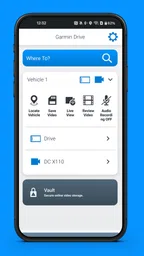
I would approach Garmin Drive™ as a companion for a Garmin-focused driving setup, not as a universal replacement for every navigation app on your phone. That distinction makes it easier to judge what it can do for you: its value is in helping a drive feel more organized when your routine already involves Garmin, rather than promising that one app will solve every road problem. As a free app in the auto and vehicle category, it is straightforward to try, but a good first experience depends on having a clear idea of what you want it to help with.
What to expect from a driving companion
The name can make a first-time user expect a complete, standalone sat-nav app. I would set expectations more carefully. Garmin Drive is made by Garmin, a company closely associated with navigation and driving equipment, and it makes most sense when considered as part of that broader ecosystem. If you already use compatible Garmin equipment, the app may fit into a familiar setup. If you do not, check that it supports the device or workflow you have in mind before building your daily routine around it.
That ecosystem angle is the first useful trade-off. A general-purpose maps app is often the obvious choice when all you need is directions on a phone. Garmin Drive is more appealing if you want your phone and Garmin-related driving setup to work together. I would not assume that installing it alone gives you every capability associated with Garmin hardware, nor would I assume that every Garmin device behaves the same way with it.
The app is free, has an Everyone age rating, and has reached over a million installs. It holds a 3.8 average from around 24,000 ratings, alongside roughly 4,500 written reviews. Those figures suggest plenty of people have tried it, but they do not tell you whether it suits your particular equipment. For a new user, compatibility and the kind of driving task you want to manage are more useful questions than popularity alone.
In practical terms, I would treat the first session as a test of fit, not a commitment. Think about where the app would sit in your routine: before leaving, while preparing a route, or alongside a Garmin device during a drive. The best first goal is modest—get the app set up and confirm that it works with the equipment or use case you actually care about.
Set it up around your real driving routine
After installing it, I would begin by checking the app’s available setup choices and following the prompts that apply to my situation. If I have a Garmin device, I would keep it nearby and confirm that it is the model I intend to use with the app. If I am exploring without one, I would first look at what the app offers on its own rather than presuming a phone-only experience will match a paired setup.
That small bit of preparation avoids a common frustration: spending time tuning an app before finding out that the feature you wanted depends on a particular device. Write down the exact task you want to accomplish—such as preparing a drive or linking your existing setup—and use that as your test. It is more informative than tapping through every menu without a goal.
For a first-time user, I also recommend doing this at home, not in the car with the engine running and a departure looming. You can read setup prompts carefully, check the device you mean to connect, and resolve any pairing confusion without dividing your attention. Once everything appears ready, make a short, familiar trip your trial run. A known route gives you a way to judge whether the setup is useful without relying on it for an unfamiliar journey right away.
My first meaningful success would be simple: get the app and the relevant Garmin setup into a state where I can confidently prepare for a drive, then check that the information I expect is available where I need it. I would avoid changing several settings at once. If something does not behave as expected, changing one thing at a time makes it much easier to tell whether the issue is the phone, the Garmin device, or a missed setup step.
Make the first trip a low-pressure test
Imagine leaving home for a regular weekday appointment. Before setting off, you open Garmin Drive, check that your intended setup is ready, and make sure the Garmin device you plan to rely on is connected or otherwise available as expected. Then you use the familiar trip to see whether the app fits naturally into your preparation. The point is not to test every possible function; it is to confirm that the part you need is dependable enough to become a habit.
This is a better trial than waiting until you are late and trying to pair equipment in a parking lot. It also reveals a practical distinction between a phone map and an ecosystem companion. A phone map can be enough when you want directions immediately. A Garmin-oriented workflow may be worth the extra setup if it keeps your existing driving equipment involved. Whether that is an improvement depends on how you travel and what hardware you already own.
A useful tip is to keep your first test deliberately ordinary. Choose a route you know, check the result before leaving, and notice whether you have to repeat steps or hunt through menus. That experience tells you more about everyday convenience than a complicated trip would. If the routine feels awkward on a simple journey, it is worth resolving that friction before trusting it on a longer drive.
Where new users can get confused
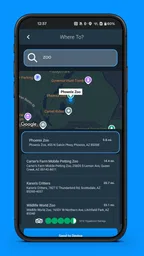
The first likely misunderstanding is expecting the app to replace a dedicated navigation device in every situation. It may be more useful as a companion than as a standalone solution, so I would verify the exact role it plays with my equipment instead of judging it against a phone map feature for feature. If you only want quick directions and do not use Garmin hardware, a familiar maps app may be the simpler choice.
Another source of confusion is assuming that the app’s name tells you exactly what will happen after installation. The practical experience can depend on the setup you bring to it. Before troubleshooting, check that you selected the intended device or use case and that you followed the relevant pairing or preparation steps. If a feature you expected is not visible, revisit the setup rather than repeatedly reinstalling or changing unrelated options.
It is also easy to confuse “installed” with “ready for the drive.” I would treat those as separate checkpoints: first confirm the app opens and the setup is complete; then confirm the particular information or connection you need is present before moving off. That simple check matters especially when the phone is only one part of a larger driving arrangement.
Finally, do not let a smooth first setup create false confidence about every route or device combination. A familiar local trip is a useful check, not proof that every future journey will work identically. If you are heading somewhere unfamiliar, prepare in advance and keep a backup way to get directions. That is sensible with any navigation arrangement, and especially so while you are still learning how this one fits your vehicle setup.
Who will get the most from it
I would recommend giving Garmin Drive a try if you already use Garmin driving equipment and want to see whether an app-based companion makes your routine easier. It is also a reasonable option for someone considering a Garmin setup who is willing to check compatibility first. The app’s free price lowers the cost of trying it, although time spent setting it up is still a cost; a quick compatibility check can save you from investing in the wrong workflow.
It is less compelling for a driver who simply wants a map on a phone, has no interest in Garmin equipment, or prefers to avoid pairing and device-specific setup. In those cases, the usual navigation apps may get you moving with fewer steps. I would also think twice if you need a single app to serve as a guaranteed all-in-one tool for every vehicle and trip. Garmin Drive is best evaluated in the context of the Garmin products and tasks you actually plan to use.
The current version is 4.29.38, and the app requires Android 9 or later. Those details are worth checking before installation, particularly if you are using an older phone. The app first appeared on October 17, 2017, so it is an established product rather than a new release, but that alone does not guarantee that your specific equipment will work as you expect. Confirm the match for your setup before relying on it for an important journey.
Decide after one ordinary drive
My recommendation is to start with one clear task, set things up while parked, and test the result on a route you already know. If that makes preparing to drive easier and works with your Garmin equipment, the app has earned a place in your routine. If the setup adds steps without improving your experience, there is little reason to force it; a standard phone navigation app may be the better fit.
Overall, Garmin Drive is a sensible try for drivers who want to connect their phone experience with a Garmin-oriented driving setup. I would not recommend it as an automatic replacement for every map app or as a reason to assume all Garmin hardware works identically. Its strongest case is specific: when the devices and workflow match, it can be a useful part of getting ready for a trip. That is the first success I would look for before deciding whether to keep using it.
What we like
- Clear turn-by-turn directions are easy to follow while driving.
- Live traffic updates can help you avoid delays on supported routes.
- Voice control lets you manage navigation with fewer taps.
- Saved destinations make repeat trips quicker to start.
- Compatible Garmin devices can receive calls and notifications.
What could be better
- Some live features require a compatible Garmin device.
- Traffic and other live services may depend on a phone connection.
- The app may request location access while running.
- Compatibility varies across Garmin navigator models.
- Using navigation can increase battery consumption.





