
Fine Lock (only for Samsung) review
 Analysis by Appsdrops
I think of Fine Lock as a useful bridge for Samsung owners who want to explore Good Lock and Good Guardians modules but need a convenient way to find and open them. It is a personalization app from YUH APPS, and its appeal is specific: it helps organize access to Samsung’s customization tools rather than replacing them with a new launcher or applying a complete theme by itself. In my experience, that distinction is the key to deciding whether it belongs on your phone.
From a Samsung phone to a more personal setup
Imagine setting up a Galaxy phone and wanting to change more than its wallpaper and icon pack. You may have heard about modules that let you adjust parts of the interface, but you do not want to spend your evening searching through scattered app pages to work out where to begin. Fine Lock is designed for that starting point: it gives you a place to discover and launch modules associated with Samsung’s Good Lock and Good Guardians tools.
That makes it different from the usual Android personalization apps. A conventional icon pack or wallpaper app gives you a finished visual layer to apply. Fine Lock is more of a doorway into Samsung-specific customization. The eventual changes depend on the modules you choose, so the app is most valuable to someone who wants to shape a Galaxy phone through those tools, not to someone looking for a one-tap makeover.
The app is free, rated for Everyone, and has been available since June 11, 2019. It has a 4.3 average from around 66,000 ratings, with over 10 million installs. Those figures suggest that it has found an audience among Samsung users, though they do not mean every module or every device setup will behave identically.
Why a launcher matters in this particular workflow
The practical problem Fine Lock addresses is not a lack of customization ideas; it is the effort involved in getting from “I want to change this” to the right Samsung tool. A launcher gives those tools a more approachable starting point. Fine Lock’s store summary emphasizes access to Good Lock and Good Guardians modules without ads, so its role is primarily discovery and launching rather than acting as a module itself.
That distinction helps set expectations. If you install it hoping to rearrange every part of your phone from inside one screen, you may find the experience less direct than expected. You use Fine Lock to reach the relevant module, then the module is where the customization work happens. I see that as a sensible division of labor, but it does mean the overall experience involves handoffs instead of one all-in-one editor.
Moving from an idea to a module
My recommended approach is to begin with one concrete change. Perhaps the navigation area feels awkward, or you want more control over a particular part of the Samsung interface. Rather than opening a long list and installing tools at random, identify the outcome you want first, then use Fine Lock to look for the related Good Lock or Good Guardians module.
This small planning step matters because module-based customization can otherwise turn into a collection exercise: install several tools, explore them briefly, and forget which one changed what. Starting with a single goal gives you a clearer way to judge whether the module is useful. It also makes troubleshooting easier, since you can connect a change to the tool you used instead of trying to untangle several adjustments at once.
Once you have found a module, Fine Lock’s job is to get you to it. The module handles its own controls and changes, so expect to move between the launcher and the tool rather than complete the entire task in one place. For a first session, I would make one adjustment, leave the module, and check the phone in ordinary use. A change that seems attractive in a settings screen may feel distracting when you are navigating quickly or using the phone one-handed.
A useful everyday example is making a Galaxy phone more comfortable for a commute. You notice that a particular interface detail slows you down while checking messages or switching tasks. Instead of changing several visual and behavioral settings at once, you use Fine Lock to reach the appropriate Samsung module, adjust only the relevant option, and then try it during the next few routine sessions. If it helps, keep it; if it does not, you know which module to revisit. That focused loop is more reliable than changing a whole set of options and then guessing which one caused a problem.
Where Fine Lock hands the work over
The most important handoff is between Fine Lock and the Samsung module you want to use. Fine Lock provides the route; the module provides the actual controls. This arrangement is useful when you want a central place to access a family of tools, but it can feel fragmented if you expect the launcher to explain every setting or apply changes itself.
There is also a broader handoff between your plan and your device’s own software environment. Samsung’s customization tools are intended for Samsung phones, and the experience is not the same as installing a generic Android theme app on any handset. Before building a setup around a particular module, it is wise to check that it is relevant to your device and software environment. Fine Lock’s Samsung focus is a strength for the right owner, but it is also a firm boundary.
One practical tip is to keep a short note of the module and setting behind any change you particularly like. That is especially helpful if you later want to undo or refine it. The launcher makes access easier, but it does not remove the need to remember which module owns a setting. A second useful habit is to make changes in small batches, then use the phone normally before continuing. This makes the handoff between discovery and real-world use much easier to evaluate.
What the finished setup feels like
When the workflow goes well, Fine Lock fades into the background. You use it to reach the tools, make the adjustments in those tools, and then judge the result in the places you actually use your phone. The payoff is not simply having more options on a screen; it is being able to make a Galaxy interface feel more suited to your routines without treating every setting as a project.
That outcome is personal rather than dramatic. A small change that makes a control easier to reach may matter more than a highly customized look that takes time to maintain. I would judge success by whether the phone feels more comfortable after a few days, not by how many modules I have opened. Fine Lock works best as part of a deliberate setup, not as an invitation to keep adjusting things for their own sake.
Compared with a standard launcher, Fine Lock serves a different purpose. A replacement home-screen launcher typically changes how you navigate the home screen and app drawer. Fine Lock instead points Samsung users toward Samsung’s own module ecosystem. If you want a new home-screen layout, icons, or a broad visual overhaul, a conventional launcher or theme option is likely the more direct choice. If your interest is the range of Samsung-specific tools, Fine Lock is the more relevant starting point.
Friction worth knowing before you commit
The biggest limitation is that Fine Lock is not a universal customization suite. It is tied to Samsung’s modules, so owners of other Android brands should skip it and choose tools designed for their phones. Even Samsung users who only want a quick wallpaper change may find that a simpler personalization app gets them to the result faster.
The second trade-off is the multi-step nature of the experience. Finding a tool in a launcher and then working inside that separate module adds a little friction compared with a single editor. That is not necessarily a flaw; it reflects how the ecosystem is organized. Still, users who prefer one interface, one settings area, and minimal exploration may find module-based customization less comfortable.
It is also worth keeping expectations measured when trying changes. A module’s presence in the workflow does not guarantee that every option will suit every Galaxy model or software setup. If an option is unavailable or behaves differently on your phone, do not assume Fine Lock itself is malfunctioning; the relevant module and device context matter. I would avoid changing several related settings at once, because that makes it harder to identify which adjustment produced an unwanted result.
Fine Lock is free to install, with in-app purchases listed at $1.99 per item. Its core appeal is easy to understand without spending money: it offers an ad-free way to launch the Samsung modules it focuses on. If you are trying it casually, start with the free experience and see whether the module-based approach fits how you like to customize. The app’s 4.3 average and sizable community can be reassuring context, but your own device and preferred workflow should be the deciding factors.
Who I would recommend it to
I would recommend Fine Lock to Galaxy owners who are curious about Good Lock or Good Guardians, want a more organized route to their modules, and do not mind moving between separate tools. It is particularly appealing if you enjoy tuning specific parts of the Samsung experience rather than replacing the home screen wholesale. The developer is YUH APPS, and the app’s focus stays closely tied to that Samsung-centered use case.
I would skip it if you use a non-Samsung phone, want a ready-made theme, or expect a single app to contain every customization control. I would also choose a standard launcher if my main goal were changing the home screen itself. Those alternatives are not better in every situation; they are simply closer to those particular goals.
My overall view is that Fine Lock is most useful when you approach it with a specific change in mind. Let it help you find the right Samsung module, make one adjustment, and test the result in daily use before moving on. That keeps the process manageable and makes the outcome easier to trust. If that kind of hands-on, Samsung-specific tuning sounds appealing, it is a worthwhile place to begin; if you want instant, broad customization with no handoffs, another category of app will feel more natural.
What we like
- Provides quick access to Good Lock modules from one place.
- Shows module updates without requiring a separate search.
- Offers useful customization options for compatible Samsung phones.
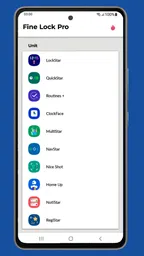
- Keeps module shortcuts organized in a straightforward interface.
- Can launch installed modules directly from Fine Lock.
What could be better
- Many modules must be downloaded separately from the Galaxy Store.
- Module availability varies by device model and Android version.
- Some features may require a separate plugin installation.
- Updates can arrive later than they do through Samsung channels.
- It is useful only on compatible Samsung Galaxy devices.





