

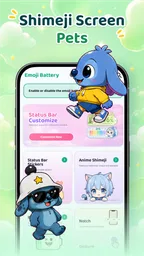
Emoji Battery: Icons & Pets review
 Analysis by Appsdrops
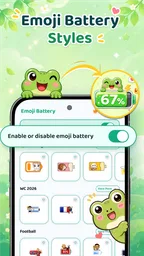
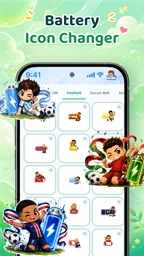
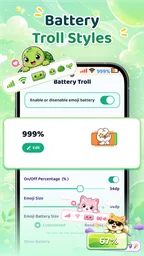
Emoji Battery: Icons & Pets is a personalization app for people who want their phone’s battery and status bar to feel less plain. Its appeal is easy to understand: a battery indicator is something I glance at all day, so giving it a bit of character can make a familiar screen feel more personal. The app also brings screen pets into the mix, which makes it more playful than a simple battery-style picker. My main advice is to approach it as a visual customization tool, not as a way to improve battery life or change how the phone works.
Where setup can feel less straightforward
The first thing to keep in mind is that personalization apps often have to work around differences between Android phones. A theme may look tidy on one screen and less clear on another because status bars, notches, icons, and system layouts vary. If a design seems misplaced or crowded, that does not necessarily mean the app has failed; the phone’s own display conventions may be part of what you are seeing.
I would start by choosing one visual element at a time. Try a battery style first, then check how it appears on the home screen and in everyday use before adding a status bar theme or notch design. This makes it easier to identify which choice is responsible if something looks awkward. It also helps avoid the common trap of changing several parts at once and then not knowing which one to undo.
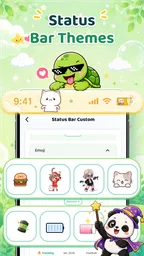
The app’s mix of battery designs, status bar themes, notch treatments, and Shimeji-style screen pets gives it more personality than a single-purpose icon changer. That variety is also a source of friction: a screen can become busy if every available element competes for attention. I’d treat the battery as the main change and use the other options selectively, especially if you prefer a clean screen or rely on small status icons being easy to read.
One useful check is to look at the screen in the situations where you normally glance at it, rather than judging a design only in a setup view. A colorful battery treatment might stand out nicely against one wallpaper but blend into another. If readability matters more to you than decoration, choose a style that contrasts with your background and leave enough visual breathing room for the phone’s own indicators.
Make one change, then judge it in context
For a low-friction first try, pick a battery look that is easy to recognize, apply it, and use the phone normally for a while. Then decide whether a status bar or notch treatment adds something useful or simply adds more visual noise. This small, staged approach is more practical than trying to build a complete theme in one sitting, because it keeps the result easy to evaluate and reverse.
If a screen pet is the part that interests you most, think about whether you enjoy animated or decorative elements on a screen you see frequently. A pet can make a device feel more personal, but it may not suit someone who wants every screen to stay minimal. I would consider that a style choice rather than an essential part of the battery customization.
Setup checks that save time
Before changing anything, confirm that the phone is running a compatible Android version. The app’s minimum requirement is Android 8.0, and its current release is version 1.0.3. If the device is older than that minimum, installing or using it may not be an option. If it meets the requirement but the experience feels inconsistent, first check that the app itself is up to date through the app store.
It is also worth checking the phone’s own display settings before concluding that a theme is wrong. Screen size, display scaling, and the way a device handles its notch or status area can all affect what fits comfortably. I would avoid making multiple system-level display changes just to accommodate a decorative design; if a style only looks right after compromising the rest of the interface, it probably is not the right style for that phone.
Keep expectations realistic about what the app changes. It is a personalization app, so its purpose is to alter the look of battery and screen details, not to repair a battery, extend its runtime, or diagnose charging problems. If your phone is losing charge unusually quickly, a new battery design will not address the underlying issue. Separating appearance from performance is the simplest way to avoid disappointment.
Some customization apps may need access or display-related settings to show visual elements as intended. If the app explains a setup step, read it before changing a permission or system option, and only enable what makes sense for the feature you want. If you are unsure why a setting is needed, pause rather than granting access automatically. That is sensible housekeeping for any app that changes how parts of the screen appear.
There is a free way to get started, while in-app purchases range from $2.99 to $14.99 per item. I would try the available customization first and decide what is missing before paying for anything. That keeps the choice tied to your actual use: if you only want a different battery appearance, you may not need to spend; if a particular extra matters to you, check its cost and what it adds before committing.
Keep the first setup deliberately simple
A practical first session is to note how the battery indicator currently looks, apply one new style, and compare the result against your usual wallpaper and screen layout. If you like it, keep it. If the notch area or status bar feels harder to scan, change only that element rather than starting over with every option. This is a small workflow, but it makes troubleshooting much less frustrating.
Another useful habit is to remember the last change you made. If a design disappears or looks different after adjusting the phone’s display settings, return to the previous setting before changing more things. Reversing the most recent change is often a clearer test than repeatedly reinstalling or resetting an app. I would use that approach before assuming a theme is broken.
Recovering when a design does not appear as expected
If a selected element is not visible, first check whether the change was actually applied and whether you are looking at the part of the screen it is meant to affect. Then revisit the app’s customization choices and select the design again. A quick close-and-reopen of the app can also help distinguish a temporary display hiccup from a setting that was never saved, without jumping straight to more disruptive fixes.
When something looks misplaced, simplify the setup: return to a basic battery style, remove any extra visual choices you have just added, and compare again. If the basic appearance works but a more elaborate combination does not, the issue may be the way those elements sit together on your particular screen. That is a useful finding in itself; it means you can keep the part you like without forcing the whole layout.
For a change that stops showing after you alter the phone’s settings, check the relevant system display choices and restore the previous arrangement if needed. Avoid toggling unrelated settings at random, since that can introduce new differences and make the original problem harder to trace. If the app remains unusable after a straightforward check, the app store is the sensible place to look for current support or update information.
I would also separate a visual problem from a battery problem. If the phone’s charge level or battery behavior seems wrong, compare it with the system’s own battery display rather than relying only on a decorative indicator. If the system itself reports an issue, focus on the phone’s battery settings or device support; if the system is fine and only the appearance is off, keep troubleshooting within the customization setup.
When the app is not the cause
A theme can appear inconsistent because the device’s own interface changes between screens, or because a wallpaper makes the selected colors difficult to see. Try a simpler background or a less decorative style before deciding that the app has failed. This is especially helpful when a design looks clear in one place but blends into the screen elsewhere.
Likewise, if the phone is slow, overheating, or draining quickly, those symptoms should not be attributed to a battery-themed app solely because they appeared around the same time. Check the phone’s built-in battery information and recent settings changes. The app’s role is visual customization; it should not be treated as a general-purpose device diagnostic or performance fix.
Who will enjoy it, and who should skip it
I can see this appealing most to someone who enjoys small, visible personal touches and likes changing the look of a phone without replacing its whole interface. It is particularly suited to people who want a battery indicator to feel more expressive, or who find the idea of a screen pet charming. The developer is SHINK COMPANY, and the app is free to try, which makes it easy to explore before deciding whether any paid item is worthwhile.
Its audience is broad: the content rating is Everyone, so it is not presented as an adults-only customization app. It has a 4.7 average from around 50,000 ratings and over 1 million installs, suggesting it has attracted substantial interest. Those figures can help set expectations about its reach, but they do not guarantee that every design will fit every device or personal taste.
Compared with the usual alternatives, such as changing wallpaper or applying a broad system theme, this app focuses on smaller details around the battery, status bar, and notch, while adding screen pets for a more playful feel. That narrower focus is its advantage if those details are exactly what you want to customize. If you want a complete overhaul of icons, menus, and system colors, a broader launcher or theme option may be a better match.
I would skip it if you prefer a completely untouched interface, need every status symbol to remain as familiar and uncluttered as possible, or are hoping for better battery endurance. It is also not the right solution for someone whose main concern is a faulty charging port or a battery that no longer holds charge. In those cases, phone settings or device support are more relevant than screen decoration.
My practical verdict
For me, Emoji Battery: Icons & Pets is best approached as a small, playful customization layer. Its mix of battery looks, status bar styling, notch designs, and pets gives people several ways to make a phone feel more individual, but the best result is likely to come from restraint. Start with one change, check that it remains readable in ordinary use, and add more only if the screen still feels comfortable.
The main trade-off is between personality and clarity. A decorative screen can be fun to see, yet too many visual elements may make a phone feel busier rather than better. A little patience during setup and a willingness to undo one change at a time go a long way. For someone who wants a subtle, low-effort way to personalize the battery area, it is worth trying; for anyone seeking performance improvements or a full system makeover, I would look elsewhere.
What we like
- Cute pet designs make battery status more fun to check.
- Battery icons add a personal touch to the status display.
- A simple interface is easy to explore.
- Useful for users who enjoy customizing their phones.
- The playful style can make routine battery checks more engaging.
What could be better
- The pet theme may not appeal to users who prefer a minimal look.
- Extra visual effects may use more battery resources.
- Some designs or features may require an in-app purchase.
- Frequent ads can interrupt browsing or customization.
- Battery readings may not match the accuracy of system settings.





