
Draw with AR: Trace and Sketch review
 Analysis by Appsdrops
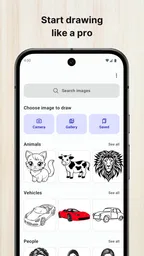
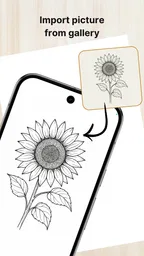
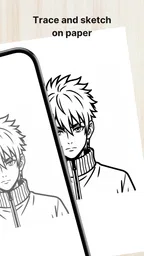
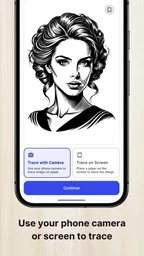
I found the most useful way to think about Draw with AR: Trace and Sketch is as a shared drawing aid, not a complete digital art studio. Veewa Labs’ Art & Design app puts an augmented-reality tracing approach at the center: you use a device to help turn a visible reference into a sketch on paper. That makes it appealing for a kitchen-table drawing session, a quick practice exercise, or a child who wants help getting proportions onto the page. It is free to install, with optional in-app purchases, so a household can try the basic idea before deciding whether it suits its routine.
How it fits a shared drawing session
Imagine a family settling in after dinner with paper, pencils, and one phone or tablet. One person chooses what to draw, another steadies the device, and a third follows the image while sketching. That setup captures the app’s practical value: it can give a shared activity a starting point without requiring everyone to learn a complicated drawing program first. The person holding the device can guide the session, while the person with the pencil remains in control of the finished picture.
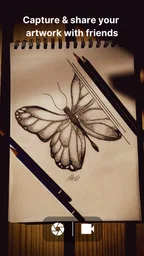
In my view, the strongest use case is learning to observe and reproduce simple shapes. A beginner can concentrate on the outline of a subject instead of trying to invent its proportions from memory. For a more experienced artist, the same approach can work as a warm-up or a way to rough out a composition before drawing freely. It is less compelling if your goal is to create polished digital illustrations inside the app; its appeal is the bridge between a screen reference and a physical sketch.
The augmented-reality format also changes how people share the device. Unlike a drawing app where several people can take turns adding marks directly on screen, tracing is naturally more sequential: one person positions or manages the device, and another draws. That can be a pleasant division of roles, but it is worth agreeing on who is handling what before starting. A small stand or a stable place to rest the device may help keep a session calmer, though the app should not be treated as a substitute for a proper drawing surface or careful device handling.
Making the first session easier
I would begin with a bold, uncomplicated subject rather than a detailed portrait or a crowded scene. Clear outer shapes are easier to follow, and they give a beginner a satisfying result without turning the exercise into a test of patience. Once the outline feels manageable, you can move on to smaller details. This is a useful way to keep a shared session friendly: the goal is to practise seeing shapes, not to produce a perfect copy.
A practical tip is to decide in advance whether the session is about tracing faithfully or using the reference loosely. Those are different activities. If someone wants a close copy, the device needs to stay put and the drawing needs a little more care. If the goal is simply to learn how a subject is built from shapes, it is fine to pause, look, and improvise. Being clear about that distinction avoids the common frustration of one person expecting precision while another is treating the exercise as free sketching.
What to settle before sharing the device
Because a shared phone or tablet may already be used for messages, photos, games, and personal accounts, I would treat a drawing session as a guest activity rather than assuming everyone should browse freely. Open the app yourself, prepare the drawing space, and pass over only what is needed for the session. That is sensible household practice, not a special feature of this app. It also helps avoid a child wandering into unrelated parts of a device while looking for the next drawing step.
There is no need to make the app the center of a child’s entire creative setup. Keep paper and pencils available, and let the device serve as a temporary visual guide. That boundary has two benefits: it makes the activity feel like drawing rather than screen time, and it gives the device-holder a clear role. If more than one person wants a turn, agree on a simple rotation before beginning instead of passing the device around mid-sketch.
Another helpful boundary is to keep the subject choice appropriate to the group. A parent or older sibling can select a reference before handing over the device, especially when younger children are involved. This is not a claim about built-in family settings; it is simply a more predictable way to use a shared device. The app is rated for Everyone, but an age rating is not a replacement for an adult’s judgment about what content and device access are suitable in a particular home.
Coordinating turns without making it a chore
For a group, I would use short, clearly defined turns: one person picks the subject, one manages the device, and one sketches. Then rotate those jobs for the next drawing. This prevents the most confident person from automatically controlling every choice, and it gives a younger participant a chance to be the artist even if an adult is better at positioning the screen. The app works best as a prompt for collaboration when people share the decisions, not just the paper.
It can also help to set up the paper and pencils before opening the app. That sounds obvious, but it avoids asking the device-holder to search for supplies while someone else waits with a drawing hand ready. If the household is using a single device, decide whether the person drawing should be able to ask for adjustments or whether the guide will keep the display steady. A little coordination matters because movement or interruptions can break concentration in a tracing exercise.
For a classroom, club, or larger gathering, I would not assume that one device will keep many people engaged at once. The format is more naturally suited to one active sketcher or a small group taking turns. A teacher could demonstrate a shape and let students practise on separate sheets, but the activity would need to be organized around the available devices and the group’s pace. If everyone needs independent instructions simultaneously, printed references or a conventional drawing lesson may be a better fit.
Age, trust, and a realistic role for the app
The Everyone age rating makes the app broadly approachable, and its simple drawing purpose is easy to explain to a child. Still, the best experience depends less on age alone than on whether the user is comfortable with a device serving as a visual guide while they draw on paper. A young beginner may enjoy the immediate structure; a child who prefers open-ended doodling may find tracing restrictive. I would present it as one drawing exercise among several, rather than as the right way to learn art.
Trust also means setting expectations about purchases. The app is free, and in-app purchases are listed at $9.99 per item. I would check the purchase options with the adult who manages the device before letting a child explore them. That gives the household a straightforward boundary without assuming anything about account controls or payment prompts. If you want to keep the activity entirely cost-free, try the free experience first and make a separate decision before buying anything.
The app has a 4.6 average from around 19,000 ratings, and it has passed one million installs. Those figures suggest that many people have tried it, but they do not tell me whether every household will enjoy the tracing style. I would put more weight on the fit: it is promising for someone who wants a guided route into sketching, but less useful for a person who already prefers working from imagination or wants a full suite of digital brushes and editing tools.
Where it sits beside other drawing options
Compared with a basic drawing app, this one is aimed at a different part of the process. A standard canvas app is better when you want to draw directly on a screen, undo freely, adjust colors, and keep a digital result. A printed reference is better when you want a low-tech activity that does not depend on positioning a device. Freehand sketching is better when practising observation without a tracing aid is the main objective. The AR approach is most useful when someone wants support getting a subject onto paper but still wants the tactile feel of pencil and page.
That difference is also its main trade-off. A guide can make the first marks less intimidating, but leaning on it too much may not build the same confidence as studying a reference and estimating shapes independently. I would use tracing to learn a form, then try drawing that subject again without the aid. This two-step routine turns the app into a stepping stone rather than a crutch: first notice how the outline fits together, then test what you remember on a clean sheet.
It is not the right choice if you need a shared cloud workspace, direct collaboration on one digital canvas, or professional illustration controls. Nor would I choose it for a session where the device has to remain in constant use for another household task. In those cases, a paper reference, a dedicated digital-art tool, or simply taking turns with a sketchbook may be more convenient. The value here is narrower and clearer: use augmented reality to make starting a paper sketch feel less daunting.
What to expect from the current app
The current version is 1.3.0, and it is available for devices running version 8.1 or later of its supported operating system. I would check that compatibility before planning a shared activity on an older device. The app is free to download, but the optional purchases mean “free to try” is a more useful expectation than assuming every possible option will cost nothing. For a household, that is an easy distinction to discuss before anyone begins.
Veewa Labs released the app on June 9, 2025, and its compact purpose is apparent in how I would use it: not as a replacement for drawing lessons or a full creative suite, but as a hands-on way to get a sketch started. The 93 written reviews offer a smaller body of detailed feedback than the rating total, so I would avoid treating popularity alone as proof that it matches a particular child’s learning style. A short trial with a simple subject is a better test.
One subtle advantage of using it with another person is that the guide can prompt conversation. Instead of silently copying, the sketcher can ask where the widest part of the subject is, which line should be drawn first, or what details can be ignored. That turns the device into a shared reference point and encourages looking carefully. It is a more rewarding approach than racing to finish, especially for younger artists who may judge themselves too harshly by how closely their picture matches.
My household verdict
I would recommend Draw with AR: Trace and Sketch to households that want an easy, low-pressure way to get beginners drawing on paper. Its best role is as a shared prompt: choose a simple subject, agree on who guides and who sketches, and use the tracing support to start rather than to judge the final result. That approach makes it approachable for a casual family activity and useful for someone who feels unsure about proportions.
I would skip it if your priority is a feature-rich digital art workspace, independent access for a large group, or a completely screen-free activity. It also may not suit confident freehand artists who find tracing gets in the way of their own process. For everyone else, the free download makes it reasonable to try, provided an adult handles purchase decisions and the device is set up deliberately for shared use. My honest takeaway is that it is a focused drawing aid with a practical place at the table, as long as you keep the pencil, the conversation, and the person doing the drawing at the center.
What we like
- AR projection makes it easier to follow outlines while drawing.
- The tracing approach can help beginners build confidence.
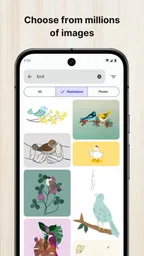
- A wide range of reference images supports different drawing ideas.
- The camera view lets you place sketches in your surroundings.
- It offers a practical way to practice hand control and proportions.
What could be better
- Drawing accuracy depends on steady device positioning.
- Bright or uneven lighting can make the AR image harder to see.
- A phone stand may be needed for comfortable hands-free tracing.
- The camera view can drain battery during longer sessions.
- Some features or image options may require an in-app purchase.





