

Draw & Paint - Classic & Pixel review
 Analysis by Appsdrops
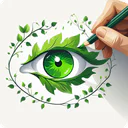
I like having a small creative activity ready for the moments when I want a break but don’t feel like opening a complicated art program. Draw & Paint - Classic & Pixel is aimed at that kind of use: a free art and design app from Neli Creative that brings coloring, sketching, and drawing together in an approachable package. Its basic appeal is simple, but whether it suits you depends on what you expect from a mobile art tool.
A casual art app with room to experiment
The app is rated 3.7 on average from around 2,700 ratings, and it has passed five million installs. That suggests it has found an audience, though the rating also makes me cautious about calling it a polished fit for everyone. I’d approach it as an accessible place to make small pieces and unwind, rather than as a complete studio for serious illustration.
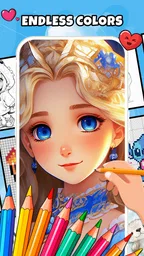
The name points to two familiar styles: classic drawing and pixel-inspired art. That gives the app a broader feel than a coloring book alone. You can use a coloring session when you want a guided, low-pressure activity, then switch to sketching or drawing when you want more control. The distinction matters: people looking for a relaxing pastime and people hoping to practice making images can both find a reason to open it, even if their needs are different.
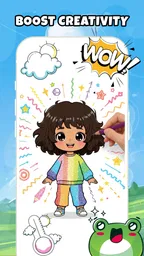
In practice, I find this kind of app most useful when the goal is to start quickly. A blank canvas can be inspiring, but it can also make a short break feel like work. Coloring gives you a defined starting point; drawing gives you more freedom once you have an idea. Its strongest promise is flexibility without asking you to treat every session like a finished-art project.
What the current version tells you—and what it doesn’t
The current version is 1.12.6, while the app’s release date is May 13, 2026. Those are useful points of reference for someone deciding whether to try it: the version number indicates the build available now, and the release date places the app’s arrival in the current app landscape. Neither fact, by itself, tells me exactly what changed between releases or how often the developer updates it.
That distinction is worth keeping in mind. A version number can make an app look established, but it is not a feature list or a promise of a particular workflow. I wouldn’t assume that a new installation includes a specific brush, export option, layer system, or other advanced tool unless I could see it in the app itself. The sensible approach is to judge the experience you can actually use, not infer a development history from the numbering.
There is also a practical compatibility point: the minimum operating-system requirement is 9. If your device meets that requirement, the stated baseline should be suitable; if you use an older device, check compatibility in the app store before planning a project around it. The app is rated for Everyone, which makes its intended audience broad, although that doesn’t mean every drawing style or workflow will suit every age or skill level.
How I’d use it in an ordinary day
Imagine having ten minutes between errands, or wanting something calm to do while waiting for a friend. I’d open the coloring side for a contained activity rather than begin a detailed illustration that I might have to abandon. A limited session has a natural stopping point: choose an area, work through a few colors, and leave the rest for later. That can make the app a better fit for short breaks than a full-featured desktop-style editor.
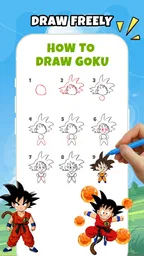
For a different kind of session, I’d use the drawing side to test an idea before committing to it elsewhere. A quick thumbnail, a rough character silhouette, or a small arrangement of pixel-like shapes can help answer a practical question: does this composition read clearly? Treating the result as a draft reduces the pressure to make every mark perfect. This is especially useful on a phone, where precision and screen space can be limiting compared with a tablet or computer.
One workflow I recommend is to decide what you want from the session before starting. If you want to unwind, pick a coloring task and avoid turning it into a perfection challenge. If you want to practice, choose a simple subject and focus on one skill, such as clean outlines or a readable silhouette. Mixing those goals without deciding between them can make a relaxing app feel frustrating: coloring rewards patience, while free drawing can invite endless tweaking.
A second useful habit is to keep early sketches deliberately small in scope. On a compact screen, intricate work demands repeated zooming and careful taps, which can interrupt the flow. A bold shape or simple scene is often more satisfying than an ambitious image squeezed into a short session. That is not a weakness unique to this app; it is a real trade-off of making art on a phone, and it is worth planning around.
Where it sits beside other art apps
Compared with a dedicated coloring app, this one has the appeal of combining coloring with drawing and pixel-oriented creativity. If you mainly want to fill illustrations and relax, a more narrowly focused coloring tool may offer a clearer, more consistent experience. If you want to switch between structured coloring and making your own marks, Draw & Paint has a more flexible proposition.
Compared with a professional illustration app, the priorities are different. A specialist tool is usually the better choice when a project depends on precise control, a long sequence of edits, or a carefully managed production workflow. I would not choose this app as my only tool for commissioned work or a complex image that needs to be revised repeatedly. Its more natural role is casual creation, practice, and experimentation—work where ease of starting matters more than a deep technical setup.
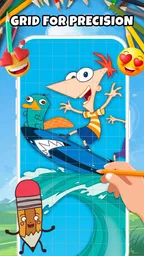
Pixel art also benefits from a particular kind of precision. If you are making assets that must fit a strict grid or follow a production pipeline, a purpose-built pixel editor may be a better match. Here, the pixel angle is a reason to explore, not a basis for assuming that every specialist control is available. For personal experiments and simple designs, that distinction may not matter; for a game project with exact requirements, it could matter a lot.
Costs and expectations before you begin
The app is free to install, with in-app purchases priced from $4.99 to $39.99 per item. I’d treat the free entry point as a chance to see whether the drawing and coloring experience works for me before spending anything. The range of purchase prices is broad enough that it is worth checking what an item offers and whether it addresses a need you actually have, rather than buying simply because an option appears during a session.
This matters particularly if you are choosing an app for a child or sharing a device. The Everyone age rating indicates a general-audience classification, but it does not remove the need for an adult to review purchase settings and supervise spending where appropriate. I’d also decide in advance whether the app is intended as a free pastime or whether you are comfortable paying for an optional item. That keeps a casual art break from turning into an unexpected purchase decision.
For a first session, I’d keep expectations modest and test the app against one specific task: can you start coloring without fuss, or can you make a simple drawing in a way that feels comfortable on your screen? That small trial tells you more than a long list of imagined features. If the controls feel natural and the activity holds your attention, it has earned a place in your rotation. If you immediately want finer control or a more structured editing process, that is a sign to look elsewhere rather than force it.
Who will enjoy it, and who should pass
I’d recommend giving it a try if you enjoy doodling, want a casual coloring activity, or like exploring pixel-style pictures without turning the hobby into a technical project. It could also suit someone who wants a low-pressure way to practice visual ideas in short sessions. Neli Creative is the developer, and the app’s mix of activities makes its intended appeal easy to understand: it is for people who want to make or color images in a relaxed setting.
I’d skip it if you need a dependable professional workspace, precise pixel-production controls, or a tool built around a demanding multi-step illustration process. It may also be a poor fit if you dislike working on a small screen or prefer a single-purpose coloring experience. Those are not minor qualifications: the right alternative depends on whether you value simplicity, specialization, or detailed control most.
There are still things I’d watch for as I use it. The most important question is whether the current drawing and coloring experience stays comfortable as a project grows beyond a quick sketch. I’d also pay attention to whether the available options make the free version useful for my own habits, and whether any purchase feels worthwhile rather than necessary. These are practical tests, not assumptions about features or future releases.
My take after weighing the trade-offs
Draw & Paint - Classic & Pixel makes sense as a casual creative companion: it combines coloring, sketching, and drawing in an app that costs nothing to install, while leaving optional purchases available. I see its value less in replacing specialist art software and more in making it easy to do something creative when time, energy, or screen space is limited. That is a modest role, but a useful one.
My recommendation is to try it if you want a relaxed activity or a place for uncomplicated art experiments, then judge the controls and purchase options for yourself. If your work depends on precision or a sophisticated editing process, choose a dedicated drawing or pixel-art tool instead. For a quick, low-pressure creative session, it is worth considering; for serious production, I’d look for a more specialized app.
What we like
- Offers both freehand drawing and pixel art tools.
- Simple interface makes it easy to start creating.
- Suitable for quick sketches and casual art projects.
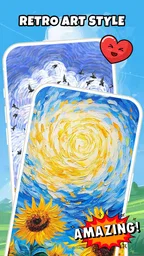
- Pixel mode supports a distinctive retro art style.
- Useful for experimenting with colors and brush effects.
What could be better
- Advanced artists may find the toolset limited.
- Small screens can make detailed drawing difficult.
- Pixel artwork may require careful zooming for precision.
- Your experience may depend on device performance.
- Some features may require time to learn through practice.





