

Clip Studio Paint review
 Analysis by Appsdrops
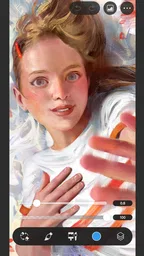
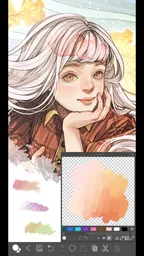
When I want to move from a rough idea to a drawing that feels finished, the part of Clip Studio Paint I value most is how much it lets me refine the artwork without losing sight of the original sketch. That makes it feel less like a quick doodling pad and more like a serious digital art workspace, especially for people who enjoy building an image in stages.
It is an Android art and design app from CELSYS,Inc., and it is free to install. Its current version is 5.1.4, and its age rating is Everyone. The app has a 4.5 average from around 53,000 ratings, with over 10 million installs. Those numbers suggest a broad audience, but my recommendation depends more on whether you want to spend time shaping a piece than on how popular the app is.
Why working in layers changes the drawing process
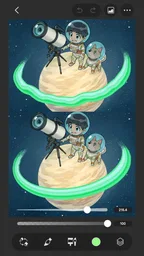
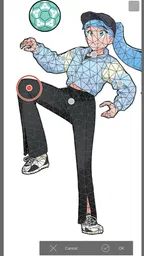
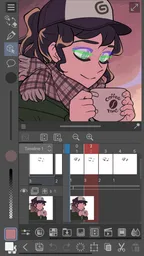
The central strength here is the layer-based workflow. Rather than committing every mark to one flat image, I can keep a sketch, clean lines, color, and finishing touches separate. In practice, that gives me room to test an idea, change one part, and preserve the rest of the drawing. It is a simple distinction, but it can make the difference between experimenting freely and constantly worrying that a new stroke will spoil earlier work.
For example, if I am drawing a character, I can rough out the pose first, then make the contours clearer on another layer. Color can be handled separately, so a palette change does not require repainting the drawing from scratch. If the expression feels wrong, I can revisit that portion without treating the whole canvas as one irreversible decision. This is the kind of flexibility that matters most once a sketch becomes a project rather than a passing idea.
Layers are most useful when they solve a real revision problem. They are not just a tidy way to organize a canvas. They let me compare versions of an idea, isolate a mistake, and avoid overworking parts that already look right. I would encourage a new user to name layers by purpose as a drawing grows; a little organization early on makes later edits easier, particularly when the image has several distinct stages.
From rough marks to a more deliberate image
My preferred approach is to begin loosely and postpone polish. I put down the main shapes, check the composition, and only then spend time on cleaner lines or color. Keeping those stages apart makes it easier to judge the drawing honestly: a polished detail can look appealing on its own while distracting from a pose or layout that still needs work.
A useful habit is to pause before adding detail and inspect the rough drawing at a glance. If the subject is not clear in its simplest form, more finish may only make the underlying problem harder to fix. With the work separated into layers, I can return to the structural sketch without disturbing later decisions, or temporarily focus on one stage of the image. That encourages revision instead of treating every early choice as permanent.
This is also where the app feels different from a very lightweight sketching tool. A basic drawing app may be quicker to open and easier to understand, but it can feel limiting when I want to separate stages and make targeted changes. Clip Studio Paint is better suited to someone who expects to revise and develop a drawing. The trade-off is that its more involved workspace asks for patience before it feels natural.
A practical everyday use: drawing between other tasks
Imagine having a character idea during a break, with only enough time to sketch the pose and note a color direction. I would start with a rough layer, keep the shapes loose, and leave the cleanup for later. When I return, the sketch remains a distinct starting point rather than a collection of marks I have to untangle before making progress. That makes the app useful not only for long sessions but also for work that happens in small, interrupted stretches.
The same approach works for an illustration that needs several rounds of thought. I might first settle the silhouette, then test the face, and only afterward decide how much color the piece needs. Separating those concerns helps me avoid polishing too early. It also makes it easier to show myself what is actually working: the composition, the linework, or the color treatment, rather than judging everything at once.
For a beginner, I would not try to learn every tool on the first day. Start with a canvas, a few purposeful layers, and a small drawing you can finish. Once the basic rhythm of sketching, refining, and coloring makes sense, explore more of the workspace as a need comes up. This keeps the learning curve tied to a real goal instead of turning the first session into a tour of controls.
Where the workflow asks for care
Layer separation is powerful, but it can become its own burden. Too many layers with vague names make it harder to find the part I want to change, and a messy project can be as frustrating as a flat one. I find it better to create a layer when it has a clear job, then keep the structure readable. More layers do not automatically mean better control.
The app may also feel like more than a casual doodler needs. If your goal is to make a quick mark, add a simple annotation, or sketch without thinking about revisions, a simpler drawing app may be a more comfortable fit. Clip Studio Paint makes more sense when the work benefits from deliberate stages. That distinction is important: complexity is worthwhile only if you will use the freedom it gives you.
There is a financial point to consider as well. The app is free to download, while in-app purchases range from $0.99 to $119.99 per item. I would treat the free entry point as a chance to see whether the workflow suits you, not assume that every possible option is included at no cost. Before buying anything, think about what you actually need and whether your current way of drawing is being held back.
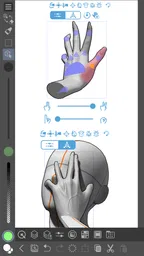
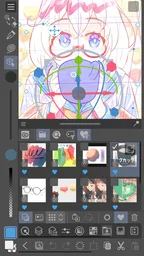
On a small touch screen, a detailed illustration can also feel demanding: the more precisely I want to work, the more I notice the limits of having a compact workspace and relying on touch. A stylus can make drawing feel more direct, but I would still keep early sessions modest and check that the device and setup are comfortable for the kind of work I plan to do. A larger, more traditional desktop setup may be preferable for someone who spends long stretches refining fine details.
How it compares with simpler drawing apps
Compared with quick sketching apps, this one makes more sense when the drawing has a life beyond its first draft. The ability to keep stages apart gives me a more forgiving route through revisions, while a minimal app may be faster for a spontaneous doodle. Neither approach is universally better. If I am capturing a fleeting idea, speed and simplicity matter; if I am developing a character or illustration, control over separate parts matters more.
It is also not the choice I would make for someone who mainly wants photo filters, decorative templates, or a fast social graphic. Its appeal is the act of drawing and refining, not replacing every kind of visual-design tool. For a person who wants a straightforward canvas and little setup, a more basic alternative may be less distracting. For an artist who repeatedly redraws, recolors, and adjusts compositions, the extra structure is a genuine advantage.
Who will get the most from it
I would recommend it to aspiring illustrators, character artists, and hobbyists who want to take a sketch through several rounds of improvement. It is especially useful for anyone who changes their mind while drawing, because separating the work makes those changes less intimidating. The app’s Art & Design focus fits that purpose well: it rewards hands-on making rather than passive browsing or one-tap effects.
People who already have a comfortable drawing routine may appreciate having room to organize a more involved piece. New artists can benefit too, provided they are willing to learn gradually. I would not push it on someone who only needs a quick note, dislikes exploring a more substantial workspace, or wants a design tool centered on ready-made layouts instead of drawing by hand.
CELSYS,Inc. has made an app with a clear strength: it gives the drawing process room to change as an idea develops. Its 4.5 average and substantial audience are reassuring context, but they cannot decide whether the workflow suits your habits. I would begin with a small, finishable illustration and use separate layers for the sketch, clean lines, and color. If that way of working makes revisions feel easier, Clip Studio Paint is worth keeping around; if it turns a simple doodle into a chore, a lighter alternative will serve you better.
For me, the best reason to choose it is not that it promises to make every drawing effortless. It is that it lets me make a change without having to start over mentally or visually. That is a practical advantage for anyone learning, experimenting, or building an illustration in stages—and a good reason to try the free app before deciding whether its broader workspace and optional purchases fit your needs.
What we like
- Customizable brushes support detailed illustration work.
- Vector layers make line art easy to edit.
- The interface suits both desktop and mobile workflows.
- Cloud sync helps keep projects available across devices.
- A wide range of tutorials can help new users get started.
What could be better
- Many advanced features require a paid plan.
- The mobile interface can feel crowded on smaller screens.
- Cloud storage may be limited depending on the plan.
- Some brushes and materials require an internet connection to download.
- Subscription options and device limits can be confusing.





