

Big Keyboard: Easy Homescreen review
 Analysis by Appsdrops
Big Keyboard: Easy Homescreen has a focused idea: make everyday phone interactions feel less cramped by putting a large keyboard and a simpler home screen at the center of the experience. I like that clear emphasis. Rather than promising to transform every part of a phone, this personalization app is aimed at people who want the basics to be easier to see and reach. That narrow purpose is its strongest point—and also the main reason it will not suit everyone.
A simpler phone, built around typing
The app is developed by SwipeTap Apps, and its approach is different from a conventional wallpaper or icon-customization tool. Its appeal is practical: if small keys, crowded screens, or hunting through a busy home screen slow you down, a larger, more straightforward setup may feel more comfortable. The app’s name makes the priority plain, but the home-screen and search elements matter too: the goal is to reduce friction across common phone tasks, not just change how the device looks.
I would think of it as a usability choice rather than a full visual makeover. Many personalization apps focus on themes, widgets, icon packs, or elaborate layouts. This one is more appealing when legibility and ease of interaction matter more than building a highly individual design. That distinction helps set expectations before you install it: you are choosing a more accessible-feeling way to use your phone, not necessarily a deep toolkit for styling every detail.
Its popularity suggests that the idea has found an audience: it has over a million installs, around forty-three thousand ratings, and a 4.5 average. Those figures are useful context, but they do not tell me whether the layout will suit your hands, eyesight, or habits. The more important question is whether a large-keyboard-first experience solves a real annoyance in your own daily use.
Where the larger keyboard earns its place
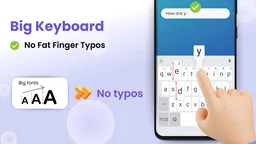
The most convincing use case is frequent, ordinary typing. Think of replying to a family message while carrying groceries, entering a short search while standing on a bus, or writing with one hand when the other is occupied. A keyboard that gives its keys more visual space can make it easier to aim and may reduce the feeling that every tap needs careful precision. If you often correct mistyped letters, that difference could be more valuable than another decorative home-screen theme.
There is a trade-off, though: larger keys use more screen area. That can be a worthwhile exchange for people who prioritize readability, but anyone who likes seeing a long conversation or lots of content above the keyboard may find the available space less comfortable. Bigger does not automatically mean better for every task. The best test is to use it for the kinds of messages you actually write, rather than judging the keyboard from a quick glance.
One practical tip is to evaluate the keyboard in two separate situations: short, hurried entries and longer messages. If it helps you enter a search or a brief reply but feels cumbersome when composing a paragraph, you have learned something important about your own priorities. A keyboard can be excellent for quick access while still being a poor fit for someone who spends much of the day writing on a phone.
Home-screen simplicity and smart search
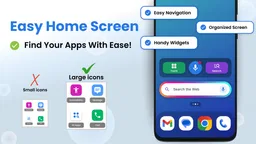
A less crowded home screen can help when you tend to open the same handful of apps and would rather reach them without scanning a dense arrangement. The useful question is not whether a clean screen looks nicer; it is whether it shortens a routine. For example, if you usually unlock your phone to check a message, find an app, and look something up, a simpler starting point and easier search can make that sequence feel more direct.
There is a small but important adjustment cost with any simplified layout. People who already know exactly where every icon sits may initially feel slower when the arrangement changes. I would give the new setup time to become familiar before deciding whether it helps. At the same time, do not keep it just because the idea sounds sensible: if it adds steps to your personal routine, returning to your familiar launcher is a reasonable choice.
Search is most useful when it fits the way you think. If you remember an app by name but not its position, searching can be quicker than browsing. If you rely on carefully organized folders or a custom widget arrangement, a search-led approach may feel like an unnecessary detour. A good way to judge it is to notice whether you naturally reach for search during the day, rather than forcing yourself to use it because it is part of the app’s pitch.
Who is likely to appreciate it
I would recommend trying it if small keyboard targets make typing tiring, if you prefer a clear home screen, or if you are setting up a phone for someone who values straightforward access over extensive customization. It may also suit people who want a less visually busy starting point without spending time arranging a complex collection of themes and widgets. The app is free, so trying its central idea does not require a purchase.
It is rated for Everyone, and its minimum operating system requirement is version 12. The current version is 1.2.09, following its release on December 21, 2023. Those details are worth checking against the device you intend to use, especially before changing a familiar setup. Its rating and age classification do not guarantee that every person will find the controls comfortable; personal preference and screen habits still matter.
For a realistic trial, I would use it during an ordinary day rather than only during setup. Send a few messages, open the apps you use most, and try searching for something you would normally locate by tapping through your home screen. Pay attention to whether you make fewer corrections, whether the layout helps you find things, and whether the larger keyboard takes up more room than you want. Those observations give a better answer than judging by appearance alone.
When another option may be better
If your main goal is expressive customization—matching icons, building widget-heavy pages, or creating a distinctive visual theme—a traditional launcher or dedicated theme app is likely a better fit. Those tools usually make sense for people who enjoy designing their phone’s appearance. Big Keyboard: Easy Homescreen is more compelling when reducing visual and typing friction matters more than having many ways to decorate the interface.
Likewise, if you are already comfortable with your current keyboard and home screen, switching may bring little benefit. A larger keyboard takes up space, a different home screen asks you to relearn familiar movements, and a simpler layout can feel restrictive if you depend on a carefully tuned arrangement. I would skip it if you prize compact typing, use advanced customization every day, or have no recurring difficulty with your current setup.
It is also sensible to compare it with the accessibility and display options already available on your phone. If your only issue is that text or interface elements look too small, a system-level adjustment may address that without changing your home-screen habits. If the specific problem is the feel of typing and finding apps, then this app’s combined emphasis may be more relevant. The right choice depends on what is actually slowing you down.
A fair way to decide
Rather than changing everything and expecting an instant improvement, start by identifying one annoyance: missed keyboard taps, difficulty seeing the home screen, or time spent searching for an app. Then test whether the app makes that one task easier. This keeps the trial grounded and helps separate a genuine usability improvement from the novelty of a different interface.
Also consider who uses the phone. A setup that works well for someone who mainly calls, messages, and searches may not work for a person who relies on a dense home screen to manage work, travel, and media. If you share a device or help a family member configure one, let that person try the layout themselves. A clean screen is only an improvement when the person using it can reach the things they need without extra effort.
SwipeTap Apps has made a focused personalization app rather than an all-purpose customization suite. That focus gives it a coherent reason to exist: a larger typing surface, a simpler starting point, and search as part of a more direct everyday routine. The compromise is equally clear. People who want compact keys, extensive visual control, or a familiar launcher may be happier with another option.
My verdict is that Big Keyboard: Easy Homescreen is worth trying for anyone who regularly struggles with small keys or a cluttered phone, especially if they want practicality more than decoration. Its free price makes experimenting straightforward, while its specific design means it is not a universal upgrade. I would keep it only if the changes make ordinary tasks—typing, finding an app, and getting started—feel noticeably easier in your own hands.
What we like
- Large keys can make typing easier for users with limited dexterity.
- A spacious layout may reduce accidental taps.
- Useful for entering text on a phone from across the room.
- The home-screen focus keeps the app's purpose easy to understand.
- A simple keyboard can be less distracting than feature-heavy alternatives.
What could be better
- Large keys take up more screen space than standard keyboard keys.
- The layout may feel awkward on smaller phones.
- Typing speed may suffer if you are used to a compact keyboard.
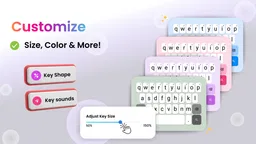
- Keyboard appearance and settings may offer limited customization.
- It may not suit users who prefer swipe typing or advanced text tools.





