


Beauty Camera Selfie Makeup review
 Analysis by Appsdrops
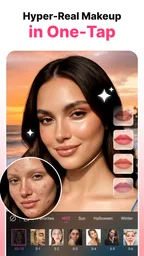
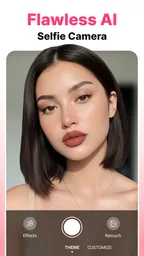
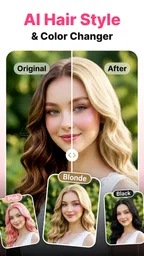
I’d think of Beauty Camera Selfie Makeup as a quick portrait-editing tool for moments when a selfie needs a little polish, not as a full photo studio. Its focus is beauty adjustments and background removal, so the appeal is convenience: make a fast change, check whether the image still looks like you, and decide whether it is ready to share. That narrow purpose is useful, but it also means the results depend heavily on the original photo and on how much editing you actually want to do.
Where a quick beauty edit can get stuck
The first thing I’d watch for is the source image. A face tool cannot rescue every photo: dim indoor light, motion blur, a partly covered face, or a busy frame can make edits look less natural. If the result seems oddly smooth or the background cutout catches hair and shoulders, I’d try a brighter, sharper image before assuming the app itself is malfunctioning.
The app is a free beauty app from Avn Global Application, and its central promise is straightforward: enhance selfies with makeup-oriented face editing and remove a background without needing a separate editing workflow. It has an average rating of 4.6 from around 3.8 thousand ratings, with more than a million installs. That level of interest makes it easy to understand why someone might try it for casual portraits, though popularity alone does not tell you whether its style will suit your taste.
A common point of friction with selfie editors is expectation. A small adjustment can help a portrait feel more finished, while a collection of strong effects can quickly make skin, color, and facial details look artificial. I’d start with the lightest change available and compare the edited image with the original rather than stacking adjustments just because they are there. The useful question is not “Can I make this more polished?” but “Does this still look like the person I photographed?”
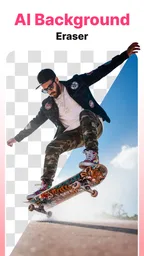
Background removal brings a different kind of challenge. It is most convincing when the subject stands apart from the surroundings; similar colors between clothing and the wall, flyaway hair, or objects crossing the outline can complicate the edge. For a profile portrait against a plain setting, the cutout may be a practical shortcut. For a detailed group photo or an image where every strand matters, I would keep the original and use a more precise editor if the first result does not hold up.
Check the photo before changing the app
When an edit looks wrong, I’d make one controlled test: choose another clear selfie taken in even light, then repeat the same kind of adjustment. If the second image behaves better, the source photo was likely the main obstacle. This simple comparison is more useful than changing several things at once, because it tells you whether the problem follows the image or appears across different photos.
There is also a practical difference between a selfie made for a close crop and one meant to show an outfit or setting. Face-focused edits are easiest to judge when the face is large enough to inspect, while background removal matters more in a wider portrait. I’d decide which outcome matters before editing, so I don’t spend time polishing facial details when the real issue is the composition around the subject.
Setup checks that prevent avoidable frustration
The app is free to download and is rated for Everyone, but it also offers in-app purchases ranging from $2.99 to $154.99 per item. I would explore the basic editing experience before buying anything and read each purchase screen carefully. If a particular tool or result appears tied to a purchase, check what is included in that offer rather than assuming that every option is covered by the free app.
It was released on September 6, 2023, and the current version is 1.8.2_20260930. The minimum supported Android version is 7.0, which gives older compatible devices a chance to run it, but compatibility does not guarantee that every phone will feel equally responsive. If the app behaves unexpectedly, first make sure the device meets that requirement and that the app has finished installing or updating before trying the same edit again.
I’d also keep the first session simple: open one photo, make one change, and check whether the result can be reviewed and saved in the way you expect. This gives you a quick sense of the workflow without investing time in a batch of images. If you are deciding whether it belongs in your regular routine, test it on a photo that is easy to retake rather than on the only copy of an important portrait.
For a more reliable comparison, keep the original image untouched and inspect both versions at the same size. A change can look flattering in a small preview but become distracting when enlarged. If you are preparing a picture for a profile, also view it at the approximate crop you plan to use; a face adjustment that seems subtle in the full frame may dominate a tight crop.
Recover the workflow one step at a time
If the edit does not appear to take effect, I would avoid repeatedly tapping different controls. Return to the image, make one adjustment, pause to inspect the preview, and then decide whether to continue. A single-change approach makes it easier to identify which step caused an unwanted look and gives you a clear point to undo or restart from.
If a background cutout has rough edges, try a photo with stronger contrast between the person and the setting. If a face edit seems excessive, reduce the strength or remove that change before adding another. These are general editing checks rather than guaranteed fixes, but they address the two most likely sources of disappointment: difficult image boundaries and over-processing.
For a post that needs to be ready quickly, I’d use the app as a finishing step rather than building the whole image around it. Take the portrait in good light, choose a clean composition, make only the edits that improve the subject, and check the saved image before sharing. That order reduces the chance of discovering late that the source was too soft or the background edge was too distracting.
When an image does not save or a screen appears unresponsive, close and reopen the app and retry with a single photo. If the same issue continues, restarting the device or checking for an available app update are sensible general steps. I would not delete the original picture during troubleshooting; keeping it gives you a safe fallback and lets you compare a fresh attempt with the first one.
When the app may not be the cause
Not every disappointing result points to a software problem. A front-facing camera can exaggerate perspective at close range, and uneven light can make skin tones look different across the face. A beauty edit may soften the appearance, but it cannot change the lighting that was captured. Moving a little farther from the camera, facing a window, or choosing a more even source photo can improve the starting point more than adding another filter.
Likewise, a background-removal mistake may come from the image itself. Transparent or fine edges are difficult to separate from a similar-colored backdrop, while a subject that blends into the setting gives an editor less visual distinction to work with. If the outline remains distracting after a cleaner source photo, I’d switch to a tool that offers more detailed manual control rather than spending longer repeating the same automatic approach.
It is also worth separating a personal preference from a technical failure. Some people want a visibly styled selfie; others want a portrait that looks nearly untouched. If the app’s beauty treatment feels too strong for your taste, that does not mean your photo needs more corrections. A lighter edit—or no face edit at all—can be the better choice, especially for professional portraits, documentary images, or photos where recognizability matters more than a polished finish.
Who will get the most from it
I can see this app fitting someone who takes casual selfies and wants a quick way to tidy a portrait or isolate a person from a simple background. It may be handy before sharing a profile picture, making a small social post, or preparing a portrait where a plain backdrop would be more useful. The strongest case is convenience: beauty editing and background removal sit within one app, so you can try both without moving between separate tools.
For example, imagine taking a quick selfie at home before heading out. The room behind you is cluttered, but your face is clear and the light is decent. I’d first see whether a restrained beauty adjustment helps, then try removing the background only if the subject outline remains clean. If the hair blends into the wall, I’d skip the cutout and choose another photo instead of forcing a result that looks less natural than the original.
Compared with a general-purpose photo editor, Beauty Camera is more directly aimed at face presentation and a quick background change. A broad editor is usually the better choice when you need careful color correction, detailed retouching, or precise control over complicated edges. A basic camera app is better if you only want to capture a photo without editing. The best option depends on the job: this app makes most sense when its specific portrait tasks are the ones you actually need.
I would skip it if you expect professional-grade cutouts, extensive manual retouching, or a completely neutral editing environment. It is also not the right choice if you dislike beauty effects in general or prefer to keep every portrait untouched. Since paid in-app items can be expensive at the upper end, anyone who wants a particular premium tool should check its cost before building a routine around it.
My practical verdict: I’d recommend Beauty Camera Selfie Makeup for casual users who want a focused, approachable way to experiment with selfie polish and background removal. I would treat it as a convenient helper, not a substitute for careful lighting or a specialist editor. Start with a clear photo, make one restrained change at a time, preserve the original, and judge the result at the size where you will actually use it. If those habits match your needs, it is worth trying; if you need precise control or consistently flawless edges, a more advanced editing tool will serve you better.
What we like
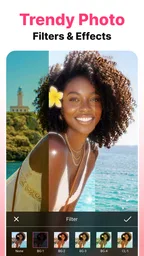
- Quick filters make it easy to enhance selfies before sharing.
- Makeup effects offer a playful way to experiment with different looks.
- Simple controls are approachable for first-time users.
- Portrait edits can help photos look more polished.
- A range of effects supports varied selfie styles.
What could be better
- Some effects may look artificial on close-up photos.
- Results can vary depending on lighting and camera quality.
- Frequent prompts may interrupt the editing flow.
- Advanced edits may take time to fine-tune.
- Edited images may not suit users seeking a natural look.





