

ARtie Lab: AR Drawing & Sketch review
 Analysis by Appsdrops
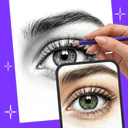
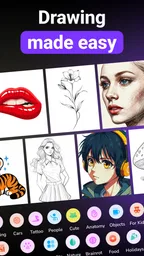
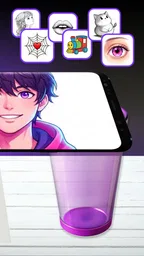
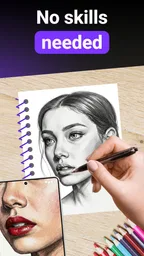
I tend to enjoy drawing apps most when they make it easy to move from “I’d like to draw that” to actually putting pencil to paper. ARtie Lab: AR Drawing & Sketch is aimed at that beginner-friendly moment: its store summary describes it as a way to trace pictures and learn to draw, while the short description presents it as an art app. That gives the experience a clear, practical focus rather than promising a full professional illustration studio.
Getting started without getting stuck
With any tracing-based drawing app, the first challenge is often less about artistic skill and more about getting comfortable with the process. You need to understand how the app’s drawing guidance relates to your physical page, and a little patience at the start can make the rest feel smoother. I’d approach ARtie Lab as a learning aid: take time to settle in, follow the picture-tracing idea at your own pace, and treat an imperfect first attempt as part of learning rather than a sign that you’re doing something wrong.
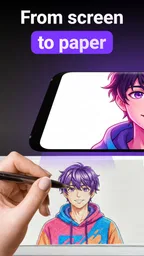
The app’s focus on tracing pictures makes it approachable for people who find a blank page intimidating. Instead of having to invent a subject from scratch, you can use a picture as a starting point and concentrate on following its shapes. That can help beginners practise observation and hand control. It can also suit someone who already doodles but wants a more guided way to try a new subject.
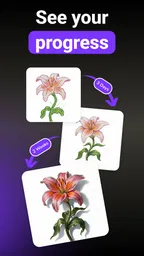
Tracing is useful, but it isn’t a shortcut to every part of drawing. It can help you notice outlines and practise making marks in the right places; developing your own style still takes experimentation. I like that distinction because it sets a sensible expectation: this is a place to practise and learn, not a promise that every sketch will look polished on the first try.
A calm first session
When trying a new drawing app, I recommend keeping the first session simple. Start with the basic tracing-and-drawing idea, focus on one step at a time, and avoid judging the result against a finished illustration. A relaxed pace makes it easier to spot what feels natural and what needs another attempt. If the first picture feels awkward, taking a pause and restarting calmly can be more helpful than rushing through it.
It also helps to think of the screen and the paper as parts of one activity. Give yourself a steady place to work, keep the page positioned comfortably, and make small adjustments when the drawing feels difficult to follow. These are ordinary drawing habits rather than special tricks, but they can reduce frustration when you’re learning a new guided workflow.
Check the basics before blaming the app
If something seems off during setup, begin with the simple checks. Make sure the app has finished opening, confirm that you can interact with the screen as expected, and give yourself a clear view of the drawing area. If the experience doesn’t respond the way you expect, closing and reopening the app is a reasonable first troubleshooting step. It’s a general way to refresh a session, not a guarantee that it will solve every problem.
Compatibility is worth checking too. The app’s listed minimum operating-system requirement is Android 7.0, so an Android device needs to meet that baseline to be suitable. Keeping the operating system and the app reasonably up to date can also help avoid issues that come from running older software. If you’re using another platform, check the requirements shown by the relevant app store before installing.
Storage and connectivity can affect app downloads or updates in general, so it’s sensible to check those when installation or updating stalls. Make sure the device has enough room for the task and that its connection is working. These checks won’t change how drawing works, but they can prevent a setup hiccup from being mistaken for a problem with the art experience itself.
Recovering your drawing workflow
When a drawing session becomes confusing, return to the last step that felt clear. Reposition your paper, settle your hand, and continue with a small section rather than trying to correct everything at once. Breaking a picture into manageable parts can make tracing feel less demanding, especially if you’re new to drawing or returning after a long break.
It’s also worth separating a drawing difficulty from an app difficulty. If the app is open and responsive but your lines look uneven, that may simply reflect the normal challenge of guiding your hand. Slow down, use lighter movements, and give yourself room to practise. If the app itself appears unresponsive, try a fresh session and check that the device is behaving normally before deciding the issue is with the drawing process.
For a more comfortable routine, work somewhere with enough light and a stable surface. Keep your materials arranged so you don’t have to interrupt yourself repeatedly, and take breaks if your hand feels tense. Those simple choices can make a guided sketching session easier to follow and help you focus on the picture rather than on avoidable distractions.
When the device, not the app, is the issue
Not every interruption comes from an app. A device that is running slowly, low on available storage, or struggling with other open tasks can affect many activities. If the drawing experience feels unusually sluggish, close apps you don’t need and restart the device if necessary. Then try again and see whether the problem remains. This is a practical way to distinguish a general device slowdown from an issue limited to one app.
Likewise, installation trouble may be connected to the app store, the device’s available space, or the network rather than the drawing tool. Check that the download has completed and that the app opens properly before beginning a session. If an update is pending, allowing it to finish can be a sensible step. Keeping troubleshooting straightforward makes it easier to identify what is actually getting in the way.
For persistent technical trouble, use the support options available through the app store or the developer’s official support channels. Describe what you were doing when the issue appeared and what you already tried. Clear details are more useful than repeated guesses, and they help keep the distinction between device trouble and app trouble in view.
Who may enjoy this drawing app?
AR drawing and picture tracing can be appealing to beginners, casual sketchers, and anyone who wants a guided starting point. The idea is easy to understand: use a picture as a reference and practise drawing from it. That focus can make the app less intimidating than an open-ended canvas filled with tools and options, particularly for someone who wants to learn by doing rather than study a long set of instructions first.
It may also work for people looking for a low-pressure creative activity. You don’t need to approach every session as a serious lesson. A short practice sketch can be worthwhile on its own, and repeating the process gives you a chance to become more comfortable with shapes and lines over time.
People seeking extensive professional editing controls may have different priorities. The core appeal here is the tracing-and-learning concept, so it makes sense to judge the app by how well that suits your goals. If you want a guided way into sketching, its focus is easy to understand. If your main interest is advanced digital artwork, you may want a tool designed around that broader kind of work.
Availability and value
The app is free to download, with optional in-app purchases listed from $9.99 to $29.99 per item. That gives newcomers a way to explore the app before deciding whether any paid option fits their needs. I’d start by seeing how the basic drawing experience suits your routine, then consider purchases only if you find that you want them.
It has an Everyone content rating, and the listing shows a 4.6 average from around 106,000 ratings. Those figures suggest that the app has attracted a sizeable audience, though individual drawing preferences still matter more than a score. It has also passed one million installs, so it is not an obscure experiment with no visible user base.
My practical verdict
ARtie Lab: AR Drawing & Sketch has a clear appeal for anyone who wants help getting started with drawing. Its picture-tracing and learning focus offers a more approachable entry point than being left alone with a blank page, and the concept is straightforward enough to try without making the hobby feel like a formal course.
The best way to get value from it is to be patient with setup, keep early practice simple, and use ordinary troubleshooting before assuming something is broken. Check the device and operating-system basics, refresh the session if it stops responding, and remember that uneven lines can be part of learning rather than a technical failure. Those habits make the experience easier to evaluate fairly.
Overall, I’d consider it a promising option for beginners and casual artists who want a guided route into sketching. It is most compelling when you treat tracing as practice: a way to build confidence, observe shapes, and enjoy making something by hand. If that is the kind of creative nudge you’re looking for, this art app is worth exploring.
What we like
- AR overlays help beginners trace shapes with more confidence.
- The camera-based workflow makes drawing feel hands-on.
- It can turn everyday objects into inspiration for sketches.
- The app suits short creative sessions without a complex setup.
- Finished drawings can be useful references for later practice.
What could be better
- Stable lighting can be important for clear camera tracking.
- Holding a phone while drawing may feel awkward over time.
- Small screens can make fine details harder to follow.
- Camera access is needed for the main augmented reality features.
- Results depend heavily on the user's drawing skill and patience.





