
AR Drawing: Sketch & Paint review
 Analysis by Appsdrops
I can see why AR Drawing: Sketch & Paint would catch someone’s eye: it turns a phone into a guide for copying an image onto paper, rather than asking you to draw everything from memory. In my view, that simple change is the app’s real appeal. It lowers the barrier to starting a sketch, especially when you have an idea but are unsure how to get the proportions right.
It is an art and design app from AR Drawing, available for free and rated for Everyone. The app has an average rating of 4.1 from around 861,000 ratings, with over 10 million installs. Those figures suggest it has reached a broad audience, but they do not tell you whether the tracing approach suits your routine. That depends on what you want from drawing: a helpful starting point, or a tool that can replace practice and freehand work. It cannot do the latter.
Why the first few sessions feel rewarding
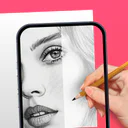
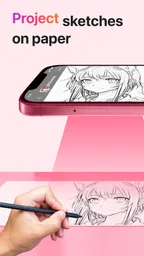
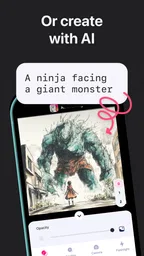
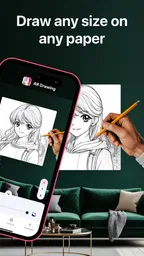
The basic idea is easy to grasp: choose a picture, use the augmented-reality guide to trace it onto paper, then color the result. I like this format for getting past the blank-page hesitation. Instead of spending the first part of a session guessing at an outline, you can concentrate on following it and making decisions about the finished drawing.
That makes the app particularly approachable if you are new to sketching, want a low-pressure creative activity, or need a visual starting point for a handmade card or a small decorative drawing. It can also help when you are drawing with a child: the projected guide gives both of you something concrete to work from, while the coloring stage leaves room for personal choices.
The first sessions are likely to feel most satisfying when the reference has a clear silhouette and a manageable amount of detail. A simple subject lets you focus on steady lines and spacing. A complicated image, by contrast, can become a maze of marks; faithfully tracing every detail may take longer than simplifying the picture would.
One practical tip is to decide what you intend to keep before you begin. Treat the guide as a scaffold, not a command to copy every line. If a reference has tiny texture marks or busy shading, trace its large shapes first and leave those details out. That makes the result easier to color and can keep the drawing from looking crowded on paper.
Make the setup work for the paper, not against it
Because the process depends on looking at a projected guide while drawing on a separate surface, a comfortable setup matters. I would use a stable, well-lit spot and position the paper so it does not shift during tracing. Even small movements can make it harder to follow an outline consistently, particularly when you are working around a curved or narrow part of the subject.
It also helps to test the composition before committing to a detailed trace. Start with the biggest shapes and check that they fit the available space. If the drawing is too large, cramped, or close to the edge, adjusting early is less frustrating than discovering the problem after filling in the details. This is a simple workflow improvement, but it makes the app more useful than treating the first view as a final template.
AR Drawing is not a digital sketchbook in the usual sense. Its purpose is to support drawing on paper, so the experience depends on the physical surface and on your ability to follow the guide by hand. If you would rather draw directly on a screen, undo freely, or work with layers, a conventional drawing app is a better fit.
What still feels useful after the novelty wears off
The lasting value is less about the augmented-reality effect itself and more about whether it helps you finish real drawings. I can see it earning a place in a casual creative routine for someone who likes making tangible work but often stalls at the outline stage. It can also be handy when you want a repeatable starting point for practicing line control or comparing how different coloring choices change the same basic image.
A useful way to keep the process from becoming mechanical is to make one deliberate change after tracing. Simplify a shape, alter a color choice, or add a small detail of your own. That turns the session from pure copying into a modest design exercise. The app provides the structure; your choices decide whether the finished page feels personal.
For a realistic everyday use, imagine having a spare half-hour and wanting to make a quick birthday card rather than scroll on your phone. You could pick a simple subject, trace its outline onto the card paper, and color it by hand. The app is well suited to that kind of bounded project because the goal is clear and the paper remains part of the result. It is less compelling if you want a flexible illustration workflow with many revisions.
For ongoing practice, I would not use the guide for every drawing. A better balance is to trace occasionally when you want to study proportions, then try the same subject freehand later. That way, the app supports learning without making you dependent on a projected outline. If your main aim is to improve observation or invent images from imagination, regular unassisted drawing will matter more.
The small habits that keep it from becoming a one-week app
Apps built around a striking trick can lose their appeal once the trick is familiar. Here, the risk is that tracing becomes a repetitive routine: select a picture, follow its lines, color it, and move on. To get recurring value, I would give each session a different purpose. One day, focus on clean contours; another time, simplify the reference; later, use the guide only for the main shape and add the rest yourself.
That approach also helps answer a common question: is it useful if you already know how to draw? Yes, but in a narrower role. An experienced artist may appreciate a quick outline guide for a casual paper project or a warm-up, yet someone who already handles proportions confidently may find the tracing step unnecessary. The app is strongest as an aid, not as a replacement for skill.
Maintenance is not especially about managing a complex creative setup; the more important burden is keeping the physical session comfortable and controlled. You need paper, something to draw with, and a surface where the projected guide is practical to follow. If gathering those things feels like too much for a quick creative break, the convenience advantage over a phone-based sketch app disappears.
The app is free to download, with in-app purchases listed from $1.99 to $64.99 per item. I would start with the free experience and decide whether the tracing workflow fits before spending anything. That is especially sensible if you are unsure whether you enjoy drawing on paper or expect a wide set of advanced digital tools. The purchase range is broad enough that it is worth checking what an item offers in the app before deciding it is relevant to your needs.
Where fatigue and friction can set in
The same guidance that makes a first drawing easier can also limit the experience. A traced result tends to reflect the reference closely, so it may feel less expressive than a drawing you build from observation or imagination. If every session follows the same template, the finished pages can start to look alike, even when you change the colors.
There is also a difference between tracing an image and learning to draw it. Following an outline can help you practice hand control, but it does not automatically teach you why the subject has those proportions or how its forms fit together. For that, I would pause and study the shapes, then try drawing them without the guide. People seeking structured lessons or a full digital art workspace should consider a different kind of app instead.
Another likely friction point is subject choice. A crisp, uncomplicated picture is easier to translate into paper than a crowded reference with many fine features. If the result looks busy, the answer may not be more careful tracing; it may be choosing a simpler image or intentionally omitting detail. That choice can save time and produce a clearer finished drawing.
The app’s current version is 5.2.8, and it requires Android 8.0 or later. For someone on a compatible Android device, that makes it a straightforward option to try, but the core experience still depends on whether the phone-and-paper arrangement feels natural. People looking for a purely screen-based workflow, precision editing, or a tool designed around freehand digital illustration will likely be happier elsewhere.
Who I would recommend it to over the long term
I would recommend AR Drawing: Sketch & Paint to beginners who want help getting an outline onto paper, families looking for a simple shared activity, and casual makers who enjoy coloring a physical drawing. Its value is clearest when you have a specific, small project and want to get started without spending the whole session planning proportions.
I would not choose it as my main art app if I wanted to create polished digital illustrations, revise a drawing repeatedly, or develop freehand ability without a guide. In those situations, a standard digital drawing tool or a traditional sketching routine gives more control and encourages different skills. The comparison is not that one approach is universally better; they solve different problems.
Overall, I think the app can earn a lasting spot if you use it as a practical bridge between an image on a phone and a drawing on paper. The novelty may fade, but the low-friction starting point can remain useful for occasional crafts and focused practice. Keep sessions varied, simplify demanding references, and make some drawings without tracing. With that balance, it is a pleasant creative aid rather than a shortcut you quickly outgrow.
What we like
- Simple tools make it approachable for beginners.
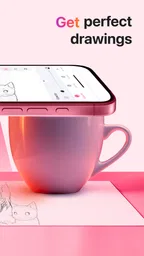
- The camera overlay helps guide sketches on paper.
- You can choose images from your own gallery.
- Adjustable opacity makes reference images easier to trace.
- A portable alternative to using printed reference sheets.
What could be better
- A steady phone stand is needed for comfortable tracing.
- The camera view may be difficult to use in dim rooms.
- Tracing does not teach drawing skills on its own.
- Some features may require an in-app purchase.
- The screen can feel small for detailed artwork.





