

AI Video : Generator & Maker review
 Analysis by Appsdrops
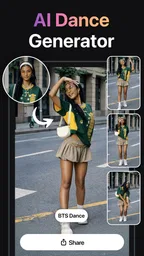
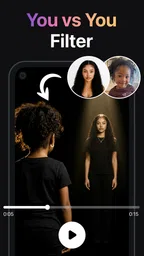
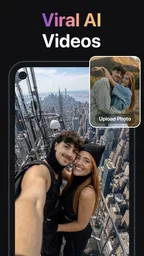
Turning a still image or a short idea into a video sounds like the kind of task that can eat up an afternoon. AI Video : Generator & Maker is aimed at making that process feel more approachable, bringing AI photo tools, photo-to-video creation, text-to-video, and image-to-video into one app. I find that combination appealing when I want to experiment quickly rather than start with a full desktop editing setup.
From a simple idea to a first video
The best way to approach an AI video maker is to begin with one clear goal. Maybe you want to animate a photo, turn a written idea into a clip, or see what an image might look like in motion. This app’s focus is easy to grasp: it offers several ways to start creating, so you can choose a route that suits the material you already have.
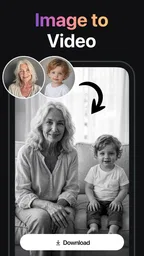
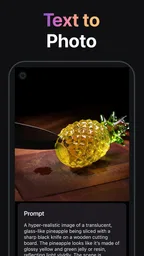
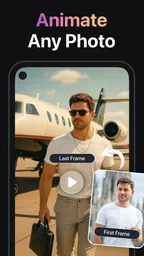
For a first run, I’d keep the idea uncomplicated. With text-to-video, write a direct description of the scene you have in mind. With image-to-video or photo-to-video, start from an image that already communicates the subject clearly. That gives the generator a more useful starting point and makes it easier to judge whether the result matches your intention.
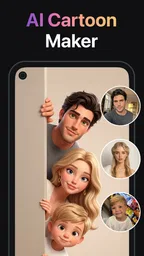
The distinction between these workflows is worth keeping in mind. Text-to-video begins with words, while image-based creation starts from a visual reference. AI photo tools sit naturally alongside those options, making the app feel like a creative toolkit rather than a single-purpose button. I like that framing: it lets me think about the source material first, then choose a generation path.
On the first attempt, resist the urge to pack every detail into the prompt. A scene, a subject, and a general visual direction are usually a more comfortable starting point than a long list of competing instructions. Once you see what the app produces, you can decide what to change next. That small loop—describe, generate, review, refine—is a sensible habit for anyone exploring AI video.
Build a repeatable starting routine
When I’m testing a creative app, I prefer to separate idea development from judging the output. First I choose the image or write the basic prompt; then I review the result for one specific quality, such as whether the central subject comes across clearly. If I change several things at once, it becomes harder to tell which adjustment helped.
That approach is especially handy when moving between photo-to-video and text-led generation. Keep the intent consistent while you explore each route. For example, if the goal is to create a lively visual from a particular picture, compare the image-based workflow with a short written description of the same idea. The exercise helps you learn which starting point gives you the kind of result you prefer, without turning the process into guesswork.
The app’s scope is also easy to explain to a newcomer. It brings together AI photo creation and multiple ways to make video from text or imagery. If you are searching for an AI video generator that keeps those creative directions close at hand, that breadth is the main attraction. I’d still treat each generation as a draft, not a finished production: the useful part is being able to explore a concept and decide what deserves more work.
Settings and choices to check before generating
Before creating anything, I’d take a moment to look over the choices presented in the app and make sure they fit the project. The most important decision is often not a technical setting but the starting material: is the prompt specific enough, or does the image make the subject easy to understand? A few seconds spent clarifying that can make the creative session feel more deliberate.
It also helps to keep expectations tied to the task. A quick concept clip and a polished piece intended for a particular audience are different goals. For casual experimentation, a broad idea may be enough. For a more intentional result, I’d write down the scene in plain language, keep the central subject prominent, and review the output before deciding whether to revise the prompt or try a different source image.
Because video creation can be iterative, it’s sensible to check the app’s available options as you work rather than assuming that every workflow behaves identically. I would make changes only when they serve a clear purpose. If the result misses the visual direction, adjust the description or starting image; if it already communicates the idea, there may be no benefit in adding extra complexity.
The app is free to download, and it offers in-app purchases priced from $7.99 to $79.99 per item. I’d review those purchase options in the app store and inside the app before committing to anything, especially if I’m only trying the creative tools for the first time. That’s a practical habit with any creator app: understand the purchase choice, then decide whether it fits how often you expect to use the features.
Faster habits for everyday creation
Experienced users usually get quicker not by rushing, but by making fewer unnecessary decisions. I’d keep a small collection of concise prompt ideas outside the generation session, grouped by the kind of scene or mood I want to explore. That way, I can begin with a clear direction instead of staring at an empty prompt field and adding detail at random.
A second useful habit is to change one thing at a time. If a clip feels too far from the idea, I’d first make the subject or action clearer. If the source image is doing most of the work, I’d try a different image before rewriting everything. This isn’t a hidden feature or a magic formula; it’s simply a disciplined way to learn how a text to video app or an image-led workflow responds to your creative choices.
I’d also save the parts of a process that are genuinely useful, such as a short description that consistently expresses the kind of scene I want. Reusing a clear starting point can make later experiments feel more focused. The key is to reuse the idea, not assume the same wording will produce an identical result every time. AI generation is best approached with some flexibility.
When switching between AI photo work and video creation, decide what you want from each step. A photo-focused experiment can help you explore a visual direction, while a video workflow gives you a way to develop that idea into motion. Keeping those aims separate prevents a session from turning into a string of unrelated generations. For me, a little structure makes a creative app feel much more rewarding.
There’s also value in knowing when to stop. If a result communicates the concept well enough for a draft, move on to the next idea rather than endlessly polishing a prompt. If it doesn’t, identify the single most important mismatch and try again. This keeps the process manageable and helps you build a personal sense of which descriptions and source images work best for your projects.
Where the creative limits show up
An AI generator can help turn an idea into a visual starting point, but it doesn’t remove the need for creative judgment. The user still has to decide whether the output suits the message, whether the source image is appropriate, and whether a generated clip needs further editing elsewhere. I see this app as a way to explore and create, not as a guarantee that every attempt will be ready to publish unchanged.
That distinction matters most when the brief is very specific. If you already know exactly what a final video must communicate, a generated result may take several rounds of prompting and review before it feels useful. A more open-ended project is often a better fit: you can test a visual idea, discover an unexpected direction, and decide whether to build on it.
The range of creation routes is a strength, but it also means there’s a small learning curve in deciding which one to use. Text-to-video is a natural choice when the idea begins as a written scene. Image-to-video and photo-to-video make more sense when a particular visual is the anchor. Once that distinction becomes second nature, picking a workflow is a much quicker decision.
It’s also worth being realistic about what “AI video maker” means in practice. The phrase describes the creative purpose, not a promise that the app will replace every part of a production process. I’d use it to generate or explore video concepts, then judge the results against the needs of the project. That balanced expectation makes the app easier to appreciate and avoids asking it to do a job it was not selected for.
A practical fit for curious creators
AI Video : Generator & Maker is listed in the art and design space and comes from Plus Apps Bilisim Teknolojileri Ltd. It is free to download, is rated for Everyone, and is available for devices running iOS 11 or later. The current version is 1.4.9. Those basics make it straightforward to assess whether the app fits your device and the kind of creative experimentation you have in mind.
Its audience response is positive: it has a 4.7 average from around 12 thousand ratings, with over 100 thousand installs. I’d take that as useful context rather than a substitute for trying the workflow yourself. What matters most is whether the app’s mix of AI photo, text-to-video, and image-to-video creation matches the way you like to develop ideas.
For newcomers, I’d start with one image and one clear concept, then explore the available generation route that makes the most sense. For regular users, the biggest improvement is likely to come from a repeatable routine: choose the source, state the idea plainly, review the result, and make one purposeful adjustment. That approach keeps the creative process focused without assuming special controls or shortcuts that may not be part of your workflow.
My verdict after weighing the workflow
AI Video : Generator & Maker makes its appeal clear by bringing several AI-assisted creative directions together: AI photo, photo-to-video, text-to-video, and image-to-video. I like that flexibility for brainstorming, experimenting with visual concepts, and getting from a rough idea to a video draft without making the process feel like a large production project.
The best results are likely to come from users who enjoy trying variations and are comfortable treating generated content as a starting point. Keep prompts clear, choose images with intention, and review each result before deciding what to change. Those habits are simple, but they make a noticeable difference to how organized and productive a creative session feels.
For someone looking for a straightforward AI video app with both text-led and image-led creation, this is an approachable option to explore. I’d recommend beginning with a small project, checking the in-app purchase choices before spending, and letting the first few generations teach you which workflow fits your ideas. It’s a promising creative companion when curiosity and iteration matter more than getting a perfect result on the first try.
What we like
- Quickly turns text prompts into short video clips.
- Useful for creating social media content without editing skills.
- Offers a simple workflow for generating videos.
- Can help visualize ideas before making a polished project.
- AI automation reduces the time needed to create basic videos.
What could be better
- Generated scenes may not match the prompt precisely.
- Video quality can vary between generations.
- Free use may be limited by credits or daily quotas.
- Some results may contain visual artifacts or awkward motion.
- Creating and saving videos may require a stable internet connection.





