
AI Video Generator - Clips AI review
 Analysis by Appsdrops
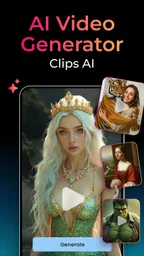
I would approach AI Video Generator - Clips AI as a quick way to explore turning a written idea or a still image into moving content, rather than as a full video-editing suite. That distinction matters: the appeal is getting from a starting prompt or picture to a generated clip, while detailed editing and predictable, frame-by-frame control are different jobs. If you are curious about AI-made video but unsure where to begin, this Art & Design app offers a straightforward concept to try.
What to expect from a text-or-image video tool
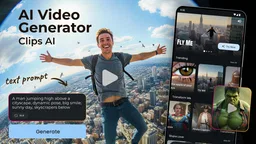
The app’s central idea is simple: start with text or an image and use AI to create video. That can be useful when you have a visual thought but no footage, camera setup, or editing timeline ready. I would treat the output as a creative draft, a social post idea, or a visual experiment—not automatically as finished material for a polished campaign.
That expectation helps avoid the most common disappointment with generative tools: a prompt describes what you want, but the result may interpret it differently. A still image gives the generation a visual starting point, while text gives you room to describe a scene from scratch. Neither route guarantees precise motion or exact adherence to every detail, so it is worth approaching the first result with curiosity rather than expecting a perfect take.
The app is listed as free to install, with in-app purchases ranging from $0.99 to $699.99 per item. I would check the purchase details shown in the app before committing to anything, especially if you are only testing whether its style suits you. The range is wide, so “free” should be understood as a way to start, not a promise that every possible use is cost-free.
It has a 4.3 average from around 324,000 ratings, and more than 5 million installs. Those figures suggest many people have tried it, but they cannot tell you whether a particular generated clip will match your taste. The developer is Photo & Video Editors - Instant Solution, and the app is rated Everyone, making it broadly accessible while still leaving the creative results themselves a matter of personal preference.
Who is likely to enjoy it
I can see this working well for someone who wants to test an idea quickly: a small-business owner imagining a product mood, a student making a visual prompt for a presentation, or a social-media user looking for a clip concept without filming. It may also suit people who enjoy experimenting with AI art and do not mind trying a few different descriptions before a result feels right.
It is less suitable if your main requirement is conventional editing. If you need precise cuts, carefully timed captions, a controlled soundtrack, multiple layers, or exact continuity across shots, a dedicated video editor is likely the better starting point. Likewise, anyone producing work where a specific face, logo, product detail, or written message must remain perfectly accurate should inspect the result closely and consider a more controlled workflow.
Getting from install to a useful first attempt
For a first run, I would decide on one simple outcome before opening the creation flow: for example, a calm product reveal, a dreamy landscape, or a short visual for a personal post. Keeping the goal narrow makes it easier to judge whether the result is close. Trying to describe a full story, several locations, and multiple actions at once gives an AI generator more opportunities to choose a direction you did not intend.
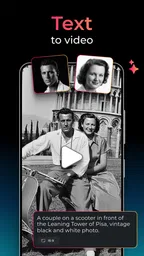
When starting with text, describe the visible scene rather than writing a vague mood alone. A useful prompt can name the subject, setting, lighting, and one main action. For instance, instead of asking for something “beautiful and cinematic,” picture a particular object in a particular place, with a clear movement or atmosphere. This is not a guarantee of a specific result; it is a practical way to make your intention easier to interpret.
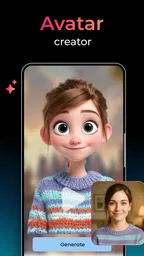
If you begin with an image, choose one that already communicates the subject clearly. A busy picture with several competing focal points can make it harder to know what you want the generated motion to emphasize. A simple composition gives you a cleaner basis for judging the transformation. This is especially helpful on a phone, where it is easy to select an image quickly without considering whether its contents support the idea you have in mind.
My suggested first meaningful success is not “make a perfect video.” It is “make one short visual that communicates one idea.” Once you have a result, ask whether the subject is recognizable, whether the movement supports the mood, and whether the clip would make sense to someone who has not seen your prompt. Those checks tell you more than simply asking whether the output looks impressive at first glance.
Small workflow choices that improve the experiment
A useful habit is to change only one part of a prompt between attempts. If the first result is too energetic, adjust the movement or atmosphere while keeping the subject and setting stable. If you rewrite everything at once, you will not know which change helped. This simple comparison turns prompt writing into a small creative process rather than a string of random retries.
Another trade-off is whether to begin with a reference image or a text idea. Use an image when the appearance of a subject matters more than inventing the whole scene. Start with text when you want freedom to explore something you cannot easily photograph. You can also think of the image route as a way to anchor the visual identity, while the text route is a way to set the concept. Choosing deliberately saves time and makes the output easier to assess.
For a practical everyday example, imagine you run a small craft shop and want a moving visual to accompany a new product post. You could start with a clear photo of the item, then judge whether the generated motion makes it feel inviting without obscuring what it is. If it changes the product’s defining details, that result may still be useful as inspiration, but it is not reliable as a faithful product showcase. For accuracy, use the original photo or a conventional editor instead.
I would also keep a mental distinction between a concept clip and a deliverable. AI-generated visuals can help you decide on a color mood, movement, or scene direction before you invest time in filming or editing. That can be valuable even when you do not publish the generated version. Treating it as a visual sketch is often a better use of the tool than asking it to replace every stage of production.
Common points of confusion
The phrase “video generator” can sound as if every prompt will turn into a predictable, editable sequence. In practice, a generated result should be judged as an interpretation of the request. If a detail is crucial, make it prominent in the prompt and check the output rather than assuming the tool preserved it. A result that captures the overall mood can still miss a small but important object or visual feature.
It is also easy to confuse making a clip with finishing a video. Generation is only one part of a publishing workflow. You may still need to decide whether the framing works on the platform where you plan to share it, whether the message is clear without explanation, and whether you need to add anything in another tool. If a project depends on precise timing or a specific sequence of scenes, plan for additional editing rather than expecting a single generated result to handle every detail.
Before spending money, I would first confirm that the basic creative approach suits you and review what an in-app purchase applies to. The listed price range extends from $0.99 to $699.99 per item, so it is sensible to read each purchase screen carefully. That is particularly important if you are exploring casually or letting a younger user try the app. The age rating is Everyone, but purchase decisions still deserve an adult’s attention where appropriate.
The app’s current version is 3.1.9, and it requires Android 9 or later. If you are setting it up on an older device, checking the operating system before you begin can prevent an avoidable installation snag. This is a simple first step, especially when you are helping a family member or trying the app on a phone that is not your everyday device.
When another tool is the better choice
For exact editing, a timeline-based video editor is usually the more dependable option. Those tools are designed around deliberate cuts, layers, and timing; a generative app is better approached as a way to create or explore visual material from a prompt or image. If your goal is to assemble existing footage into a carefully paced story, the conventional editor will likely give you more direct control.
If you need a still graphic rather than movement, a standard image-design app may be faster and easier to refine. If you need consistent branded content, you may prefer a workflow where you can place approved assets and text yourself. AI generation is most appealing when uncertainty is part of the fun—or when a visual starting point is more useful than exact control.
That does not make the app a poor choice for serious creative work. It means I would use it at the stage where exploration helps: testing a direction, turning a rough idea into something visible, or seeing whether an image can inspire motion. I would move to a different tool once precision, repeatability, or detailed finishing becomes the main priority.
My next-step recommendation
After your first attempt, save the idea that worked—not just the result. Note the subject, setting, and wording that seemed to guide the output, then make one measured change if you want a different feel. This gives you a repeatable way to learn what kinds of descriptions suit your projects without pretending that every generation will behave identically.
The best way to judge this app is to give it one modest, specific task. Try a clear image or a focused text concept, decide what success would look like, and inspect whether the result actually communicates that idea. If it does, you have a handy creative shortcut for sketches and shareable experiments. If you need exact control or dependable product accuracy, use it for inspiration and finish the work elsewhere.
AI Video Generator - Clips AI is a reasonable place for a first-time user to explore AI-created video because its core premise is easy to understand and does not require starting with recorded footage. It sits in the Art & Design space, is free to install, and has earned a 4.3 average. I would recommend it to curious creators who are comfortable experimenting; I would not make it my only tool for projects where every frame and detail must be controlled.
What we like
- Turns text prompts into short videos with little editing effort.
- Offers AI-generated visuals for quick social media content.
- A simple interface makes it approachable for beginners.
- Can help creators explore visual ideas before filming.
- Useful for producing clips when original footage is unavailable.
What could be better
- Generated scenes may not match prompts precisely.
- Video quality can vary between generations.
- AI results may need edits before they are ready to share.
- Some features or generations may require payment.
- Processing can take time depending on the request.





