
70mai review
 Analysis by Appsdrops
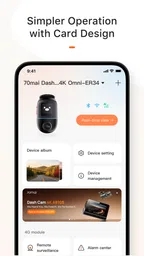
I see 70mai as a companion for people who use a compatible 70mai device in the car, rather than a general driving app that offers much on its own. That distinction matters if you are choosing it with accessibility or ease of use in mind: its value depends on how well the app fits your device and the way you interact with a phone before, during, and after a drive. I would not treat it as something to operate while moving; the safer, more practical approach is to set things up while parked and keep attention on the road.
How the app feels to read and navigate
The app is in the auto and vehicles category, and its purpose is closely tied to the 70mai product range. I find that focused role useful: someone who already owns a compatible device has a clear reason to open it, while a driver looking for navigation, route planning, or broad vehicle maintenance tools should look elsewhere. 70mai Co.,Ltd develops the app, which is free to install and rated for everyone.
At its best, a companion app makes a small set of device-related tasks easier to reach than they would be through buttons on hardware alone. The trade-off is that the app is not a standalone solution: without a compatible 70mai device, there may be little reason to keep it installed. Before relying on it, I would confirm that the particular device I own is supported and that the phone can connect to it in the way I expect.
For readability, the most useful test is not simply whether text looks clear on a bright screen. It is whether I can identify the right control quickly, understand what it will do, and complete the task without repeated trial and error. This is especially important in a car, where even a short interaction can become distracting. I recommend exploring the interface at home or while parked, then keeping routine changes to a minimum once driving begins.
The app has an average rating of 3.2 from around 900 ratings, so I would approach it with measured expectations rather than assuming every device-and-phone combination will feel effortless. That figure does not tell me what caused individual experiences, but it is a reminder to test the connection and basic workflow early, while there is time to troubleshoot calmly. If setup is difficult for you, ask someone to help before you depend on the app for a particular trip.
Small-screen habits that make a difference
A practical improvement is to decide in advance which tasks really need the phone. For example, I would separate occasional setup or review from anything that might tempt me to tap through screens on the road. If a passenger is available, they can handle a needed interaction while the driver stays focused. If I am driving alone, I would pull over somewhere safe before using the app.
It also helps to check the phone’s own display settings before opening the app. Larger system text, higher contrast, and a screen brightness that suits the cabin can make controls easier to distinguish, although the result depends on how the app responds to those settings. These are general phone adjustments, not special accessibility features I would attribute to 70mai itself.
Different motor and sensory needs
For someone with limited dexterity, the key question is whether the tasks they need can be completed with comfortable, deliberate taps. A phone can be awkward to hold in a parked car, and small targets or a need for precise timing can add friction. I would test the specific workflow with the phone mounted or placed securely, but only while stationary. If a task requires repeated tapping or awkward hand movement, it may be better to ask a passenger or another trusted person to complete it.
People who find visual information tiring may prefer to do setup in a quiet, well-lit place rather than in a dim cabin or direct sun. Glare, reflections, and changing light can make any phone screen harder to read. A useful routine is to prepare the app before leaving, keep the phone out of reach while driving, and review anything important after parking. That reduces pressure to interpret a screen quickly in a visually demanding environment.
For hearing-related needs, I would not assume that every interaction has a visual equivalent or that the app provides a particular kind of alert. The sensible approach is to check the actual device and app behavior during a parked test, then decide whether the available information is clear enough without relying on sound. If someone needs an alert to be presented in a specific way, they should verify that directly before depending on the setup.
These considerations make the app a better fit for people who can use a phone comfortably in short sessions, or who have help available for setup. It may be less suitable for someone who needs a fully hands-free workflow, large and widely spaced controls, or a guaranteed non-visual way to complete every task. I would not choose it on the assumption that those needs are covered; I would test the exact tasks that matter first.
Access in everyday driving situations
One realistic use case is preparing for a family trip. While the car is parked at home, I would open the app, check that the phone and compatible device are communicating, and finish any adjustments before loading luggage or settling passengers. That timing is more than a convenience: it keeps setup from competing with traffic, passengers, and the need to watch the road.
Another useful workflow is to make a quick post-drive check part of the parking routine. Once the car is safely stopped, I can take a moment to review whatever information I need from the connected device, rather than trying to remember to do it later or reaching for the phone at a traffic light. The important limitation is that this only helps if the connection and the relevant device functions have already been tested.
People who share a car may want to agree on a simple handoff routine. The person who owns or manages the device can handle app setup before a trip, while another driver avoids changing settings without knowing what they affect. This is a practical way to reduce confusion, especially when more than one person uses the vehicle or has different comfort levels with phone controls.
Compared with ordinary navigation apps, 70mai is a narrower tool: it is centered on the manufacturer’s devices rather than route guidance and live directions. Compared with a device’s physical controls alone, a companion app can offer a phone-based way to manage or review related tasks, but that convenience brings a dependency on the phone, the connection, and the person’s ability to use the interface. For drivers who mainly need directions, a navigation app is the better choice; for people who want to interact with a compatible 70mai product, this app is the relevant place to start.
Where friction can remain
The most important barrier is dependence on a compatible device. This is not a general-purpose tool that becomes useful simply because it is installed, so I would check compatibility before spending time on setup. A second friction point is the phone itself: screen size, glare, touch precision, and personal comfort can all change how easy the same task feels.
There is also a real safety trade-off. Phone access can be convenient, but that convenience can encourage drivers to look down or interact at the wrong moment. My advice is firm: do not browse or troubleshoot while moving. If a connection fails, wait until the car is parked safely. If the app is difficult to use under pressure, avoid creating a workflow that depends on quick roadside interaction.
The app was released on February 7, 2018, and its current version is 4.5.0. It supports Android 7.0 and later, which gives owners of older compatible Android phones a possible route to using it, but a minimum operating-system requirement does not guarantee that every older phone will behave equally well. With over 100,000 installs, it has an established audience, though that alone does not settle whether it will suit a particular device or accessibility need.
I would also distinguish “free” from “friction-free.” There is no app price to weigh, but a useful experience still depends on having the right hardware and a phone that can connect reliably. If buying a compatible device is not part of your plan, or if you only need ordinary navigation, this is probably not the app to install just to see what it does.
Who I would recommend it to
I would recommend trying 70mai if you already use a compatible product and want a phone-based companion for it. It is most promising for drivers who can prepare settings while parked, prefer to keep their in-car routine simple, and are comfortable checking device behavior before relying on it. The fact that it is free makes a cautious test straightforward, but I would still judge it by the tasks I actually need rather than by the promise of a connected experience.
I would be more cautious if using a touchscreen is difficult, if I need every interaction to be hands-free, or if I expect the app to replace navigation and other driving utilities. In those situations, a physical control, help from a passenger, or a different app designed for the specific task may be a better fit. Accessibility is personal, so the most useful test is to perform the intended setup and review steps in a calm, parked setting before making the app part of a regular driving routine.
Overall, I see 70mai as a focused companion rather than an all-purpose driver’s assistant. Its strongest case is simple: you own compatible hardware and want to manage related tasks through your phone. Its limits are just as important: usability depends on the device, the connection, and your comfort with touch interaction. If those pieces work for you, it is worth trying; if they do not, choosing a more suitable way to interact with your equipment is the better decision.
What we like
- Clear video helps identify details after an incident
- Parking surveillance can record activity while the car is unattended
- Voice control lets drivers start recordings without reaching for the camera
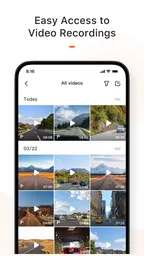
- The app makes it easy to review and download dashcam footage
- Multiple camera models can be managed from one app
What could be better
- Some features require a compatible 70mai dashcam
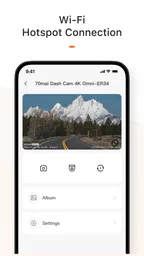
- Live preview and downloads rely on a direct Wi-Fi connection
- Large video files can take time to transfer to a phone
- Background parking monitoring may require extra hardware
- App performance and features can vary between dashcam models





