



USB Connector Cast Phone to TV review
 Analysis by Appsdrops
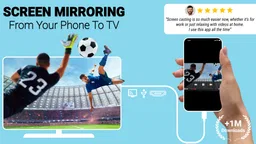
I find USB Connector Cast Phone to TV most interesting as a practical household utility: it aims to help move content from a phone onto a television using a wired connection or wireless mirroring. That can be useful when people share a screen for photos, a short video, or a quick demonstration, but the experience depends on the phone, TV, cable, and network working well together. I would treat it as a connection tool to try, not as a guarantee that every device will pair effortlessly.
Published by Vidmark Inc., this free app sits in the libraries-and-demos corner of the app world rather than behaving like a streaming service or a TV remote. It has a 3.6 average from around 12,000 ratings, with more than a million installs. Those figures suggest that plenty of people have tried it, while the middling average is a reminder to keep expectations measured: screen mirroring can be very device-dependent, and an app cannot remove every compatibility hurdle.
Sharing a phone screen around the house
The clearest everyday use is a small group gathered around a television while one person has something worth showing on a phone. I can imagine using it to share holiday pictures with relatives, display a recipe while cooking, or let someone follow along with a map or presentation without passing a handset from hand to hand. The value is less about replacing the TV’s own apps and more about putting a personal screen in front of several people.
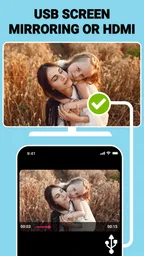
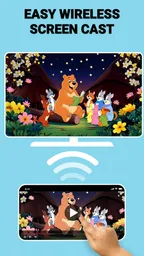
A wired route can make sense when the phone and television are near each other and the right connection hardware is available. Wireless mirroring is more convenient when nobody wants a cable stretched across a room, though it can be more sensitive to the devices and network involved. In either case, I would test the setup before guests arrive or before an important presentation. That simple rehearsal can reveal whether the TV accepts the connection and whether the phone’s display is comfortable to view from across the room.
One useful habit is to prepare the material on the phone before casting. Close unrelated pages, move to the photo or video you intend to show, and check whether notifications might appear on the larger screen. This is not a special feature of the app; it is a sensible privacy step whenever a personal device is mirrored. It matters especially in a shared living room, where a quick glance at a notification can expose information meant only for the phone’s owner.
For a family photo session, I would also decide who is handling the phone and who is choosing what comes next. A single person controlling the handset keeps the viewing flow calm, while others can suggest pictures aloud. This avoids the awkward shuffle of several people trying to connect their own phones in turn, and it reduces the chance that someone accidentally displays a private message or unrelated album.
What to expect from setup
The app’s central promise is straightforward, but “connect to a TV” is not one universal process. The wired and wireless approaches have different practical dependencies. A cable may require a compatible connector or adapter, while wireless mirroring relies on support across the phone, television, and network environment. I would check what the TV can receive and what the phone can output before assuming that installing an app alone is enough.
That distinction is important for anyone buying accessories. A connector that physically fits is not necessarily the one that carries the display signal the way a particular phone needs. Before spending money, identify the phone’s port and the TV’s available inputs, then confirm that the intended cable or adapter supports the required video connection. The app can be part of the workflow, but it cannot make incompatible hardware compatible.
When trying wireless mirroring, I would keep the phone and TV on the same local setup where the devices require it, and avoid beginning with a weak or crowded connection. If the picture stutters, first reduce distance and interference or try a wired path rather than repeatedly tapping through menus. This troubleshooting order is more useful than assuming the app itself is broken: the bottleneck may be the TV’s receiver, the phone’s casting support, or the network.
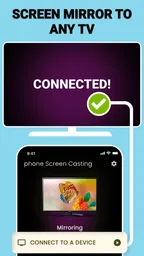
For a first test, use a short, non-sensitive clip or a few ordinary photos. Confirm that the picture appears, check how it fits the television, and make sure audio behaves as expected before relying on the connection for a longer viewing session. A quick test also helps you learn whether the phone needs to stay awake or whether you can comfortably control playback from the handset. These small checks prevent a casual sharing session from turning into a public troubleshooting exercise.
Keeping shared devices and accounts separate
In a household, the phone is often personal even when the television is shared. I would connect from the device belonging to the person who has permission to show its contents, rather than treating the TV as a neutral destination for any nearby handset. Mirroring can put much more than the intended media on screen, so it is worth checking the phone’s current app and notification state before starting.
There is also a practical difference between casting a selected item and mirroring an entire display. With full-screen mirroring, whatever the phone owner opens may become visible to everyone watching. If the goal is simply to show one photo or a short clip, open that item first and avoid switching into personal messages, email, or account settings while the TV is displaying the phone. For sensitive material, I would choose a method that shares only the intended content, if the phone and TV offer one.
Shared-device coordination is easiest when the household agrees on a simple handoff: one person connects, announces when the screen is live, and disconnects when finished. That is particularly helpful if children, guests, or roommates may pick up the phone or use the television immediately afterward. I would not assume that an app connection automatically establishes household permissions or separates one person’s accounts from another’s; those boundaries need to come from the people using the devices.
If several family members want to show something, taking turns is usually smoother than repeatedly switching between phones without a plan. The person currently connected can finish their item, disconnect, and let the next person begin. This may sound basic, but it prevents confusion over which phone is controlling the shared screen and makes it easier to notice when a connection is still active after viewing ends.
Age, trust, and purchase awareness
The app is rated for Everyone, which makes it broadly suitable by age classification, but that does not mean every screen-sharing situation is automatically appropriate for every child. A child using a parent’s phone could expose messages, photos, or account details if the whole display is mirrored. I would supervise the first connection and make the intended content visible before handing over the device.
It is also worth discussing consent in a shared home. Showing someone else’s pictures or messages on a television should be a deliberate choice, not an accidental consequence of connecting the wrong phone. For children, a short explanation—ask before displaying someone else’s content, and stop if private information appears—is more useful than relying on a technical tool to manage household behavior.
The app is free to install, with in-app purchases listed from $9.99 to $99.99 per item. I would look carefully at any purchase screen before confirming anything, especially on a device used by multiple people. A child or guest should not be left to make a purchase decision on the account holder’s behalf. The free starting point makes it possible to assess whether the connection suits your setup before considering any paid option.
USB Connector Cast Phone to TV is on version 2.0.5 and requires Android 8.0 or later. Its release date is May 23, 2018, so it has been around for several years, but the practical question for me is still whether it works with the specific phone and TV in the room. I would use those compatibility checks rather than the app’s age alone to decide whether it belongs in a household’s toolkit.
Where it fits beside other options
Compared with a TV’s built-in casting tools, this app is useful when you want an app-based route to try phone-to-TV connection, especially if you are weighing a wired approach alongside wireless mirroring. Built-in options may be the better first choice when they already support your phone and television, because they can avoid an extra setup layer. For streaming services, opening the service directly on the TV is usually simpler than mirroring a phone for an entire show.
A wired connection is often the more sensible alternative when wireless performance is unreliable, but it adds the cost and compatibility work of the right cable or adapter. Wireless mirroring avoids that physical setup, though it may be less dependable in a busy network environment. Neither route is automatically best: I would choose based on the room, the available hardware, and whether convenience or a stable connection matters more for the occasion.
This is not the app I would choose for a household seeking parental controls, shared profiles, or a managed media library. Its role is narrower: helping a phone communicate with a TV for screen sharing. If you need a curated family viewing experience, a TV’s own apps or a dedicated streaming device may be a better fit. If you mainly want to show personal content on a larger display, this kind of connector app is more relevant.
My household verdict
I would keep USB Connector Cast Phone to TV in mind for occasional sharing, not make it the center of a home entertainment setup. It can be a handy option for showing photos, a clip, or a phone-based demonstration when the hardware lines up. Its strongest use is a short, planned session where one person controls the phone and everyone else watches, rather than a complicated multi-user routine.
The main trade-off is that the app’s usefulness depends on compatibility and connection conditions beyond the app itself. I would test it with the actual phone and television, start with harmless content, and keep a cable-based or built-in TV method as a fallback. That approach is particularly valuable when coordinating around children or guests, because it gives you time to check what will appear on the shared screen.
For Android users on version 8.0 or newer who want to explore phone-to-TV sharing, the free install is a reasonable starting point. I would skip it if your TV already handles your needs more simply, if you expect a guaranteed connection across mismatched hardware, or if you need account and family-management features. Used with realistic expectations and a little preparation, it can make a shared screen more convenient without pretending to solve every household setup problem.
What we like
- Supports screen mirroring from compatible Android phones to TVs.
- Can make photos and videos easier to view on a larger screen.
- Useful for sharing phone content with a group.
- Offers a simple way to explore phone-to-TV connection options.
- May work with TVs that support wireless casting.
What could be better
- Casting support depends on the phone and TV models.
- Some features may require a separate casting device.
- Wireless mirroring can introduce lag during playback.
- The app may display ads during use.
- Video quality can vary with network strength.





