
Gamers GLTool with Game Tuner review
 Analysis by Appsdrops
The first time I opened Gamers GLTool, I treated it as a helper to explore before a game session, not as a magic switch for faster performance. That is the right mindset: this Android gaming utility brings together tools such as Game Mode, an FPS overlay, match reports, and Game Tuner, but how useful each one feels depends on the game and the phone. My most practical advice is to try one option at a time, check what it actually changes for you, and keep the settings you can feel rather than chasing a perfect-looking setup.
What to expect from this gaming toolkit
Made by Trilokia Inc., this free app sits in the libraries and demo side of Android apps, although its purpose is clearly practical: giving players a set of controls and information to use alongside their games. It is rated for Everyone and has an average rating of 4.5 from around 45,000 ratings, with more than 5 million installs. Those figures suggest broad interest, but they do not guarantee that every tool will suit every device.
The current version is 2.0, and the app requires Android 7.0 or later. Some items are available through in-app purchases at $1.49 per item, so “free” describes the starting point rather than necessarily every option you may encounter. I would install it expecting to explore the free experience first and decide later whether a paid item solves a real need.
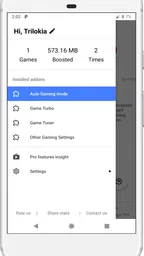
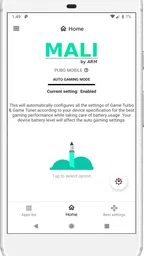
The key distinction is that Gamers GLTool is a companion utility, not a game and not a replacement for your phone’s built-in gaming features. Game Mode gives you a place to organize gaming-related controls, while Game Tuner provides settings to experiment with. The FPS overlay and match reports are there to help you observe sessions. In other words, some of the value is in changing a setup; some is in seeing what happens after you change it.
That makes the app most appealing to someone who enjoys adjusting their phone and wants a clearer way to compare sessions. If you simply want to tap a game icon and start playing, your phone’s existing game launcher or performance mode may be enough. A separate tuning app adds value only when its controls or feedback help you make a decision you could not make comfortably already.
Start small instead of tuning everything
For a first run, I would choose one game I know well and use it as a baseline. Play a short session in your usual setup, then try one relevant tool and compare how the game feels. Changing several settings at once can make a session seem better or worse without showing which adjustment mattered. A familiar game also makes it easier to notice a genuine difference in smoothness or responsiveness than a new game would.
An FPS overlay is especially useful as a reference, not a score to obsess over. It can help you notice whether performance appears steady during a demanding part of a game, but a number alone does not tell you whether controls feel responsive or whether the session is enjoyable. I would use it to compare like with like: the same game, similar play conditions, and one setting changed at a time.
Make the first setup manageable
After installing, look through the available tools before turning on every option. Start with the game you want to use, identify the controls that seem relevant, and leave the rest alone for the first test. This keeps the initial setup understandable and gives you a useful point of comparison. If you are unsure what a control will do, do not treat its presence as a recommendation to enable it.
It is also worth deciding what success means before you adjust anything. Maybe you want a steadier-feeling session, an on-screen performance reference, or a convenient way to review a match. Those are different goals. Pick one, then see whether the corresponding tool helps; otherwise, it is easy to spend time tuning settings that do not address the problem you actually have.
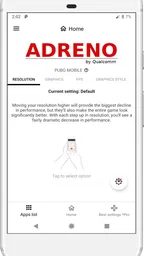
Game Tuner is where I would be most cautious and methodical. Tuning can involve trade-offs: a change that makes one aspect of play feel better may not improve everything else. I would keep track of the setting I changed, test it in a real match, and revert it if the result is unclear or worse. The point is not to make the most aggressive adjustment, but to find a configuration that feels right on your own device.
Turn the first test into a useful result
A realistic first success might be a player who often wonders whether a match felt choppy or whether it was just a difficult round. Before playing, they choose a familiar game and use the FPS overlay as a reference. Afterward, they check the match report if it is available for that session and compare the experience with their usual play. Even if no setting needs changing, the player has learned what the app can show and whether that information is worth keeping on screen.
Another useful workflow is to test Game Mode without treating it as an automatic performance fix. Use it to make your gaming setup more intentional, then play normally and see whether the arrangement is convenient. If it adds an extra step without helping you access the tools you use, there is no reason to force it into every session. A good utility should simplify your routine, not become another task to manage.
Match reports can be valuable when you want to reflect after a session rather than interrupt play to inspect details. I would regard them as a prompt for comparison, not a complete explanation of why a match went well or badly. A report can help you notice patterns, but it cannot replace your own judgement about controls, connection conditions, or how the game felt in the moment.
Understand what the overlay and reports can tell you
One easy misunderstanding is to equate a visible FPS reading with overall quality. A stable number may still accompany a game that feels uncomfortable, while a changing number does not automatically mean a match is unplayable. Use the overlay to answer a narrow question—such as whether a particular adjustment seems to affect performance—rather than judging the whole experience from one indicator.
Likewise, a match report is best treated as a record to consult after playing, not as proof that one setting caused a result. If you want to make a fair comparison, keep your changes limited and repeat the same kind of play where possible. This is a more useful approach than making several alterations and then trying to guess which one helped.
There is also a practical trade-off with any on-screen overlay: extra information can be helpful, but it can compete with the game for attention or space. If it distracts you, use it only while testing and turn your attention back to the game afterward. Players who prefer an uncluttered screen may be happier relying on occasional checks than leaving the overlay visible all the time.
Where this app fits beside built-in tools
Compared with a phone’s built-in gaming mode, Gamers GLTool is most interesting when you want a dedicated combination of tuning and session feedback. A built-in option is often the simpler choice if it already provides the controls you need and you do not want another app in your routine. The advantage here is having Game Tuner, an FPS overlay, and match reports gathered in one gaming-focused toolkit, rather than relying only on a basic system toggle.
It is not automatically better than other tuning utilities, either. If you already have a tool that gives you the specific feedback or controls you want, switching may add little. The decision is less about collecting the most options and more about whether this app’s particular mix helps with a real problem. For a player who likes to experiment and review sessions, that mix makes sense; for someone who values simplicity above all, it may feel like unnecessary overhead.
Device and game differences matter here. A setting that seems worthwhile in one title may not make another more enjoyable, so I would avoid copying a configuration simply because it worked for someone else. Test changes in the game you actually play, and restore your original setup if the result is uncertain. That cautious approach is especially helpful when you are new to tuning and are not yet sure which tool is responsible for a change.
Who should try it—and who can skip it
I would recommend giving it a try if you play regularly, are curious about how your games behave on your phone, and do not mind a little trial and error. It can also suit someone who wants to combine a tuning workflow with a performance reference and post-match review. The most satisfying use is likely to come from a player who has a specific question, tests a focused change, and keeps only the parts of the app that answer it.
I would skip it if you never adjust game settings, do not want an overlay, or already feel well served by your phone’s built-in gaming tools. It is also a poor fit if you expect one tap to make every game run better. A companion app can help you organize and assess your own setup, but it cannot promise that every game or device will respond the same way.
For a first-time user, my next step would be simple: install the free app on a compatible Android device, pick one familiar game, and explore a single tool during a short test. Keep the original setup in mind, note what you changed, and decide afterward whether the difference was useful. If you want more from the app, consider the paid items only after you have found a feature you genuinely want; with purchases priced at $1.49 per item, there is little reason to buy anything before you know what belongs in your routine.
Overall, Gamers GLTool is a flexible gaming companion for players who like to observe and adjust rather than accept default settings without question. Its strongest quality is the combination of tuning and session-awareness tools, while its main limitation is that their usefulness depends on your game, your device, and your willingness to test carefully. I would approach it as a small workshop for refining a gaming setup—not a guaranteed boost—and that expectation makes the app much easier to judge fairly.
What we like
- Offers per-game profiles for quick setup changes.
- Includes tools for monitoring device performance during play.
- Provides screen resolution and graphics options for supported games.
- Can help limit background activity while gaming.
- Combines tuning controls with a customizable game launcher.
What could be better
- Some features may require root access or paid upgrades.
- Results vary by device and game compatibility.
- Changing advanced settings can cause instability or overheating.
- Performance monitoring may add battery and resource usage.
- The interface can feel crowded for first-time users.





