PGT: GFX, Launcher & Optimizer review
 Analysis by Appsdrops
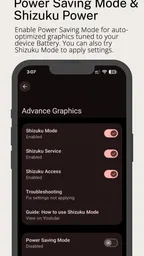
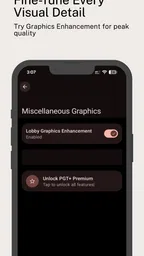
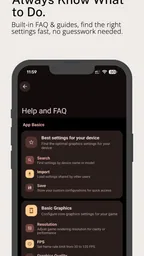
I would approach PGT: GFX, Launcher & Optimizer as a hands-on configuration helper, not a magic button for smoother gameplay. It is aimed at specific FPS mobile games, so its usefulness depends on whether the game you play is supported and whether changing graphics settings addresses the problem you actually have. When those pieces line up, it can make experimenting with visual settings more manageable. When they do not, adding another app to the launch routine may only create extra friction.
Where setup tends to get stuck
PGT: GFX is a free Android app from Trilokia Inc. in the libraries and demo area. Its basic idea is appealing: use a separate utility to adjust game graphics rather than rely only on the options you find inside the game. That can be useful when you are trying to find a balance between a clear image and reliable performance, but it also means the app is not a universal optimizer for every game or device.
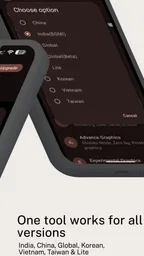
The first practical check is simple: make sure the FPS game you want to use is one the app is designed to work with. The short description, PGT: GFX, does not mean it automatically applies to every title. If your game is not supported, or its own settings already offer the controls you need, the utility may not add much. I would confirm compatibility before spending time adjusting profiles or troubleshooting launch behavior.
It helps to decide what you are trying to improve before touching settings. If the game looks too demanding or runs inconsistently, reducing visual demands may be more sensible than chasing the highest available graphics option. If the game is already stable but you want a different look, a performance-focused change may be the wrong trade-off. A configuration tool can expose choices; it cannot make every combination equally suitable for your phone.
Another common source of confusion is expecting one setting to solve several different problems. A game that stutters, a phone that heats up, and a connection that lags can feel similar while playing, but they are not the same issue. Changing graphics can help only with problems related to rendering or device load. It will not repair a weak network connection, and a prettier image is not proof that gameplay has become more responsive.
Check the basics before changing anything
Before experimenting, note the game’s current settings and how it behaves in an ordinary session. That gives you a useful baseline and makes it easier to undo a change that makes things worse. I would alter one setting at a time, then play for long enough to notice whether the difference is consistent. Changing several options together may feel faster, but it leaves you guessing about which adjustment caused an improvement or a new problem.
Also check that the game itself is launching normally before involving a graphics utility. If the game has just updated, or if its own settings have been reset, first open it directly and confirm the basic experience. A problem that appears before any configuration change is not good evidence that PGT caused it. This small check can save a lot of needless reinstalling and repeated tweaking.
The app is rated for Everyone, and it has an average rating of 4.5 from around 189,000 ratings. That broad response suggests many players find the idea worthwhile, but it does not guarantee the same results on every phone or in every supported game. I would treat other players’ enthusiasm as a reason to investigate, not as a promise that a particular preset will work for you.
Build a reversible setup routine
My preferred way to use a graphics utility is as a controlled test rather than a permanent fix. Start with the least disruptive option that addresses your goal, apply it, and try the game under the same conditions as your baseline. If you are comparing performance, use a familiar match or practice situation rather than judging from a brief menu visit. Menus and live play can put very different demands on a device.
A useful, non-obvious habit is to keep a short note of what you changed and what you observed. You do not need a complicated log: the game, the adjustment, and whether the session felt better are enough. This matters because memory is unreliable when two settings look similar, and a later game update may change how the same configuration feels. A note also makes it easier to return to a known-good setup instead of repeating the whole experiment.
If a new configuration causes trouble, reverse the most recent change first. Avoid stacking more tweaks on top of a bad result; doing so makes recovery harder. If you cannot identify the adjustment, return to the game’s ordinary settings and test the game by itself before trying again. The practical goal is not to find the most elaborate profile. It is to keep a stable setup you understand.
For an everyday example, imagine you have a short break and want to play a quick FPS match. If the game already opens and runs acceptably, I would not spend that break switching profiles just because a higher-looking graphics option is available. If it has been struggling during longer sessions, I would make one conservative adjustment beforehand, test it in a familiar situation, and keep it only if the result is repeatable. That approach is less exciting than tapping an “optimize” button, but it gives you a clearer answer.
PGT: GFX has been available since May 24, 2018, and its current version is 0.21.7. The app has over 10 million installs, which makes it a well-established choice in this narrow kind of utility. Still, installation figures do not tell you whether your particular game, device, and goal are a good match. I would judge it by whether it gives you a usable, reversible way to handle your own setup.
Recover without blaming the wrong thing
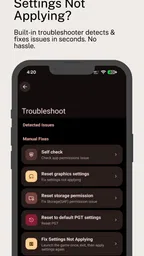
If the game stops behaving normally after a change, first restore the previous configuration or return to the game’s own graphics options. Then launch the game without making another adjustment and see whether the issue remains. This separates a configuration problem from a game or device problem more cleanly than changing multiple things at once.
If the game will not launch, check the simplest parts of the routine: confirm you are opening the correct game, close and reopen the apps, and retry with the game’s default settings. If the issue persists, stop experimenting and use the game’s normal support or troubleshooting route. Repeatedly applying different profiles without a clear test can make it harder to identify what actually went wrong.
Keep expectations measured around “optimization.” The word can suggest that the app will automatically detect the ideal settings, but I would treat it as a tool for configuration rather than a guarantee of higher performance. Device capability, the game’s own updates, and the conditions of a session all affect what feels smooth. Even a setting that helps one player may be a poor fit for someone who values image quality more than performance.
Know when the problem is elsewhere
When a match feels delayed, check whether the problem is consistent in other online activity before changing graphics. If the image is clear but actions arrive late, graphics settings are unlikely to be the main answer. If the game is smooth in menus but struggles in demanding scenes, a visual adjustment is more plausible as a test. Distinguishing those symptoms keeps you from treating every frustrating match as a graphics issue.
Likewise, a device that is already busy or warm may behave differently from one starting a fresh session. I would close apps I do not need, let the phone settle, and compare like with like before deciding that a profile helped or hurt. That is general troubleshooting, not a special feature of PGT, but it is important when you are trying to judge a graphics change fairly.
The app is not the right choice if you want a one-tap fix for every FPS title, if you are unwilling to test changes, or if your game already provides settings that cover your needs. It is also a poor substitute for checking connection issues or addressing a game that is crashing independently of any graphics adjustment. In those situations, the game’s own controls or ordinary device and network troubleshooting are the better first steps.
How it compares with the usual options
The obvious alternative is to use the game’s built-in graphics menu. That route is simpler and keeps all changes in one place, so I would choose it when the available controls are enough. PGT’s appeal is for players who want a separate utility focused on graphics configuration for specific FPS games. That narrower purpose can be helpful, but it also adds a step: you must make sure the game is compatible, understand the change, and check that the result is actually better.
Compared with doing nothing, the app is worth trying when you have a clear, graphics-related issue and are comfortable testing settings carefully. Compared with a general phone-cleaning or performance app, its game-specific focus is more relevant to this task, but it should not be mistaken for a cure-all for device or network trouble. The best alternative depends on the symptom, not on which tool has the most ambitious name.
PGT: GFX is free, so the main cost is the time and attention needed to test it sensibly. Its Everyone age rating makes it broadly suitable, though younger players should still follow a parent or guardian’s usual guidance about installing apps and changing game settings. I would install it for a supported FPS game only when I have a particular setting goal, rather than keeping it around in the hope that it will improve every game automatically.
A practical verdict
I see PGT: GFX as a useful, specialized option for players who want to experiment with graphics settings in supported FPS mobile games. Its strongest point is the focused role: it gives you a separate place to work through configuration choices instead of treating every performance complaint as the same problem. The trade-off is that you need to understand what you are changing and be willing to back out a setting that does not help.
With an average rating of 4.5 and a large audience, it has clearly found users who value this kind of utility. I would still make my decision based on a careful first test: check compatibility, record the starting settings, change one thing, and compare the game in a familiar situation. If that process produces a stable improvement, the app earns a place in your routine. If the trouble is network delay, a game update, or a device issue, I would look elsewhere rather than keep turning graphics options.
My recommendation is straightforward: try it if you play a supported FPS title and want more deliberate control over its visual setup. Skip it if you expect automatic results or need help with a problem unrelated to graphics. Used patiently, it can be a practical helper; used as a universal fix, it is likely to disappoint.
What we like
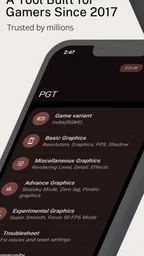
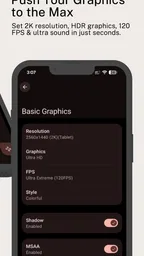
- Offers graphics presets for tailoring supported games to your device.
- Includes an FPS counter for checking game performance.
- Provides options to adjust resolution and rendering quality.
- The launcher keeps game-related tools easy to access.
- Can help users explore settings beyond a game's built-in menu.
What could be better
- Some graphics options may not work with every game or device.
- Changing unsupported settings can cause crashes or visual glitches.
- Performance improvements are not guaranteed on all phones.
- Advanced options may be confusing for inexperienced users.
- Some features may require payment or display ads.





