
TP-LINK tpCamera review
 Analysis by Appsdrops
I judge a camera-viewing app by what happens when I need a quick answer, not by how many controls it can display. TP-LINK tpCamera is built around a narrow, practical job: giving owners of compatible TP-LINK cameras a way to check the view from a mobile device. That focus can make it more convenient than opening a browser or finding a computer, but it also means the app’s usefulness depends heavily on whether its camera setup fits your needs.
A practical routine for checking a camera
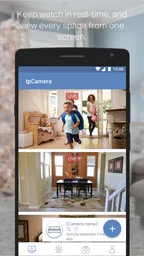
The simplest way to think about tpCamera is as a companion to a camera you have already set up, rather than a general-purpose home-monitoring system. When I want to see whether a room is empty, check on a pet, or take a quick look at a space while I am away, opening one dedicated app is a straightforward habit. The store summary describes access from anywhere and at any time; in day-to-day use, that promise is most valuable when the camera is configured and reachable before I need it.
The first useful routine is to test the whole path while you are at home: open the app, select the camera you want to view, and make sure the image appears. Then try the same check away from your home network. This small rehearsal matters more than it sounds. Discovering a setup problem before leaving is much less stressful than trying to troubleshoot it while travelling or in the middle of a busy day.
I would also give each camera a clear, memorable name during setup if the app offers that option for your configuration. A label such as “hallway” is more useful than a generic device name when you are checking several locations in a hurry. This is not a special feature claim; it is a simple organizational habit that makes any multi-camera routine easier to follow.
For an everyday example, imagine leaving home and wanting to check whether a door area is clear before asking someone to bring in a delivery. A quick glance can answer that narrow question. I would not treat a phone check as a substitute for being present, however, or assume that one image settles every concern. The app is best used for brief visual checks, with the camera’s placement and the quality of its connection doing much of the work.
Where it fits among camera apps
tpCamera is an app in the Libraries & Demo category, developed by TP-LINK SYSTEMS INC. That category label is less important than its role: it is aimed at viewing compatible cameras, rather than replacing every tool a home-security system might need. If you already use a matching TP-LINK camera, a dedicated companion app is often more direct than switching between a browser, a generic viewer, and device-specific controls.
Compared with broad smart-home platforms, a camera companion can be easier to approach when the only task is seeing a live view. The trade-off is flexibility. A general platform may suit someone who wants devices from different brands collected in one place, while tpCamera makes more sense when the camera itself is the centre of the setup. If you are still choosing hardware, check compatibility and the camera’s own capabilities before deciding that the app alone will meet your needs.
Check the basics before relying on it
The most useful settings to review are the ones that affect access and everyday clarity: whether the camera is correctly associated with your account or setup, whether the device has a useful name, and whether the view is framed for the question you expect to ask. I would also check that the camera remains reachable from the places where I plan to use the phone. A beautifully framed view is no help if the device is offline when you need it.
That last point is a practical distinction between an app problem and a camera or network problem. If a view fails to load, I would first check whether the camera itself is powered and connected, then try again on a reliable connection. Repeatedly tapping the same control rarely fixes a device that has lost connectivity. Keeping the camera in a location with dependable network access is a more effective long-term habit than relying on the phone app to compensate for a weak setup.
Think about what the camera can actually see before treating a live image as a complete account of a room. A narrow angle, glare, darkness, or an object blocking the lens can make an apparently normal view misleading. I recommend checking the image at the times you expect to use it, including after changes to furniture or lighting. This is especially helpful for monitoring a pet or checking an entrance, where a small shift in camera position can hide the very area you care about.
Because remote viewing involves access to a camera, I would be deliberate about who can use the device and where the camera points. Keep the view limited to the space you genuinely need to check, and avoid sharing access casually. These are sensible habits for any connected camera, not a claim about a particular privacy control in tpCamera. They help make the overall setup more trustworthy, regardless of which app you use.
Build a faster checking habit
Experienced users tend to save time through repetition rather than complicated tricks. I would keep the same order each time: open the app, choose the camera by its location name, wait for the image, and close the app once the check is done. If there are several cameras, decide in advance which one answers each common question. That prevents a rushed search through devices when you only need to know whether the front room is occupied.
Another useful habit is to distinguish a quick visual check from a full review. If you only need to see whether a familiar area looks normal, a brief glance is enough. If something looks unusual, take a moment to check the framing and connection before drawing a conclusion. This reduces false alarms caused by a frozen or incomplete view and keeps the app from becoming a source of unnecessary worry.
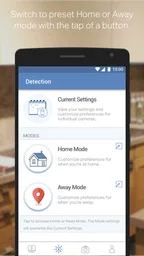
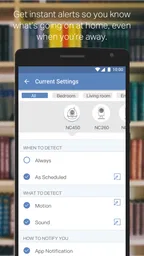
I would avoid building a routine around notifications, recording, or automation unless those functions are available in your particular camera setup and are clearly supported by the app. The reliable workflow here is the one the app is designed around: opening it to view a camera. That restraint is useful. It prevents you from assuming the phone will alert you to an event or preserve footage when your actual setup may not be configured for that purpose.
For a household with more than one person, agree on a consistent camera naming scheme and a simple rule for when to check. For example, one person might handle a quick look at the entryway after a delivery, while another checks the pet’s room during a break. The benefit is not an extra software feature; it is fewer confusing device names and less duplicated effort. A little coordination makes a basic viewer feel much more dependable.
Limits that matter before you commit
The biggest limitation is the app’s close relationship with its camera ecosystem. If you own cameras from several manufacturers, a single-brand viewer can add another stop to your daily routine. A cross-brand smart-home app may be a better fit if it supports your devices and you value one unified dashboard more than a focused camera viewer.
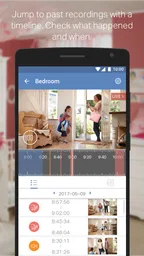
It is also important to separate live viewing from a complete security service. I would not choose tpCamera on the assumption that it provides continuous recording, event detection, alerts, or a particular playback history unless those capabilities are confirmed for the exact camera and setup you intend to use. Someone who needs evidence after an event, dependable alerts, or a more comprehensive monitoring workflow should compare the camera’s full system with dedicated security options before relying on this app.
Connection quality can shape the experience as much as the software. A camera in a weak-signal corner may be slow or unavailable even when the phone works perfectly elsewhere. Before buying equipment for remote checks, consider where the camera will sit and whether its network connection is likely to remain stable. If the view is consistently difficult to reach, changing the camera’s placement or improving the connection may help more than switching between phone apps.
Another trade-off is that a dedicated viewer is most rewarding when you have a clear, repeated reason to open it. If you only check a camera once in a while, the convenience may be modest. If you expect to manage several different brands, review recorded events, or control a wider collection of smart devices from one screen, compare alternatives carefully. I would rather choose a tool that matches the whole routine than force a narrow app to serve as a complete home hub.
Who is likely to appreciate it
With more than one million installs, a 4.1 average from around twenty-two thousand ratings, and 261 written reviews, tpCamera has a sizeable audience of camera users. Those figures suggest that it is an established option, but they do not tell me whether it will suit a particular camera, network, or household. I would use them as context, not as a substitute for checking compatibility and deciding what you need to do with the camera.
The app is free and rated for Everyone. It was released on November 25, 2014, and its current version is 3.2.22, with Android 7.0 as the minimum operating system requirement. That makes the Android requirement easy to check before installing, especially if you plan to use an older phone as a dedicated viewer. The practical question is whether your camera and your intended viewing routine are a good match, not simply whether the app is available at no charge.
I would recommend it to someone who owns a compatible TP-LINK camera, wants a straightforward way to look in on a familiar space, and is comfortable with a focused companion app. It can be useful for checking a pet’s room, taking a quick look at an entrance, or confirming that a home office is empty. I would steer a mixed-brand household, or anyone seeking a full recording and alert system, toward a broader or more purpose-built alternative unless their specific camera setup already covers those needs.
My overall view is that TP-LINK tpCamera is at its best when you keep the job simple: set up the camera carefully, make the view easy to identify, test remote access before depending on it, and use the app for quick visual checks. That repeatable approach gets more value from the software than expecting it to solve every monitoring need. If your camera belongs in its ecosystem and live viewing is what you want, it is a sensible tool to try; if you need a complete security workflow or a single interface for many brands, look beyond it before making the app your main system.
What we like
- Remote live viewing helps you check on a room while away.
- Motion alerts can notify you when activity is detected.
- Recorded clips make it easier to review past events.
- Camera controls are accessible from a mobile device.
- Useful for checking on pets or home spaces remotely.
What could be better
- Remote viewing depends on a reliable internet connection.
- Alerts may be delayed by network or device issues.
- Cloud recording features may require a paid plan.
- Compatibility is limited to supported TP-Link camera models.
- Video quality depends on the camera and connection speed.





