SmartWatch Connect for Android review
 Analysis by Appsdrops
I’d consider SmartWatch Connect when my main goal is simple: have phone notifications appear on a smartwatch over Bluetooth. That sounds straightforward, but the experience depends on more than pressing a connect button. The watch and phone need to stay paired, notification access must be set up appropriately, and both devices have to behave as expected in everyday use. My practical view is that this app is most appealing to someone willing to check those basics rather than expecting a connection tool to fix every watch problem automatically.
Where a simple connection can get stuck
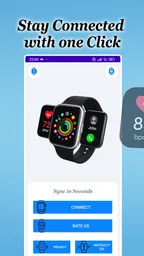
SmartWatch Connect is an Android app from JedyApps in the Libraries & Demo category. Its purpose is easy to understand: connect a phone and smartwatch through Bluetooth so notifications can reach the wrist. That narrow focus is useful if you are trying to solve one specific annoyance, such as missing a message while your phone is in a bag, but it also means the app should not be mistaken for a complete smartwatch companion suite.
The first thing I would check is whether the watch is actually paired with the phone, rather than merely powered on and nearby. Bluetooth pairing and notification delivery are related but not identical: a device can appear connected while a particular alert still fails to show. If calls or other watch functions work but messages do not, I would look at notification settings before repeatedly removing and reconnecting the watch.
There can also be confusion about where to change a setting. Some controls belong to Android, some may belong to the watch’s own companion software, and the connection app is only one part of that chain. I would avoid changing several things at once. A single adjustment followed by a test notification makes it easier to see whether the change helped.
A useful first test is to send yourself a message from a service you already use, then check both the phone’s notification shade and the watch. If the alert never appears on the phone, the watch cannot relay it. If it appears on the phone but not the watch, the problem is more likely to involve the connection or notification setup. This simple split saves time that might otherwise go into repeated Bluetooth pairing attempts.
Setup checks before troubleshooting
Before installing or opening the app, I would confirm that Bluetooth is enabled and that the phone can see the watch. Keep the devices close during initial setup, and make sure the watch has enough battery to remain on while you test. These are ordinary checks, but they help separate a basic pairing issue from a problem with notification delivery.
After pairing, send a test alert while the phone is unlocked, then repeat with the screen off. That comparison can reveal whether the connection works only during active use or continues under normal conditions. I would also check the phone’s notification settings for the specific apps I care about. A watch connection cannot show an alert that the phone itself is configured not to display.
SmartWatch Connect is free to install and is rated for Everyone. The app has a 3.9 average from around 1.5 thousand ratings, with roughly 82 written reviews and over 100 thousand installs. Those figures suggest that people are using it, but I would treat them as context rather than a guarantee that it will work equally well with every phone and watch combination.
One practical tip is to begin with just one notification source, such as a messaging app, rather than trying to diagnose every alert at once. Once that alert reaches the watch reliably, test other apps individually. This helps identify whether the issue is broad connectivity or a setting tied to one particular app. It also keeps the troubleshooting process manageable if the phone has many notification categories.
Recovering a workflow without making things worse
If notifications stop arriving, I would first check whether the watch still appears connected over Bluetooth. If it does not, reconnecting the devices is a more sensible first move than changing notification settings. If it remains connected, I would send a fresh test alert, check that the phone received it, and then revisit the relevant notification controls.
If a basic reconnect does not help, turning Bluetooth off and back on can be a reasonable next step. I would then reopen the app and test again. Only after those checks would I consider removing the pairing and setting it up again, since forgetting a device can require repeating the connection process and may also affect other watch functions. It is better used as a later troubleshooting step, not the first reaction to one missed alert.
A small but useful workflow improvement is to keep a note of what changed during setup: whether the watch was already paired, which notification source was tested, and whether the phone showed the alert. That may sound fussy, but it prevents cycling through the same settings without learning anything. If the connection fails again later, those observations give you a clear starting point.
I would also test in the conditions where I actually need the watch. For example, if I want alerts while walking with my phone in a jacket pocket, test that situation rather than relying only on a desk-side setup. A connection that succeeds when both devices are stationary is not necessarily proof that the everyday routine is reliable. Checking at different moments helps set realistic expectations without assuming the app has a hidden stability feature.
The current version is 23.1, and the minimum Android requirement is version 7.0. That makes the app relevant to a broad range of Android devices, though the phone’s own Bluetooth behavior and the watch’s compatibility still matter. I would check that the phone meets the operating-system requirement before downloading, then judge the result with a small, repeatable test rather than assuming that meeting the minimum guarantees a smooth setup.
When the app may not be the cause
Notification problems are not always caused by the connection app. If the phone is not receiving an alert, I would start with the source app’s own notification settings. If the phone receives it but the watch does not, I would check the Bluetooth connection and any relevant watch-side controls. This distinction matters because reinstalling a connection app will not fix a message service that has notifications disabled on the phone.
Battery-saving behavior can also affect how a phone handles background activity. If alerts arrive only while the phone is in use, review the phone’s battery and background settings for the apps involved. I would change settings carefully and test after each adjustment, since broad changes can have side effects on other apps. This is a general Android troubleshooting step, not a promise that a particular setting will solve every watch connection.
Another sensible check is to confirm that the watch is not already being managed by another companion app in a way that conflicts with the setup you want. If your watch manufacturer provides a dedicated app with its own notification controls, that may be the better place to manage those options. In that situation, SmartWatch Connect may not be the right tool, especially if the official companion app already handles pairing and alerts reliably.
For someone who only wants basic notification access, a lightweight connection-focused app can be more attractive than a full wearable platform. The trade-off is that a dedicated manufacturer app may offer deeper control over watch-specific settings. I would choose based on the actual problem: if pairing and notifications are the only priorities, keep the setup simple; if you also need device management, health tools, or watch customization, look to the watch’s established companion software instead.
Who is likely to find it useful
I can see this app suiting an Android user with a smartwatch who wants to try a straightforward route for getting phone alerts on the wrist. It may also be useful when someone is diagnosing a narrow problem and wants to test whether a separate connection app changes the notification workflow. The best fit is a patient user who is comfortable checking Bluetooth and Android notification settings instead of expecting the app to operate independently of them.
It is less suitable for someone who expects a single download to guarantee notifications from every app, or who wants extensive watch configuration in one place. It is also not my first recommendation if the watch’s manufacturer offers a companion app that already pairs the device and manages alerts well. Using two tools without a clear reason can make it harder to identify which one controls the connection.
The app is free, with in-app purchases listed at $14.99 per item. I would start with the free experience and decide whether it meets the basic need before considering any purchase. The app’s age rating is Everyone, so it is presented for a general audience. JedyApps released it on April 21, 2024, and the rating profile gives prospective users a rough sense of how others have responded, though it cannot replace testing it with their own devices.
My practical verdict
SmartWatch Connect is worth considering when the job is specifically to link an Android phone and smartwatch for notification delivery, and you are prepared to do a little setup checking. My strongest advice is to test one alert at a time, distinguish phone-side notification failures from watch-side delivery failures, and avoid resetting the pairing until simpler checks have been tried.
I would not treat it as a universal fix for every smartwatch issue. Its usefulness depends on the phone, watch, Bluetooth connection, and notification settings working together. If you already have a dependable manufacturer companion app, that may be the cleaner choice. If your existing setup is frustrating and you want to try another route, this free app is a reasonable option to evaluate—provided you judge it by a real notification test rather than by the promise of effortless connectivity.
What we like
- Connects with many popular smartwatch brands.
- Shows notifications from your phone on your watch.
- Can help you locate a misplaced connected watch.
- Offers a convenient way to manage watch connections.
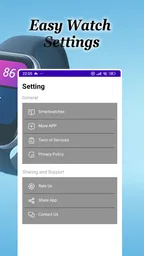
- Provides quick access to basic smartwatch settings.
What could be better
- Compatibility may vary by watch model.
- Some features may require extra permissions.
- Connection reliability can depend on your phone.
- The app may not support every watch feature.
- Background activity can affect battery life.





