

Quick Share: File Transfer App review
 Analysis by Appsdrops
I tend to judge a file-sharing app less by how impressive it looks on day one and more by whether I still reach for it a few weeks later. Quick Share: File Transfer App has a clear everyday purpose: moving files between devices without turning a simple handoff into a chore. Its appeal is easy to understand, but whether it earns a lasting place depends on how often you share files and how much friction you are willing to tolerate in exchange for a separate transfer tool.
Quick to try, but the first transfer matters
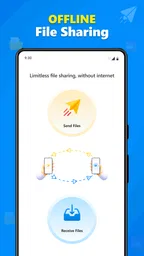
In its first few uses, Quick Share is most appealing when you want to send a file directly rather than route it through a messaging conversation or a cloud-storage workflow. That can be handy for passing a document to a nearby device, sharing a set of photos, or moving a file that you would rather not bury among chat attachments. The name promises speed and simplicity; the practical test is whether finding the file and getting the other person ready to receive it feels straightforward.
The app belongs to the Libraries & Demo area and is made by Apps Vista Studio. It is free to install, with optional in-app purchases priced from $1.99 to $14.99 per item. That makes it easy to try without paying upfront, though I would treat the purchase prompts as something to assess only after deciding that the app is useful in your routine. A free download is not, by itself, a reason to keep another utility installed.
One realistic first-week use is sending a document from a phone to another device before a meeting, rather than emailing it to yourself and then hunting through an inbox. Another is sharing a batch of pictures with someone beside you when a messaging service would compress them or mix them into a long conversation. These are sensible reasons to test a transfer app, but they do not guarantee a smooth result: both people still need a compatible, workable sharing setup, and the recipient needs to know where to find the received file afterward.
My practical tip is to test the exact kind of transfer you expect to use before relying on it under time pressure. Try a small file first, then a larger or less familiar file, and check that it arrives in a useful location and opens correctly. That simple test is more informative than a quick successful transfer of a single photo, especially if your main reason for installing the app is moving documents or several files together.
Where a dedicated transfer tool can help
Compared with the usual alternatives, a dedicated app can keep a handoff focused: you open the transfer tool, select what you want to share, and avoid turning a one-off file into an email attachment or a cloud link. That is most useful when the recipient is nearby and the exchange is temporary. For files you need to access later from multiple places, cloud storage is usually a better fit. For a single small item, built-in sharing on your phone may already be enough.
Quick Share’s stated emphasis on secure sharing and avoiding data loss is relevant to anyone handling important files, but I would not treat a reassuring description as a substitute for careful checking. Confirm the recipient before sending, inspect the received copy, and keep a separate backup when the original matters. A transfer app can make delivery more convenient; it cannot remove the need to verify that the right file reached the right person.
The app is rated for Everyone, which makes its intended audience broad, and its minimum operating-system requirement is Android 8.0. That compatibility detail is useful if you are setting up a transfer between phones: check both devices before you build a routine around the app. A tool that works well on one person’s phone is not much help if the other device cannot use it.
What gives it value after the novelty
After the first few transfers, the question changes from “Can it send a file?” to “Does it save me enough effort to remember it?” Quick Share is more likely to become a habit for people who regularly move files between devices or share them face to face. If you do this only occasionally, the built-in share menu, a messaging app, or an existing cloud account may be easier to remember than maintaining a separate utility.
A useful way to judge month-to-month value is to notice the moments when you would otherwise use a workaround. Do you often send files to yourself, search old chats for an attachment, or create a cloud link for something the recipient only needs once? If so, a direct-transfer option may reduce those little detours. If those situations are rare, installing another app may add more choice than convenience.
There is also a subtle workflow trade-off with shared files: the sender’s job is only half the handoff. Before using Quick Share for work or family documents, agree on a simple naming or folder habit with the recipient. A file with a clear name, saved where the recipient expects it, is easier to find later than an ambiguously named item in a downloads area. This small bit of coordination can matter more than the transfer itself.
Another useful habit is to treat the app as a transfer route, not an archive. Once the recipient has checked the file, decide whether either person needs to keep a copy and where it belongs. That prevents a quick exchange from becoming a reason to leave duplicate versions scattered across devices. It is a practical distinction that often gets overlooked when an app makes sending feel easy.
Keeping the app useful without adding chores
Quick Share is currently at version 1.1.5. For a utility like this, maintenance is not about spending time customizing it; it is about keeping the app available, knowing which device combinations work for you, and confirming that a transfer still behaves as expected when you need it. I would not make it the only route for urgent or irreplaceable files until it has passed a few real-world tests on the devices you actually use.
The low-maintenance approach is to keep a small personal checklist: test a representative file, confirm the received copy, and remove any duplicate you do not need. If the app becomes part of a regular routine, those checks should feel quick. If you find yourself troubleshooting every exchange, switching between apps, or repeatedly explaining the process to recipients, the tool is not saving enough time to justify its place.
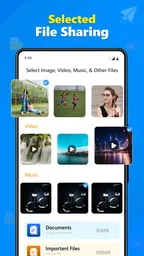
It is also worth being deliberate about what you send. A fast sharing workflow can make it tempting to pass along a whole folder when only a few items are needed. Selecting only the relevant files keeps the handoff easier to review and reduces the chance that you send something by mistake. That is not a special feature; it is a good practice that becomes more important as sharing gets more convenient.
Optional purchases deserve the same practical test. The app is free, but in-app items range from $1.99 to $14.99. I would first use the free version for the exact tasks I care about, then consider paying only if an offered item solves a recurring problem I have actually encountered. If the free experience already covers occasional transfers, there is little reason to spend just because an upgrade is available.
When repetition starts to feel like friction
The main source of fatigue with any dedicated transfer app is having to persuade other people to use it. If your family, classmates, or colleagues already rely on built-in sharing or a familiar cloud service, asking them to install or learn another tool can make a supposedly quick exchange slower. In those situations, use the method the recipient can handle confidently unless the file’s size, format, or privacy needs make a different route worthwhile.
A modest average rating of 3.1 from around 1,900 ratings suggests that people’s experiences are not uniformly positive. That is not enough to diagnose a specific problem, and I would not assume every user will encounter the same friction. It is a reason to test the app with low-stakes files first rather than depending on it immediately for a deadline-sensitive transfer. The app has also passed 500,000 installs, which shows it has found an audience, but popularity does not replace checking whether it suits your own devices and habits.
One transfer that fails or feels confusing can undo the convenience of several successful ones, because file sharing tends to happen at moments when people want to move on quickly. Keep an alternative available for anything time-critical. If the recipient is not nearby, if they need the file across several devices, or if you need an organized long-term record, email or cloud storage may be more dependable for that particular job.
There is a broader maintenance question too: every extra app competes for attention and storage, and every separate workflow asks you to remember when to use it. Quick Share earns its space only if the transfers it handles are frequent enough, or inconvenient enough through other methods, to make that memory worthwhile. If you install it for one unusual exchange and never use it again, removing it is a reasonable decision rather than a failure.
Who should keep it in their toolkit
I would recommend trying Quick Share if you often pass files between nearby devices and want a dedicated route that is separate from chat and cloud sharing. It is especially worth testing for recurring exchanges of photos or documents where the recipient needs a copy rather than a conversation about the file. Its broad age rating also makes it approachable for general use, though people sharing sensitive material should still verify the recipient and the final copy themselves.
I would skip it if your current phone-sharing tools already handle your needs, if your recipients are reluctant to use another app, or if most of your transfers are really about storage and later access. In those cases, built-in sharing or cloud services are likely to involve fewer steps overall. A specialist utility should solve a repeated annoyance, not create a new routine simply because it is available.
My long-term verdict is to give it a practical trial, not automatic permanent space. Start with a low-risk transfer between the devices you expect to use, check the file at the receiving end, and then judge it by whether it replaces a workaround you actually repeat. Quick Share can be useful when direct file handoffs are part of your week; if they are not, the simplest option is probably the one you already know.
At its current 1.1.5 version, the app is free to try, while its optional purchases make it sensible to decide on value through use rather than impulse. The rating and install history offer context, not a guarantee of fit. I would keep it only if it reliably saves me time in a recurring situation—and I would still use a different method whenever distance, record-keeping, or a recipient’s comfort makes that method the better choice.
What we like
- Transfers files without needing mobile data.
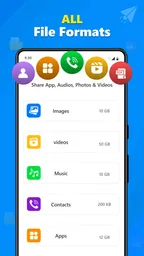
- Supports sharing photos videos and documents.
- Simple interface makes transfers easy to start.
- Useful for moving files between nearby devices.
- Can save time when sharing multiple files.
What could be better
- Both devices may need the app installed.
- Transfer speed can vary with distance and device quality.
- Nearby sharing may require Bluetooth and location access.
- Large transfers can drain battery power.
- The app may include ads or in-app purchase prompts.





