
PPSS22 Emulator - PS2 Emulator review
 Analysis by Appsdrops
PPSS22 Emulator is an Android app for people curious about running PlayStation 2 games on a phone or tablet. My first impression is that it is best approached as an emulator to explore, not as a ready-made game library: installing it is only the beginning, and a successful first session depends on having a game file you are entitled to use and a device that can handle the workload. If you understand that distinction, the app’s purpose is much clearer and the setup is less frustrating.
What to expect from a PS2 emulator
Developed by Blue Oliver's, this free app sits in the libraries and demo area of the Android app world. Its name makes its intended job clear: emulate PS2 software on Android. It is not itself a collection of PS2 games, and downloading it does not mean a particular game is ready to play. That is the most useful expectation to set before opening it.
The app has a 3.2 average from around 25,000 ratings, with roughly 638 written reviews and over one million installs. I would read that as a sign of broad interest and mixed experiences rather than a guarantee that it will work equally well on every phone. Emulation puts demands on both software and hardware, so a result that feels smooth on one device may be disappointing on another.
The app is free and rated for Everyone, and its current version is 1699. It was released on July 29, 2023, and requires Android 11 or later. Those details make the basic eligibility check simple: confirm your Android version before installing, then treat performance as something to test with your own device rather than assume from the app’s availability.
There is a practical difference between this and the usual alternatives people find in a game store. A normal mobile game arrives with its content and controls arranged for a touchscreen. An emulator is a layer for running software made for another system. That can be appealing if you want to revisit a game you already own, but it also introduces file handling and compatibility questions that a conventional Android game avoids.
Before you install: make the first session easier
I recommend deciding on a small, realistic first goal: get the app open, locate a legally obtained game file, and see whether that one game starts. Don’t make your first test a long play session or a demanding title you expect to run perfectly. A short test separates setup problems from performance problems and gives you a useful baseline.
Have the game file somewhere you can find it using Android’s file picker. If it is buried in a download folder with several similarly named files, pause and sort that out first. Clear naming and a known location make it easier to tell whether the emulator can see the file, rather than leaving you to wonder whether the app or the file is the problem.
Also make sure you understand where your game file came from and that you have the right to use it. The emulator is not a substitute for obtaining games lawfully. Keeping that distinction in mind is a sensible part of using any console emulator, especially when a first-time user might expect the app to include playable titles.
A calmer route through first setup
After installing, open the app and take a moment to inspect its available controls and prompts before tapping through quickly. The exact layout can vary between versions, but the principle is simple: grant only the access needed to locate your own game files, and use the file-selection route presented by Android rather than assuming that a file has been imported just because it exists on the phone.
If the app asks you to choose a file, navigate to the folder where you saved the game and select the appropriate file. If it does not appear, don’t immediately reinstall. Check whether you are browsing the correct folder, whether the file is still compressed, and whether you selected the game itself rather than an unrelated image, document, or archive. These small checks resolve many first-run misunderstandings across emulators.
For a first attempt, keep the setup conservative. Avoid changing several options at once, if settings are presented. When something changes the result, you want to know which adjustment helped or caused trouble. I find this especially useful with emulation, where a tweak that improves one game can make another less stable. Write down or remember the original setting before experimenting so you can return to it.
Once the game appears in the app or launches from the selected file, give it a brief, low-pressure test. Look for a clear sign of progress, such as reaching the game’s opening screen and responding to an input. That is a more meaningful first success than simply seeing the app’s menu, because it confirms that the file was found and that the basic launch path works.
What counts as a successful first run
For me, a good first-session target is modest: launch one game, confirm that the screen responds, and check whether the controls let you perform a basic action. You do not need to tune every option or judge the app by a single demanding scene. If the opening sequence works but later play slows down, you have learned something different from a complete failure to find the file.
Try the same short section more than once before changing settings. This helps distinguish a repeatable issue from a one-off delay during startup. If the game consistently reaches the same point and then becomes unresponsive, note that point. If it launches but inputs do not register, focus on the control layout rather than repeatedly moving the game file.
A useful everyday scenario is a quick check before a trip: while still at home, start a game you already own and test a few minutes of play. That gives you time to sort out file access or controls before relying on the app away from a stable setup. It also helps set realistic expectations about battery use and comfort without turning a commute into a troubleshooting session.
Touch controls are a compromise when a game was designed around a physical controller. For simple menus or a short test, they may be adequate; for games that need precise or frequent inputs, they can feel cramped or awkward. If the app offers control adjustments, change one thing at a time and test the same action again. If you already own a compatible controller, checking whether it works with your Android device may be worth considering, but don’t assume every controller or game will behave identically.
Common confusion, and how I would untangle it
The biggest source of confusion is often the difference between the emulator and the game. PPSS22 Emulator does not become a game just because it opens successfully. If you reach an app screen but see no playable title, check that you have a suitable game file and that you have selected it. Reinstalling the emulator will not supply missing game content.
Another easy mistake is treating every launch problem as a performance issue. If a file cannot be found, start with its location and selection. If it is found but the game does not start, the file itself or compatibility may be involved. If the game starts and then runs poorly, device performance becomes a more plausible concern. This simple sequence—file access, launch, then speed—keeps troubleshooting focused.
It is also tempting to change multiple settings after one rough moment. I would resist that. Return to a known starting point, repeat the same short test, and adjust only one available option at a time. That approach is slower than toggling everything, but it gives you an answer you can trust. Keep expectations grounded: an emulator cannot make every older game behave perfectly on every Android device.
Storage organization matters more than it first appears. If you keep several game files, put them in a clearly named folder and avoid moving them after selecting them. A file that has been renamed or relocated can make a previously working setup appear broken. A small amount of housekeeping saves time and makes it easier to identify which title you tested.
Finally, don’t judge the whole app from a single game or a single scene. Emulation results can vary by title and by device, so one smooth opening does not guarantee flawless play later, and one rough test does not prove that every game will fail. If consistent performance is essential, a purpose-built Android game or a supported console experience is usually a more predictable choice.
Who will get the most from it
I would recommend trying this app if you are comfortable managing files on Android, already have a legitimate game to test, and enjoy the process of making older software work on a newer device. It can suit someone who wants to experiment with PS2 emulation in short sessions and is patient enough to separate setup issues from game-specific or device-specific limits.
It is less suitable if you expect a one-tap library of included games, dislike adjusting controls, or need dependable performance without trial and error. It is also not my first choice for someone who simply wants to play a casual game during a spare minute. A standard Android game is easier to start, while a console or PC may be a better option for someone who wants a more familiar controller setup and fewer mobile compromises.
Compared with other emulator choices, the trade-off is not just which app has the most options. The right choice depends on what you value: a straightforward first launch, compatibility with the titles you own, useful control handling, and clear file management. Since those needs vary, I would test one game you care about before investing time in a large collection or elaborate setup.
My next step after the first launch
If your first game starts, make the next session a little more deliberate. Reopen the same title, confirm that the file is still easy to locate, and test the controls in a familiar section. Only then decide whether you want to explore further adjustments or try another game. This creates a dependable baseline and avoids confusing a new title’s quirks with a problem in the app.
If the first attempt fails, use the symptom to choose your next check: confirm Android 11 or later, verify the file’s location and selection, and test a simple launch again before changing unrelated settings. If it still does not work, consider whether your device or the particular game is a poor match. Sometimes the most useful outcome is learning early that a different way to play will be less frustrating.
My overall view is that PPSS22 Emulator is worth a cautious try for curious Android users who know what an emulator does and are prepared to bring their own lawful game files. Its free entry point and large installed audience make it easy to explore, but the mixed average rating is a reminder to keep expectations measured. The best first win is one game launched cleanly, with controls you can use—not a promise that every PS2 title will run perfectly.
What we like
- Supports external game controllers for a more console-like experience.
- Save states let you resume games from a chosen point.
- Customizable on-screen controls can suit different screen sizes.
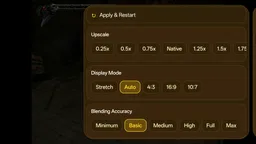
- Offers graphics settings to adjust performance on supported devices.
- Can run games from locally stored files.
What could be better
- Performance varies widely depending on the device and game.
- Some games may have glitches or fail to boot.
- Configuring controls and graphics can take trial and error.
- Game files are not included with the emulator.
- Touch controls can feel less precise than a physical controller.





