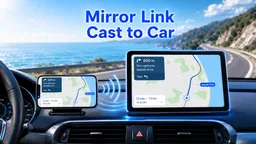
Mirror Link review
 Analysis by Appsdrops
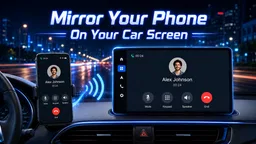
I would approach Mirror Link as a connection tool, not a magic fix for every car-screen problem. Its purpose is to link a phone display with a car mirroring setup, which sounds simple until the phone and vehicle fail to recognize each other. In my view, the app is most useful when you already know your car supports the kind of mirroring you want and you need a straightforward place to begin. It is less appealing if you expect an app alone to make an incompatible dashboard behave like a modern infotainment system.
Where the connection can get stuck
The frustrating part of phone-to-car mirroring is often figuring out which side is responsible. A blank display, a connection that stops partway through, or a phone that seems ready while the car remains idle can all feel like app failures. But mirroring depends on the phone, the vehicle’s system, and the connection between them working together. I would treat the app as one part of that chain rather than assume it can overcome a mismatch in the car or phone.
That distinction matters before you spend time changing settings. If the vehicle does not support compatible screen mirroring, installing an app cannot add that capability by itself. Likewise, a car may support a particular connection method while a phone or its software handles it differently. I recommend checking the vehicle’s manual and the phone’s available connection options first, then using Mirror Link only when those basics line up.
It helps to be precise about the problem. Is the car failing to detect the phone at all, or does it detect the phone but fail to show the screen? Those are different clues. If nothing appears on either side, I would start by checking the connection method and whether the car is in the right input mode. If the devices recognize one another but the picture does not appear, I would avoid repeatedly disconnecting and reconnecting without changing anything; first confirm that the phone is still connected and that the car has not switched to another source.
Mirror Link is a free app in the Libraries & Demo category, developed by Wallet Passes Alliance. Its average rating is 3.2 from around 23 thousand ratings, alongside 399 written reviews, and it has over a million installs. Those figures suggest that plenty of people have tried it, but they do not promise a smooth result for every phone-and-car combination. I would read the rating as a reason to keep expectations practical: compatibility and setup are likely to shape the experience more than a polished first launch.
Check compatibility before troubleshooting
Before installing or relying on a mirroring app for a trip, I would look for clear confirmation that the car’s system accepts the relevant phone-mirroring approach. A dashboard with a screen is not automatically a mirroring system, and a charging connection is not proof that the phone’s display can be shown. This small check can save a lot of trial and error, particularly if you are considering using the app in an older vehicle or with an aftermarket display.
I would also test while parked, not when you are already driving or in a hurry. A first-time connection is a poor task to squeeze into a departure: you may need to change the car’s selected source, reconnect the phone, or work out which device should initiate the process. A quiet test at home lets you identify the working sequence without adding traffic, navigation, or passenger pressure to the equation.
A sensible setup routine
My practical starting routine is deliberately simple. I would make sure the phone is ready, select the appropriate screen or input mode in the vehicle, and follow the connection steps shown by the app and car. If the first attempt fails, I would check that the phone is not already tied up with a different connection and that the vehicle is listening to the intended input. Then I would try one fresh connection rather than making several changes at once.
Changing one thing at a time is a useful troubleshooting habit here. If you alter the car input, reconnect the phone, and change several phone settings together, a successful result will not tell you which step mattered. A controlled retry gives you a repeatable routine for next time. I would note the order that works, especially if the car needs to be switched to a particular screen before the phone is connected.
Keep the first test modest. Try to establish the basic display connection before depending on it for a longer journey or layering other tasks onto the setup. This makes it easier to see whether the core link works and whether the car’s own controls remain usable. If the connection is inconsistent while parked, I would not assume it will become dependable once the journey begins.
Recovering a failed connection without starting over blindly
When a connection drops, I would first check whether the phone still shows an active link and whether the car has changed inputs. If both devices appear to be in their expected states, a clean disconnect followed by a single new attempt is more informative than repeatedly tapping through the same screens. The aim is to return both sides to a known starting point, not to keep the app open indefinitely while guessing.
A useful tip is to separate a one-off interruption from a repeatable failure. If the link returns after a simple reconnect, remember that sequence and see whether it works again while parked. If the same step fails every time, the issue may be a compatibility or configuration mismatch rather than a temporary glitch. That is a good point to consult the car’s instructions and the phone’s connection settings instead of assuming that reinstalling the app will solve it.
I would also avoid troubleshooting while the vehicle is moving. Screen mirroring is something to prepare before a drive; the driver should not be navigating menus or watching a phone to restore it on the road. If a passenger is helping, they can handle a parked setup or a safe stop, but the driver should keep attention on driving. This is not a limitation unique to Mirror Link; it is a sensible boundary for any phone-and-dashboard setup.
When the app may not be the cause
Because this kind of connection spans several pieces of hardware and software, a failure can originate outside the app. The car may not support the method you are trying, its input may be set incorrectly, or the phone may be using a connection mode that does not match the vehicle. If other compatible functions also fail, that points toward checking the broader phone-to-car connection rather than blaming one app screen.
It is also worth comparing the result with the vehicle’s built-in options. Some drivers only need navigation or audio, and a car’s own supported phone integration may be a more dependable choice than full-screen mirroring. If the goal is simply to hear directions, using a supported audio or navigation route can be easier and less distracting. Mirror Link makes more sense when seeing the phone’s display on the car screen is the specific need and the equipment supports it.
For a car that has no compatible mirroring support, a separate supported head unit or another solution designed for that vehicle may be more appropriate. I would not buy hardware or make a long-term plan based only on the app’s name. First verify what the car can accept, then decide whether an app-based link is the right route. That order prevents a common disappointment: expecting software to provide a feature that the dashboard itself cannot receive.
Who should try it, and who should look elsewhere
I can see Mirror Link being useful for someone who already has a compatible car display, wants to try phone-screen mirroring, and is comfortable doing a little setup before relying on it. It may also suit a passenger who wants to help establish the connection while the car is parked. The app is free to download, though in-app purchases range from $0.99 to $99.99 per item, so I would pay attention to any purchase prompt and make sure it relates to something I actually want before proceeding.
On the other hand, I would skip it if you need a guaranteed, hands-off connection for every trip, or if you have not confirmed that your vehicle supports the relevant mirroring setup. Drivers who only want basic navigation may be better served by the car’s existing phone integration or a dedicated navigation option. And if you are shopping for an app to add missing dashboard capabilities, this is the wrong expectation to bring to it.
The age rating is Everyone, and the app’s current version is 41.0; it runs on Android 6.0 or later. It was released on August 31, 2020. These details make it accessible to a broad range of Android users, but a compatible operating system alone does not guarantee that a particular vehicle will mirror successfully. I would treat OS eligibility as a starting check, not as proof that the whole setup will work.
My practical verdict
Compared with the usual alternatives in the car-mirroring space, Mirror Link’s appeal is its direct focus on getting a phone display connected to a car screen, rather than replacing the vehicle’s entire infotainment system. The trade-off is that a focused app cannot remove the need for compatible hardware and a correct connection sequence. Built-in car integration may be simpler for routine navigation and audio, while a supported aftermarket system may be the better answer when the car lacks the right capability altogether.
My advice is to test Mirror Link at home, confirm the car’s support first, and keep the first session focused on establishing a stable connection. If it works, write down the order of steps and use that routine before a drive. If it repeatedly fails at the same point, investigate the phone and vehicle settings before spending time on random retries. That approach gives the app a fair test and helps distinguish a setup problem from a mismatch between devices.
Overall, I see Mirror Link as a reasonable option to try when the necessary car and phone support are already in place, but not as a universal fix. Its 3.2 average rating reflects a mixed reception, and the practical experience will depend heavily on the equipment you bring to it. I would recommend it to a patient user who wants to test screen mirroring and is willing to troubleshoot carefully; I would choose another route if reliability, simplicity, or missing vehicle support is the main concern.
What we like
- Offers a convenient way to view compatible phone content on a car screen.
- Can make navigation easier to follow while driving.
- May work with existing in-car displays and supported Android phones.
- Provides a larger screen for viewing selected apps.
- Can reduce the need to handle your phone while on the road.
What could be better
- Compatibility depends on both the car system and the phone.
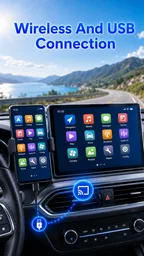
- Some vehicles require a wired USB connection.
- Supported apps may be limited by the car system.
- Setup can vary between vehicles and may require troubleshooting.
- Screen mirroring can drain your phone battery quickly.





