

GPS Route Planner: Radar Map review
 Analysis by Appsdrops
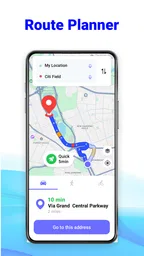
I judge a navigation app less by how many tools it promises than by whether I can understand the next step when I’m already in motion. GPS Route Planner: Radar Map brings together route planning, GPS navigation, voice guidance, offline use, and speed-camera alerts. That mix could be useful when a trip involves unfamiliar streets or an unreliable connection, but it also raises a practical question: can I get the information I need without taking my attention away from the road? My view is that this is a promising, focused option, especially for drivers who want guidance beyond a basic map, though its usefulness depends on how comfortably its presentation fits your needs.
Clear guidance matters more than a crowded map
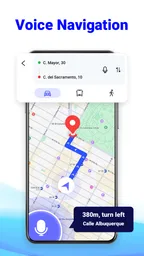
In everyday use, a navigation screen has to answer a simple question quickly: where do I go next? A map can contain a lot of useful detail, but too many symbols or a busy layout can make the important turn harder to pick out. The app’s GPS route-planning role gives it a clear purpose, while voice guidance offers another way to follow a route without continually reading the display. For me, that combination is the most compelling part of its design: visual context when I need it, spoken direction when looking down would be a poor choice.
Voice guidance is especially helpful on a route with frequent turns, where a single glance may not be enough to understand which street to take. I would still treat spoken prompts as support rather than a substitute for paying attention. At a complicated junction, a voice instruction can tell me what is coming, while the map can help me check the road layout. Drivers who find visual maps difficult may appreciate having audio direction available, but anyone who depends on particular voice, contrast, text-size, or screen-reader settings should test the app on their own device before relying on it for an important journey.
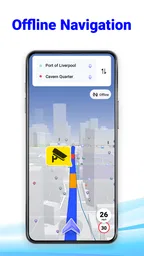
Offline GPS navigation is another useful part of the pitch. It can matter on a trip through an area with patchy mobile service, or when I want to avoid depending on a live connection for every navigation step. A practical tip is to prepare before leaving: check that the route and any offline material you need are ready while you have a reliable connection, then confirm the route on screen before setting off. That small routine can prevent the frustrating discovery that an offline feature is not ready at the moment you need it.
The app is a Maps & Navigation tool from MobApp - Phone Locator GPS Location. Its focus is narrower than a general-purpose map service: route planning and driving guidance are at the center, with a speed-camera radar feature alongside them. That focus may appeal to someone who wants a navigation-first experience rather than a map used equally for finding restaurants, public transport, and local listings. If those broader discovery tools are essential to your trips, I would compare it with the map app you already use before making a switch.
Voice, screen, and the demands of driving
Different people navigate in different ways. Some prefer a large, clear visual cue; others would rather hear a direction than keep checking a display. Having both GPS guidance and voice navigation in the same app gives drivers options, but the value of those options depends on how they work in a real car. I recommend setting up a route and listening to the guidance while parked first. That lets you learn the prompts and decide whether their timing and wording make sense to you without trying to interpret a new interface in traffic.
For anyone with limited hand movement or who finds repeated tapping uncomfortable, preparation is particularly important. Entering a destination, changing a route, or adjusting a setting while driving is not a safe workaround for an interface that feels fiddly. I would choose the destination before pulling away, mount or position the phone securely, and leave route changes until stopped. The app’s voice guidance can reduce the need to touch the screen during a trip, but it does not remove the need to interact with the phone during setup.
Drivers who are hard of hearing may want to rely more on the map and less on spoken instructions. Conversely, someone who has difficulty reading a screen at a glance may find audio prompts valuable, while still needing a clear way to confirm an upcoming turn. Since people’s needs vary, I would test both modes on a short, familiar trip rather than assume that one is sufficient. A passenger can also help check the screen during a trial run, which makes it easier to judge whether the map is legible without distracting the driver.
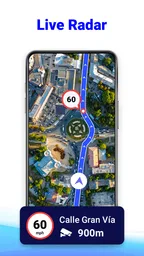
The speed-camera radar feature needs a similarly careful interpretation. It is a supplementary alert, not a reason to relax attention or assume that every relevant hazard will be shown. I would use it as one more cue while continuing to follow posted signs and local rules. If alerts feel distracting, or if the screen becomes too busy for your comfort, the better choice is to adjust your use of the app or select a simpler navigation setup. A feature is only helpful when it makes the journey easier to manage.
When offline support and route planning help most
A realistic use case is a drive to an appointment in a neighborhood I rarely visit. I can plan the destination before leaving, review the route while parked, then use spoken directions as I approach turns and glance at the map when the road layout is unfamiliar. If mobile coverage drops along the way, offline navigation may be useful, provided I prepared for that possibility. This workflow is more dependable than trying to learn the interface, find the destination, and solve a connection problem after the trip has begun.
For a longer journey, I would also think about how I want to handle uncertainty. A route planner can guide me along a chosen path, but a driver may still need to respond to a closure, a missed turn, or a changed destination. Before relying on any navigation app for a high-stakes trip, I would try a short route and learn how the app behaves when I make a wrong turn. That is a non-obvious but useful test: it reveals whether the guidance feels understandable when the journey stops going exactly to plan.
Someone who travels through areas with inconsistent service may find the offline angle more relevant than a person who mostly drives familiar city streets with a stable connection. In the latter case, the extra appeal may instead be the combination of route planning, voice directions, and radar alerts. Either way, I would avoid treating a single successful trip as proof that every feature is ready for every journey. Check the route before setting off, keep a backup plan for an unfamiliar destination, and do not handle the phone while driving.
Compared with the usual alternatives, this app’s appeal is its driving-oriented bundle rather than a claim that it replaces every map service. A widely used general map app may be a better fit if you regularly need local business discovery or multiple kinds of transport. A dedicated navigation option may suit you better if you already trust its route presentation and know how it behaves in difficult junctions. GPS Route Planner: Radar Map makes more sense when its particular combination of route planning, offline use, voice navigation, and camera alerts matches the way you drive.
Who may find it accessible—and who may not
I see the strongest fit for drivers who are comfortable setting up a route on a phone and want spoken guidance to reduce how often they look at the screen. It may also suit people who want to prepare for weak connectivity rather than assume that every road trip will have reliable service. The app is free, has an Everyone content rating, and has reached over a million installs. Its average rating is 4.8 from around 27,000 ratings, with 319 written reviews. Those figures suggest broad interest, but they cannot tell me whether its interface works well for a particular driver or accessibility need.
There are also situations where I would advise choosing something else. If you need an interface that you already know is comfortable with your device’s accessibility settings, your established navigation app may be the safer choice until you have tested this one. If your trips depend on detailed local search or transit directions, a broader mapping tool may be more useful. And if using a phone for navigation is itself distracting or physically difficult, a different device or a passenger handling directions may be a better solution than adding another app.
The developer’s current release is version 1.4.8, and it runs on Android 6.0 or later. That makes it relevant to a wide range of Android phones, though compatibility alone does not guarantee that the display will be comfortable on every screen or for every user. I would check the app on the phone you plan to use, try the route setup with one hand only if that is how you expect to use it, and confirm that the voice and visual cues are both understandable before depending on them for an unfamiliar drive.
Practical limits to keep in mind
The main friction is not a lack of ambition; it is the extra responsibility that comes with combining several kinds of navigation help. A map, voice prompts, offline planning, and camera alerts can each be useful, but they can also compete for attention if the presentation does not suit the driver. I would keep the setup simple and avoid changing settings in motion. If you find yourself checking the screen repeatedly to understand an instruction, pause in a safe place and reconsider whether another navigation style would serve you better.
Offline navigation also rewards planning. It is easy to hear “offline” and assume there is nothing to prepare, but the sensible approach is to confirm what you need before leaving a dependable connection. Likewise, voice guidance is most useful when you can hear and understand it in the environment where you drive. Cabin noise, personal hearing needs, and the complexity of a junction all affect how much help an audio prompt provides. A short test route is a better measure than a feature name.
Finally, camera alerts should not become a substitute for attentive, lawful driving. Their presence may be reassuring to some drivers, but an alert is only a prompt to stay aware, not permission to rely on the phone for every road condition. I would turn the feature into a small part of a broader routine: plan ahead, watch the road, obey signs, and use navigation cues as assistance rather than authority.
My inclusive verdict
GPS Route Planner: Radar Map is worth trying if you want a driving-focused app that brings route planning together with voice guidance, offline navigation, and speed-camera alerts. I especially like the practical possibility of using spoken instructions while keeping the map available for a quick visual check. That balance can help in unfamiliar areas, but only if the screen and prompts are comfortable for you and you take time to prepare before driving.
I would not recommend switching blindly if you depend on a familiar accessibility setup, need extensive local discovery, or find phone-based navigation difficult to operate. Try it on a known, low-pressure route, check how the visual and spoken guidance work for you, and see whether offline preparation fits your routine. Its most useful quality is choice between map-based and spoken route support, not a guarantee that every driver will find the experience equally accessible. If that distinction matches your needs, this free app is a sensible candidate to test; if not, the navigation tool you already understand may remain the better companion.
What we like
- Offers turn-by-turn navigation for reaching destinations.
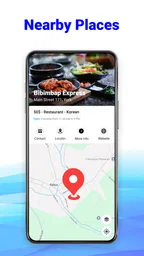
- Shows nearby places to help plan stops along a route.
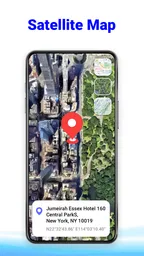
- Provides map views that make route details easier to understand.
- Can help drivers check traffic conditions before setting off.
- Route planning is useful for both everyday trips and unfamiliar roads.
What could be better
- GPS accuracy can vary with device settings and signal strength.
- Live traffic details may not be available in every area.
- Navigation can consume significant battery power on long trips.
- Map information may be outdated in some locations.
- Some features may require an internet connection.





