
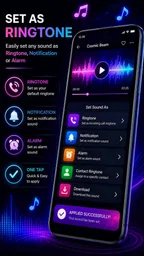
Galaxy S26 Ringtones & Sounds review
 Analysis by Appsdrops
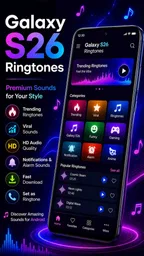
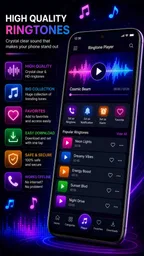
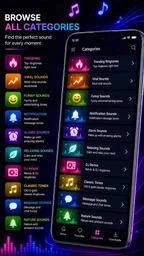
I like changing a phone’s sound when its default alerts have become too familiar to notice. Galaxy S26 Ringtones & Sounds is aimed at that small, practical problem: it gives Android users a collection of Galaxy-style tones to choose from, with options intended for calls, notifications, and alarms. It is a focused sound-library app, not a general phone-customization suite, so its value comes down to whether you want this particular sound palette and can comfortably make the choices your phone allows.
From a familiar alert to a sound that stands out
The useful starting point is an everyday one: a call rings in a busy room, a message alert blends into other notifications, or an alarm has become so familiar that you barely register it. Rather than browsing broad collections of music or building a custom tone, I would turn to this app when I specifically want Galaxy-inspired sounds and a straightforward way to choose among them.
The app sits in the libraries-and-demos area of Android apps. That makes sense for its purpose: it is a sound collection to browse and use, rather than a messaging, alarm-planning, or device-management tool. Vanita_dev is the developer, and the app is free. Its audience rating is Everyone, so it is presented as suitable for a general audience.
Its Google Play presence is established enough to give a prospective user some context: it has a 4.4 average from around 3,100 ratings and over 100,000 installs. Those figures do not tell me whether a particular tone will suit my taste, but they do suggest that people have found the app useful enough to try. I would still judge it by the sounds themselves and by how easily they fit into my phone routine.
One point worth keeping clear is the distinction between finding a sound and applying it. The app is the place to explore the available tones; Android’s own settings are often where you decide which sound should handle calls, messages, or alarms. That handoff matters. A sound can be appealing in the app yet be a poor choice for a quiet notification or an alarm you need to hear from another room.
Choosing before changing anything
I would start by listening with a specific job in mind rather than treating every sound as a possible ringtone. A tone that feels distinctive during a quick preview may become tiring when it plays repeatedly. For a call, I would prioritize a sound that cuts through ordinary background noise. For a message, I would choose something brief and recognizable without making every incoming alert feel like a phone call.
Alarms need a different test. A pleasing tone is not automatically a good wake-up sound: it should be noticeable enough for the situation, but not so jarring that I regret choosing it the next morning. If I use one alarm for waking and another for a reminder, I would avoid picking two similar sounds. The small extra effort of assigning clearly different tones can help me understand what the phone is asking me to do before I even look at the screen.
That is the first non-obvious benefit of browsing a dedicated collection: the decision can be about recognition, not just novelty. Giving calls, notifications, and alarms distinct sonic roles can make a phone easier to interpret at a glance—or, more precisely, at a sound. I would treat the collection as a chance to create that separation, rather than changing every alert simply because a new option is available.
A practical selection and setup flow
My workflow would be simple. First, I would browse and preview the available tones in Galaxy S26 Ringtones & Sounds. Next, I would narrow the choice to one sound for one purpose. Then I would apply it through the option the app provides or, if the phone hands control back to Android, finish the selection in the relevant sound settings. Finally, I would trigger a real call, message, or alarm when convenient to check that the result is what I intended.
That last check is easy to skip, but it prevents a common mistake: assuming that a preview means the sound has been assigned everywhere. Android can distinguish between a phone ringtone, a general notification sound, and an alarm tone, and individual apps may manage their own alerts. If I wanted to change only message sounds, I would check that setting rather than assume that changing a general notification sound affects every app in the same way.
A realistic example is a workday in which I need to hear calls but do not want each message to interrupt a conversation. I would choose a more noticeable call tone, set a restrained notification sound, and keep the alarm choice separate for the morning. After applying them, I would ask someone to call or send a test message, then listen with the phone where it normally sits—on a desk, in a bag, or across the room. A sound that works only when the phone is in my hand is not necessarily useful in daily life.
Volume and context also change the result. A quiet tone may be ideal in a shared office but easy to miss outdoors. A sharper sound may work in a noisy space and feel excessive at home. I would adjust the phone’s volume and test the sound in the setting where I rely on it most; choosing a tone cannot compensate for a volume level that is too low or for a device set to silent.
Where the app hands control to Android
The main handoff is between browsing the collection and managing the phone’s sound behavior. If the app offers a direct set option for a chosen sound, that can shorten the process. If the selection leads into Android settings, I would follow the system prompt and confirm the category carefully. The exact path can vary with the device and Android version, so I would focus on the labels—ringtone, notification, or alarm—rather than expecting every phone to show identical screens.
This distinction also helps answer a practical question: will one selected sound automatically cover every alert? I would not assume so. A system ringtone, a general notification tone, and an alarm can be managed separately, and some apps let you choose their own notification sound. If a particular message app keeps sounding different after I change a system setting, I would look in that app’s notification controls instead of repeatedly changing the ringtone collection.
The app is built for Android, with a minimum operating-system requirement of 6.0, and its current version is 23.5. Those details make it more relevant to Android users than to someone looking for an iPhone tone manager. iOS handles custom sound choices differently, so I would not choose this as a cross-platform solution or expect an Android sound workflow to transfer directly to an iPhone.
There is another handoff in deciding whether to use a supplied tone at all. Someone who already owns a favorite audio file and wants precise trimming or editing may be better served by a dedicated audio editor or the phone’s own file and sound tools. This app is a better fit for someone who wants to browse a ready-made Galaxy-style selection, not someone who wants to compose, mix, or fine-tune a sound from scratch.
What changes after the setup
When the choices are well matched to their roles, the outcome is modest but useful: I can identify a call more readily, keep routine alerts less intrusive, and give alarms their own cue. That is the sort of improvement this app is suited to. It does not need to reshape the whole phone experience; a small set of thoughtful sound choices can be enough to make notifications feel less interchangeable.
I would also resist changing tones too often. Keeping a selected call sound for a while makes it easier to recognize, while frequent changes can undermine that familiarity. If I am testing a few options, I would change one category at a time and live with it for a day or two. That makes it easier to tell whether the new sound actually helped or merely felt interesting during the preview.
Compared with a broad ringtone catalog, this app’s appeal is its Galaxy S26 focus. A large general collection may suit someone who wants many unrelated styles or niche audio; this one is more targeted. Compared with using only the phone’s built-in sounds, it offers another collection to explore. The trade-off is equally straightforward: if the built-in choices already work for you, installing a separate library may not add enough value to justify another app on your device.
The name and presentation suggest a Galaxy-inspired sound selection, but I would treat that as a style cue, not a promise that every tone will match my taste or that the phone will behave exactly like a particular Samsung device. The useful test is whether the available sounds are clear, comfortable, and easy for me to recognize. Personal preference matters more here than the label.
When the workflow can feel frustrating
The biggest limitation is the app’s narrow purpose. It is not a replacement for a full alarm clock, a notification organizer, or a sound editor. If I want schedules, gradual volume changes, extensive audio controls, or custom-made tones, I would look for a tool built around those needs. Here, the practical task is choosing a sound, and the rest of the experience depends partly on the Android device and settings I use.
There can also be friction when the result is not immediate. A chosen sound may need a separate confirmation in system settings, and individual apps can have their own alert controls. If a tone seems not to have changed, I would first check which category I edited, then check the volume and silent mode, and finally inspect the relevant app’s notification settings. That sequence is more useful than repeatedly selecting the same tone.
Another sensible limitation is that a sound that stands out to me may bother people nearby. A loud, distinctive ringtone is not ideal for a meeting or a shared room, while a gentle alert may be too subtle when I am away from the phone. I would choose with the usual environment in mind and use vibration or quiet modes when appropriate, rather than expecting one tone to suit every situation.
Galaxy S26 Ringtones & Sounds was released on May 18, 2020, and its current version is 23.5. For someone who wants a dedicated source of Galaxy-style Android tones, that is enough context to identify the app without mistaking it for a new phone feature or a comprehensive customization suite. I would try it when I want fresh call, notification, or alarm sounds and am willing to check the Android settings handoff.
Who I would recommend it to
I would recommend it to Android users who like the Galaxy sound aesthetic, want a free way to explore another ringtone collection, and are comfortable assigning tones in their device settings. It is especially useful if calls, messages, and alarms have started to sound alike and you want to make them easier to distinguish without spending time editing audio yourself.
I would skip it if I am happy with my phone’s existing sounds, need a tool for composing or trimming audio, or want the same setup to work across Android and iOS. I would also choose a broader sound library if I were searching for a much wider range of styles. The 4.4 average gives it a favorable reception, but the right choice still depends on whether this particular collection suits your ears.
My overall view is that this is a focused utility rather than an essential phone app. Its best use is a small, deliberate sound refresh: preview a few tones, assign each to a clear purpose, and test the result in the places where you actually use your phone. If you want Galaxy-style sounds without turning ringtone selection into an editing project, it is a sensible app to try.
What we like
- Includes ringtone options inspired by Galaxy S26 devices.
- Lets users preview sounds before choosing one.
- Can help personalize calls and notification alerts.
- Offers tones for several alert categories.
- Useful for fans seeking a Galaxy-style sound profile.
What could be better
- Some sounds may not match the official Galaxy S26 audio library.
- Ads may interrupt browsing or playback.
- Sound quality can vary between individual tones.
- Availability of tones may depend on the app version.
- Setting sounds may require changing device permissions.





