Endoscope Camera / USB OTG review
 Analysis by Appsdrops
I judge a phone endoscope app by a simple test: does it help me get from “I can’t see in there” to a useful view without turning the job into a setup project? Endoscope Camera / USB OTG is aimed at that narrow, practical task. It’s a free utility from Shadow soft, listed in the Libraries & Demo category, for connecting an Android phone to an endoscope, USB camera, or borescope. The idea is appealing when a small camera can reach a place your eyes and a regular phone camera cannot.
From a hidden problem to a phone display
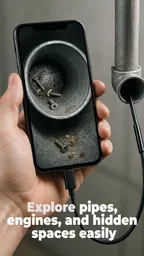
The starting point is usually an awkward inspection: checking behind an appliance, looking into a narrow opening, or trying to see what is blocking a pipe. A phone by itself is not much help when the target is out of sight. This app’s role is to make the phone the viewing screen for a compatible camera, rather than to replace the camera hardware.
That distinction matters. If you already own a USB endoscope or borescope, the app may be the missing part of your setup. If you do not have one, installing the app alone will not let you inspect hidden spaces; the camera and its connection to the phone are essential. I’d think of it as a viewing companion, not a complete inspection kit.
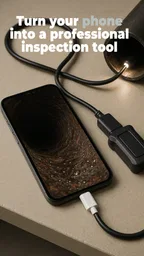
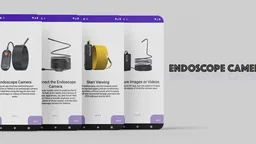
The basic workflow is straightforward in concept: connect the camera, open the app, and use the phone screen to inspect the area. The listing highlights USB OTG, so the phone needs to support the connection path your camera uses. Before relying on it for a job, I’d check that the camera connector and the phone’s USB arrangement actually match. A suitable adapter may be needed, depending on the devices, and compatibility is the first practical hurdle—not image interpretation.
Making the connection useful
For a first try, I’d test the setup somewhere easy to reach, such as inside an empty box or a cabinet, rather than beginning with a difficult repair. That simple rehearsal can reveal whether the phone recognizes the camera and whether the cable gives you enough room to move. It also helps separate a connection problem from a problem with the inspection target.
Once the picture appears, move the probe slowly. Small movements at the camera end can shift the view more than expected, especially when the cable bends or twists. I find it helpful to treat the phone display as a live guide: pause, adjust the probe, and look again instead of sweeping it around quickly. This makes it easier to keep track of where the camera is pointing and reduces the chance of mistaking a fleeting blur for a clear view.
A second useful habit is to plan the route before putting the camera into a tight space. Decide where the cable will enter, keep the phone somewhere stable, and leave enough slack to steer the probe without tugging the connector. This is not a special app feature; it is a practical way to avoid turning a simple visual check into a cable-management problem.
Everyday jobs where the workflow fits
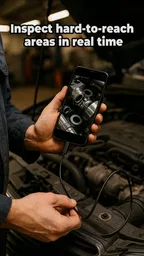
Imagine a small object has slipped behind a washing machine. Pulling the appliance out may be awkward, and shining a phone flashlight into the gap might show only the nearest edge. With a compatible endoscope, I could feed the camera into the space, watch the display, and work out whether the object is reachable before moving the machine. The app is most useful here as a way to inspect first and decide what to do next.
The same approach can help with a quick look behind furniture or inside an accessible cavity. It can also be useful when checking a visible obstruction in a narrow opening, as long as the inspection is safe and the camera can reach it. These are visual checks, not a substitute for a repair professional when the task involves electrical hazards, pressurized systems, or damage that needs a reliable diagnosis.
There is a small but important trade-off in these jobs: the camera may show a close-up view without showing exactly where the probe is in relation to the larger space. I’d use landmarks at the entrance and move in short, deliberate steps. If the view becomes confusing, withdrawing slightly and reorienting is often more useful than pushing farther in.
Passing the view from one person to another
Phone-based inspection often becomes a two-person task. One person can guide the cable while another watches the display and calls out what is visible. That division is especially helpful in a cramped area, where the person holding the probe may not be able to see the screen comfortably. Agreeing on simple directions—left, right, closer, back—before starting can prevent the two people from interpreting movement differently.
If you are working alone, place the phone where you can see it without stretching or twisting. I’d avoid balancing it precariously on an appliance or holding it in the same hand that needs to guide the probe. A stable viewing position gives you more control over the camera and makes it easier to pause when the image changes.
After the inspection, the useful handoff is often not the image itself but the decision it enables: whether to retrieve an object, clear an accessible blockage, or call someone better equipped. I would not assume that every app-based inspection can be saved or shared in a particular way. Instead, make the result actionable while the setup is still in place, and if another person needs to see the area, let them view the live display directly.
What the result can—and cannot—tell you
For a simple task, success is not a cinematic picture; it is a view clear enough to answer a practical question. Can I see the missing item? Is there an obvious obstruction? Is the area worth opening up? A basic USB camera can be valuable even when the view is imperfect, because it may help you avoid unnecessary dismantling.
At the same time, a close-up image can be easy to overinterpret. A camera pointed at one patch cannot establish the condition of an entire pipe, appliance, or wall cavity. I’d treat what appears on screen as a clue, not a full diagnosis. If the task depends on accurate measurements, documented evidence, or a professional inspection record, a dedicated inspection system or qualified technician is the better choice.
The app sits between improvised alternatives and specialist equipment. Compared with using a flashlight and a phone camera, it can reach places the phone cannot physically enter. Compared with a dedicated monitor bundled with an inspection camera, a phone-based setup may be convenient if you already have compatible hardware, but it also makes compatibility and cable arrangement part of the job. The right option depends on whether you value using equipment you already own or want a purpose-built, ready-to-go system.
Where setup can break down
The main friction is that “USB camera” does not automatically mean “works with this phone.” The phone, connector, camera, and app all have to cooperate. I would not buy a camera solely on the assumption that any USB endoscope will connect. Check compatibility with the phone and the camera before committing, and test the combination before taking it into a hard-to-reach location.
Another limitation is the nature of the work itself. A flexible camera cable can be awkward to steer, and a live image is only useful if you can keep the probe oriented. Narrow turns, low light, reflective surfaces, or a dirty lens can make the view harder to interpret. Those are physical inspection constraints as much as app constraints, but they affect whether this kind of setup is the right tool for the job.
There is also a difference between casual use and a dependable work routine. For occasional checks around the home, a free app can be an appealing place to start. For repeated professional inspections, I’d compare it with dedicated equipment that offers a complete workflow suited to that work. The app’s current version is 21.0, and its age rating is Everyone; neither point changes the need to verify the hardware connection before relying on it.
Who I’d recommend it to
I’d consider it if I already had a compatible endoscope camera and wanted to use an Android phone as the display. It makes the most sense for occasional, hands-on checks where seeing into a tight space can help decide the next step. It is less compelling for someone expecting a camera-only solution, a guaranteed connection with every USB device, or a complete professional inspection package.
The app has an average rating of 3.5 from around 774 ratings, with 34 written reviews, and has been installed over 100,000 times. It is free to install, with in-app purchases listed at $14.99 per item. I’d treat those figures as context rather than a promise about how it will behave with a particular camera; the compatibility of your own hardware is far more important to the outcome.
My recommendation is practical rather than universal: if you have the camera, test the phone-and-cable combination in an easy setting, then use slow movements and a stable viewing position when the real inspection comes. That workflow gives this app its best chance to be useful. If you are still choosing equipment, need a dependable diagnostic record, or cannot confirm compatibility, a dedicated system or professional help is the safer bet.
In short, Endoscope Camera / USB OTG is worth considering when the hardware is already in hand and the goal is a quick visual check. Its value comes from making a phone part of that inspection, not from replacing careful setup or expert judgement. I’d keep expectations focused, plan the cable route, and let the view answer a modest question before deciding whether the job needs more than an app and a camera.
What we like
- Works with compatible USB endoscope cameras for close-up inspection.
- Live viewing makes it easier to check hard-to-reach spaces.
- Can help inspect pipes and narrow gaps without disassembly.
- Useful for basic home and workshop inspection tasks.
- A wired camera connection avoids relying on a separate wireless link.
What could be better
- Requires a phone that supports USB OTG.
- Camera compatibility may vary by device and connector.
- Some phones need an OTG adapter to connect the camera.
- Image quality depends on the connected endoscope camera.
- The cable can limit movement during an inspection.





