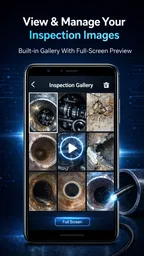
Endoscope Camera Connector review
 Analysis by Appsdrops
I would treat Endoscope Camera Connector as a viewing tool, not as a magic fix for every inspection job. Its purpose is to let an Android phone display a feed from a compatible USB OTG endoscope camera, which can make awkward checks easier without reaching for a separate monitor. The useful question is less whether the app is fast in the abstract and more whether your phone, adapter, cable, and camera work together reliably.
What to expect when you connect a camera
Endoscope Camera comes from FastSoft and sits among practical library-and-demo utilities rather than polished photo or video editors. It is free, rated for Everyone, and has reached over 100,000 installs. Its average rating is 3.6 from around 7,800 ratings, with about 1,300 written reviews, which suggests a tool people try for a specific task rather than an app everyone keeps open all day.
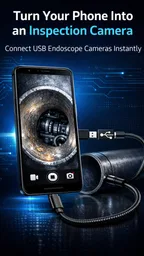
The app’s central job is straightforward: show an endoscope camera’s view on a phone. That simplicity can be an advantage. If you are trying to inspect a narrow gap, you want to see the camera feed, not work through a pile of unrelated controls. At the same time, the app’s usefulness depends heavily on the equipment attached to the phone. A compatible camera and a functioning OTG connection matter just as much as the app itself.
I would not assume that “connected” automatically means “ready for a smooth inspection.” A feed can feel delayed or unstable because of the camera, cable, adapter, phone, or app interaction. If the picture is poor, first check the physical setup: reconnect the USB plug, make sure the camera is seated firmly, and try a short test before putting the probe somewhere difficult to retrieve. That simple order saves time and helps separate a connection problem from an app problem.
Speed matters most during close inspection
For a quick look behind an appliance or into a drain opening, responsiveness is more important than elaborate image tools. A slight delay between moving the probe and seeing the change can make it harder to steer, especially when the camera tip is already out of sight. I would begin with small movements and pause briefly after each one rather than sweeping the probe around. That gives the display time to catch up and reduces the chance of losing your orientation.
It also helps to set up before the inspection begins. Open the app, connect the camera, and confirm that the image is visible while everything is still on a table or workbench. Then adjust your grip and lighting before reaching into a cramped space. This is a more dependable workflow than discovering a loose connector when the probe is halfway inside a cabinet or pipe.
For a longer inspection, keep the phone somewhere stable and within easy reach. Holding the device in one hand while guiding a flexible probe with the other can quickly become awkward. A helper can hold the phone and describe what is visible, while you move the camera slowly. That division of work is especially useful when you are checking a location where the phone screen cannot stay directly in your line of sight.
Heavy use reveals the practical limits
A short household check is a better fit than assuming this will replace dedicated inspection equipment for a full workday. Extended use puts more strain on the whole setup: the phone remains active, the cable is handled repeatedly, and the camera may need careful positioning to avoid scraping or snagging. I would take brief pauses during a lengthy job, both to reassess the image and to check that the connector has not loosened.
One useful, non-obvious habit is to mark your starting orientation before inserting the probe. Flexible cameras can twist, so the image may rotate even when your hand movement seems simple. A small test outside the opening lets you learn how turning the cable changes the view. Once inside, move in short increments and keep a mental note of which direction you turned. This is not an app feature; it is a practical way to make a basic live viewer easier to use.
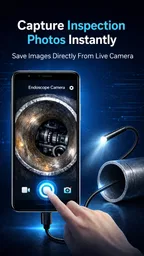
Another trade-off is the difference between seeing a defect and documenting it. A live view can help you spot a blockage, loose object, or damaged surface, but a phone display is not automatically a reliable inspection record. If the result matters for a repair decision, take notes about the location and what you observed, and consider a dedicated camera or professional inspection when you need repeatable evidence. The app is most convincing as a first-look aid, not as a substitute for specialist diagnostic equipment.
Reliability depends on the whole chain
When the picture disappears, I would avoid repeatedly opening and closing the app without checking the connection. First bring the probe back to a safe position, then inspect the USB plug and adapter, reconnect them firmly, and reopen the viewer if needed. If the image returns, test the camera outside the target area before continuing. That recovery routine is safer than troubleshooting while the probe is wedged somewhere hard to reach.
For a more reliable session, keep cable tension low. Pulling the phone away from the camera can loosen the connection or make the probe harder to control. Rest the phone near the inspection point, leave enough slack in the cable, and move the camera rather than tugging the whole assembly. In a car or workshop, this also reduces the chance of the cable catching on tools, trim, or nearby objects.
It is worth distinguishing app reliability from image quality. If the picture is consistently blurry, dark, or difficult to interpret, the camera’s lens and lighting may be the limiting factors. A live viewer can present the feed, but it cannot make a low-quality camera reveal details that the hardware does not capture. For a simple search, that may be enough; for identifying fine cracks or subtle wear, I would use better inspection hardware or ask a professional to examine it.
Phone compatibility and sensible expectations
The app’s current version is 29 and it supports Android from version 7.0. That tells you the software is intended for a broad range of Android devices, but it does not guarantee that every phone’s USB port, adapter, or endoscope camera will behave the same way. Before buying or borrowing equipment, check that the camera is designed to work with your phone’s OTG connection. If you use an adapter, confirm that it matches the phone’s port and can maintain a firm connection.
That hardware dependency is the main reason I would not recommend downloading the app first and assuming it will turn any spare USB camera into an endoscope. The camera has to provide a compatible feed, and the phone must be able to connect to it. If you already own a suitable borescope, trying the app is a low-cost way to see whether your setup is useful. If you have not bought hardware yet, check compatibility carefully before choosing a camera based on the app alone.
There is also a practical screen constraint. A phone is convenient in tight spaces, but its display is small compared with a dedicated inspection monitor. You may need to change your viewing angle, increase the room lighting around the phone, or ask someone else to watch the screen. For a quick check under a sink, that compromise is reasonable. For repeated commercial inspections or work where fine detail and long sessions are routine, a purpose-built monitor and camera system is likely the better choice.
Where it fits among inspection options
Compared with a standalone borescope display, an app-based setup can make use of a phone you already carry and avoids managing another screen. The trade-off is that the phone becomes part of the equipment chain, so compatibility and cable handling matter. Compared with simply using a flashlight and mirror, an endoscope can reach places those tools cannot show directly, but it takes practice to steer a flexible camera and interpret its changing orientation.
For home maintenance, I can see a useful role in checking whether an object is visible inside a cabinet void, looking behind a machine panel, or inspecting a hard-to-see space before deciding whether to dismantle anything. A realistic example is a homeowner trying to locate a dropped screw behind a washing machine: connect and test the camera first, guide it slowly into the gap, and use the live view to find the object before moving the appliance. The app may help answer “is it there?” without promising that retrieval will be easy.
I would skip this option if you need a complete inspection platform with advanced reporting, professional-grade image handling, or guaranteed compatibility across a team’s devices. It is also a poor fit if you do not have an OTG endoscope camera and do not want to research hardware matching. In those situations, a dedicated kit with its own screen may be less flexible but more predictable.
My performance verdict
Endoscope Camera makes the most sense as a free, focused viewer for people who already have compatible USB OTG inspection hardware. Its strongest point is the simple idea of using an Android phone to see into places that are awkward to reach. Its biggest limitation is equally clear: the quality and stability of the experience rest on the camera, adapter, cable, and phone as well as the app.
I would try it for occasional household checks, basic workshop tasks, and quick troubleshooting where a live view is all I need. I would prepare the connection before inserting the probe, move slowly, and keep a recovery plan for a dropped feed. If you expect instant responsiveness, consistently sharp detail, or a polished professional inspection workflow, choose a dedicated system instead. For a compatible setup and modest expectations, this app can be a handy way to turn a phone into a practical window on hard-to-see spaces.
What we like
- Works with compatible USB endoscope cameras for close-up inspection.
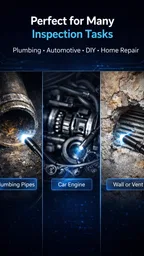
- Can help inspect pipes and other hard-to-reach spaces.
- Provides a practical way to view a camera feed on a phone.
- Useful for basic home maintenance checks.
- Offers a portable alternative to carrying a separate screen.
What could be better
- Requires a compatible endoscope camera to work.
- Some phones may need an OTG adapter or OTG support.
- Image quality depends heavily on the connected camera.
- Compatibility may vary across phone models and Android versions.
- A camera cable can limit movement during inspections.





