



Camera Blocker: Anti Spy Guard review
 Analysis by Appsdrops
When I want a quick way to prevent a phone camera from being used unexpectedly, I prefer a direct tool over a complicated security suite. Camera Blocker: Anti Spy Guard is built around that narrow job: it lets you block or disable the camera, with the aim of reducing the chance of spyware taking pictures without your knowledge. It is a practical idea, but it is important to understand the boundary: blocking camera access is not the same as finding or removing spyware.
This is a free Android app in the libraries and demo category, developed by BytePioneers s. r. o. It has a 4.4 average from around 18,000 ratings, and more than one million installs. Those figures suggest it has found an audience, though popularity alone cannot tell you whether it fits your phone or your routine. I’d think of it as a focused privacy control, not a complete antivirus or device-monitoring solution.
What to expect from a camera blocker
The useful promise here is simple: when you want the camera unavailable, the app provides a way to block it rather than relying only on remembering not to open camera apps. That can be reassuring if you rarely take photos, lend your phone to someone, or want a clear barrier during a meeting or while the device sits on a desk. The point is prevention, not a dramatic security dashboard.
My first recommendation is to treat the app as a switch you deliberately test, not a background guarantee you never revisit. A blocker can be valuable only if you know when it is active and how to restore normal camera use. Before relying on it for an important call or a spontaneous photo, try the block and release behavior in a low-pressure moment. That small check helps you avoid mistaking a protected camera for a broken one later.
The app’s name signals its privacy focus, but it should not encourage a false sense of certainty. A camera restriction can reduce one route to unwanted image capture; it does not establish that the phone is free of malicious software, nor does it secure the microphone, screen, files, or accounts. If you suspect active compromise, use broader device-security steps as well. I see this app as one layer in a careful routine, not the whole routine.
For a first-time user, that distinction is the most important thing to know before installing. You do not need to understand every possible spyware technique to benefit from an easy camera block. You do need to keep expectations realistic: the app’s role is narrow, and your phone’s behavior still matters. The free download makes it straightforward to try, while in-app purchases are listed at $2.99 to $79.99 per item, so check any purchase screen carefully before confirming anything.
Getting set up without guesswork
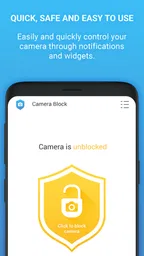
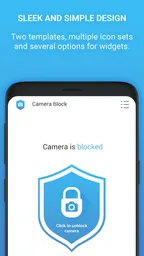
After installing, I would begin by opening the app and looking for its main camera-blocking control. Follow the on-screen steps the app presents, then test the result with a camera app you normally use. The first meaningful success is not simply seeing a setting change; it is confirming that the camera behaves as expected while the block is on, and returns to normal when you switch it off.
Android versions and device makers can handle camera access differently, so the exact path may not look identical on every phone. The listed minimum operating system is Android 6.0, but being able to install an app does not guarantee that every device exposes controls in precisely the same way. If the app asks you to complete a system step, read the prompt rather than tapping through automatically. A privacy tool is worth using only when you understand what you have enabled.
One useful setup habit is to decide in advance when you want the camera blocked. For example, you might keep it available for ordinary use but turn on protection during a long work session, travel, or a period when you are handing the phone to someone else. That is easier to remember than leaving a restriction on indefinitely and discovering it only when you need to scan a document or join a video call.
I would also test the exact apps that matter to you. A camera used from a messaging app, a video meeting app, and the phone’s built-in camera may not feel like the same workflow to a user, even when they ultimately rely on the same device camera. Try your regular use cases after enabling the block, then repeat them after disabling it. This gives you a personal baseline rather than assuming that one successful test covers every situation.
The first successful block—and how to recognize it
A realistic first test is to activate the block while you are at home, then open your usual camera app and see whether it can capture an image. If it cannot, try switching the block off and check that camera access returns. This simple before-and-after test turns an abstract privacy promise into something you have observed on your own device. It also shows you where to go when you need the camera again.
For a workday scenario, imagine leaving your phone on a desk during a meeting where you do not expect to take pictures. You can enable the blocker before the meeting, then turn it off afterward when you want to photograph a whiteboard. The practical advantage is a deliberate pause between “camera needed” and “camera available.” It is a small workflow change, but that pause can help you notice when access is open.
Another useful case is lending your phone to a child or a friend to view something. If you have tested the blocking behavior first, you can enable it before handing the device over and avoid worrying that a camera app will be used accidentally. This does not replace supervision or other parental controls, and it will not prevent access to unrelated apps. It is simply a camera-specific precaution.
There is a trade-off: a strict block can interrupt ordinary tasks. Scanning a receipt, photographing a parcel label, using a banking app’s document capture, or joining a video call may fail until you restore camera access. I would not leave the blocker enabled and assume every app will explain the problem clearly. If a camera-dependent feature suddenly stops working, checking the block is a sensible early troubleshooting step.
Common points of confusion
The biggest source of confusion is interpreting a failed camera as proof of a problem with the phone. When the blocker is active, the failure may be the intended result. Before changing camera settings or reinstalling anything, check the app’s current state and deliberately turn the restriction off for a moment. If the camera works again, you have identified the cause without unnecessary troubleshooting.
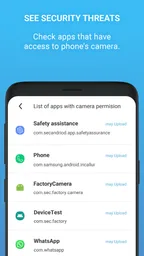
A second misunderstanding is expecting a camera blocker to scan for threats. Its purpose is to restrict camera use, whereas antivirus and security products typically focus on detecting or managing other risks. The categories overlap only in the broad sense that both relate to privacy and safety. If your concern is suspicious apps, account theft, or broader device behavior, a camera-only tool is not a substitute for reviewing installed apps, system updates, and account security.
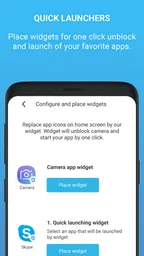
People also sometimes want an automatic schedule so they never have to think about the control. I would not build a routine around an automation feature unless you can see and test it in the app yourself. The dependable approach for a new user is manual: enable the block when you have a reason, confirm the camera is restricted, and turn it off when a legitimate camera task comes up. That may be less seamless, but it is easier to understand.
Finally, remember that the app’s age rating is Everyone, but that does not mean every privacy decision is automatic or that the tool is intended to supervise a child’s whole phone. If you are setting it up for another person, explain what the camera restriction does and how it affects video calls and photos. Clear expectations prevent the blocker from being mistaken for a malfunction or a hidden monitoring tool.
Where it fits among the alternatives
Compared with relying on memory, a dedicated blocker gives you a clear action to take when you want the camera unavailable. Compared with a broad security suite, it has a much narrower purpose and may feel easier to approach if camera access is your only immediate concern. The trade-off is equally clear: a general security product may address a wider set of risks, while this app concentrates on one device capability.
Android’s own privacy controls are another reasonable option. If you are comfortable finding the relevant system settings and they give you the level of control you need, using the built-in route may be enough. I would choose the app when I want a dedicated, easily revisited camera-blocking workflow; I would choose system controls when I prefer fewer installed tools and can manage the settings confidently. Neither choice should be treated as proof that spyware is absent.
The app is a better fit for someone who wants a simple, intentional camera restriction than for someone expecting detailed threat reports, automatic investigation, or complete phone protection. It may also be inconvenient for people who frequently switch between taking photos and using video calls. In that case, the extra step of enabling and disabling a block could become more friction than benefit.
My next-step recommendation
The best way to judge this app is to run one calm, reversible test before depending on it. Install it, follow its setup prompts, block the camera, check the behavior in an app you use, and then restore access. If that works as you expect, choose a practical moment—such as a meeting or lending your phone—to use the control. If it interferes with your normal camera tasks or does not behave clearly on your device, the built-in Android privacy controls may be a better fit.
BytePioneers s. r. o. has kept the product focused, and the current version is 2.42. It has been available since September 19, 2013, which gives it a long history as a camera-privacy utility, though I would still judge it by how it behaves on your particular phone today. The app is free to install, with optional in-app purchases, and its audience rating is Everyone.
Overall, I’d recommend Camera Blocker: Anti Spy Guard to someone who wants an extra, easy-to-understand barrier around camera use and is willing to manage it actively. I would skip it if you need broad malware protection, seamless camera access at all times, or a tool that investigates suspicious activity for you. Used with realistic expectations, it can make one privacy choice concrete: when you do not need the camera, you can block it, verify the result, and restore access when a real task calls for it.
What we like
- Blocks camera access to help prevent unauthorized use.
- A simple way to add privacy protection without covering the lens.
- Can offer peace of mind in shared or public spaces.
- Useful for people concerned about apps accessing the camera.
- May help reduce the risk of covert camera activation.
What could be better
- Blocking the camera can disrupt video calls and camera apps.
- Some features may require device permissions to work properly.
- Protection may vary across Android versions and device brands.
- It cannot prevent photos taken with a separate camera.
- Camera access may need to be restored manually after blocking.





