
Workday review
 Analysis by Appsdrops
Workday is a business app built around a straightforward promise: give employees and managers a mobile way to handle work-related tasks. That sounds simple, but workplace apps can be less forgiving than everyday social or shopping apps. Access may depend on your employer’s setup, and a task that looks like an app problem can actually come down to sign-in details or an organizational process. My practical take is that Workday is most useful when you treat it as a companion to your workplace’s existing Workday environment, rather than expecting it to work like a standalone service.
Getting oriented and finding your way through
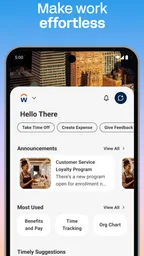
The app’s summary describes it as an all-in-one mobile solution for employees and managers. That broad purpose is helpful, but it also means the experience is tied to what your organization makes available. Two people can install the same business app and encounter different tasks or options because their work responsibilities and employer arrangements differ. So, if something you expect is not immediately visible, it does not automatically mean the app has failed.
In everyday use, the first potential sticking point is getting into the right workplace account. Before troubleshooting the app itself, check that you are using the sign-in details and workplace selection your organization expects. If your employer has given you specific instructions, follow those rather than relying on assumptions from a personal account or another organization. This basic check can save time, especially when a login screen seems familiar but the account context is not the one you need.
Another source of confusion is knowing where to start after signing in. Workday serves employees and managers, so the app may present a range of work-related information rather than a single universal starting point. I recommend approaching it with one clear task in mind: open the relevant area, review what is shown, and work through the available steps without jumping between unrelated sections. A focused approach makes it easier to spot whether a task is waiting for your input or whether you have simply landed somewhere else.
For people who are new to the app, it helps to separate navigation questions from access problems. If you can sign in but cannot locate something, look for the relevant section in the app and consider whether that task belongs to your role. If you cannot get past sign-in at all, revisiting account details and employer guidance is a better first move than repeatedly tapping through screens. The key is to identify whether you are dealing with access, navigation, or a workplace-specific process.
Before you begin
A little preparation makes the first session less frustrating. Confirm that you have the correct workplace sign-in information, know which account you should use, and have access to any guidance your employer has shared. If you are setting up the app for work, keep those details handy before starting rather than stopping midway to search for them. This is especially useful if you are installing it on a device you do not regularly use for workplace tasks.
It is also sensible to check that the app is current when you run into a problem. The current version is 2026.11.0, and updates can matter for compatibility and reliability. I would not assume an update will fix every issue, but using an outdated build can complicate troubleshooting. If an update is available through your app store, installing it and then trying again is a reasonable early check.
Workday is free, and it has been available since April 29, 2013. Its long presence and broad adoption make it a familiar name in workplace software, but those facts do not remove the need for an employer to configure the service for its own staff. The app has an average rating of 4.2 from around 270,000 ratings, with roughly 46,000 written reviews and over 10 million installs. I see that as a sign of a widely used product, not a guarantee that every organization’s setup will feel identical.
When setup feels stuck
If you cannot sign in, start with the details you entered: check for typing mistakes, confirm you selected the right workplace context, and make sure you are following your employer’s current instructions. If you have recently changed a password or received updated access guidance, use the latest information rather than an old note. When the problem persists, contact the appropriate workplace support team, since they can check account access and organization-specific settings that are outside your control in the app.
If the app opens but a screen does not load as expected, close and reopen it, then try the action again. A temporary connection issue can interrupt a mobile workflow, so checking that your device has a working internet connection is another useful basic step. If other online services are also struggling, the connection may be a more likely cause than Workday itself. If the issue appears only in Workday, note what you were doing and report the specific problem through your workplace’s support route.
Try to keep troubleshooting simple and deliberate. Repeating the same tap several times can make it harder to tell whether anything changed, while switching between multiple screens can muddy the picture. Instead, pause, confirm your connection, reopen the app, and return to the task once. If you see a message or a particular screen that seems relevant, keep track of its wording so you can explain the issue clearly when asking for help.
Recovering a work task
Workplace tasks often involve more than opening a screen: you may need to review information, make a selection, and complete a final step. If a task appears unfinished, return to it carefully and check what the app currently shows before repeating your action. That approach helps avoid duplicate attempts and makes it easier to distinguish a saved change from one that still needs attention. For actions with workplace consequences, take the time to confirm the result instead of assuming that a tap completed everything.
If you lose your place, go back to the relevant section and look for the task you intended to complete. Avoid starting over blindly if the app already displays a status or confirmation. When you cannot tell whether a change went through, your employer’s support team is the safest source of guidance; they can advise on the process used by your organization. This is more reliable than guessing based on how another workplace uses the same app.
Managers may also use Workday in a different way from employees, which can affect what appears on screen and what actions are available. If you are expecting a manager-related option but do not see it, check that you are signed in to the right work account and consider whether the function is part of your role. A missing option is not necessarily a mobile malfunction. Your organization can clarify whether you should have access and how that workflow is intended to work.
When the app may not be the cause
Not every frustrating moment starts inside the app. An incorrect account, an expired or changed sign-in detail, a weak connection, or a workplace process that requires additional guidance can all make a mobile task feel broken. A good troubleshooting habit is to ask what changed: did the problem begin after a sign-in change, appear only on one connection, or affect one particular task? Those clues help you choose the next step instead of treating every issue as a general app failure.
There can also be a difference between what a person expects to do and what their employer has made available. Workday is intended for employees and managers, but an organization determines how its own workplace processes are handled. If a particular section or action is absent, ask your workplace contact whether it is part of your setup before spending a long time searching the app. This keeps expectations realistic and directs the question to the people who can answer it.
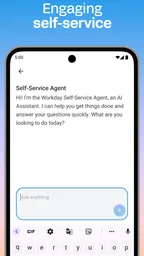
When asking for help, describe the problem in plain terms: whether you can sign in, which general task you were trying to handle, and what happened when you tried. Mention whether the issue continues after checking the connection and reopening the app. Clear details are more useful than a vague report that “Workday is not working,” and they can help your support contact distinguish an account issue from a temporary technical one.
A practical fit for work on the go
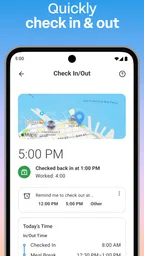
Workday’s strongest appeal is its role as a mobile point of access for work-related needs. If your employer already uses it and has prepared your account, having an app for employee and manager workflows can be convenient. It can also make routine work interactions feel more accessible than relying only on a desktop. The experience, though, depends on your workplace’s configuration and on how clearly you understand the task you are trying to complete.
For a new user, I would not judge the app solely by the first login screen or by whether every expected option appears right away. Start with your organization’s instructions, make sure the account is correct, and approach tasks one at a time. If something fails, use basic checks first and then involve workplace support when the issue concerns access or an organization-specific workflow. That is a more productive way to use a business tool than repeatedly reinstalling or navigating at random.
Workday is rated for Everyone and is published by Workday, Inc. Those details make it easy to identify in an app store, while its broad reach suggests that many people use it as part of their working lives. Still, a popular app can feel very different depending on an employer’s setup. The most useful question is not whether every user sees the same experience, but whether your workplace has made the app a practical route to the tasks you need.
My verdict is that Workday can be a useful workplace companion when account access and employer setup are in order. Its all-in-one positioning makes sense for employees and managers who want mobile access to work tasks, but the app is not a substitute for clear workplace instructions or support. If you approach it with the right account, a stable connection, and realistic expectations about your organization’s configuration, it is easier to get value from it—and easier to recognize when the next fix belongs with your employer rather than on your phone.
What we like
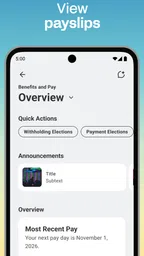
- Keeps pay slips and tax documents easy to find.
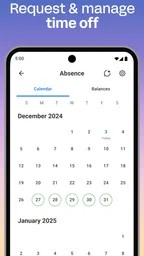
- Shows paid time off balances and request status.
- Supports biometric sign-in on compatible devices.
- Sends alerts about approvals and schedule changes.
- Lets employees update contact details from the app.
What could be better
- Some features appear only if your employer enables them.
- Navigation can feel crowded when many tools are available.
- Certain tasks redirect to a browser.
- Login may require your employer's network or extra verification.
- Notifications can be easy to miss among other app alerts.





