


Adobe Scan AI PDF Scanner, OCR review
 Analysis by Appsdrops
I tend to judge a scanning app by what happens after the first satisfying scan. Turning a paper into a neat PDF is easy to admire once; keeping the tool useful when receipts, forms, and handouts accumulate is the harder test. Adobe Scan AI PDF Scanner makes a strong first impression because it turns a phone camera into a practical way to capture paperwork, then gives those files a place to be found again.
A useful first week, not just a clever camera trick
In the first few days, the appeal is straightforward: instead of photographing a document and leaving it mixed in with family pictures, I can make a PDF that is easier to share and file. That difference matters when someone asks for a signed page, a receipt, or a copy of a letter. The app is free to download, and its core purpose is clear without requiring me to build a complicated workflow before I get value from it.
Adobe Scan is a business app from Adobe, but I don’t think you need to run a business to find it useful. Students can keep course handouts together, freelancers can capture expense receipts, and anyone dealing with household paperwork can create a digital copy before the original gets misplaced. Its Everyone age rating also makes it broadly approachable, though the real question is whether scanning is a recurring need in your own routine.
The strongest everyday scenario is a small, time-sensitive one. Imagine I’m away from home and need to send a signed form before the end of the day. A phone scan is more useful than a quick photo because the result is a document file I can organize and pass along. For multi-page paperwork, capturing pages as one document can also spare the recipient a jumble of separate images. I’d still check every page before sending: a readable-looking preview is not a substitute for confirming that a signature, date, or fine print is actually clear.
One practical habit makes a bigger difference than scanning more aggressively: decide on a naming and filing routine from the beginning. A folder for current work, one for personal records, and filenames that include a subject or date are easier to search later than a long run of vaguely named files. Adobe Scan’s emphasis on organizing PDFs into folders supports that habit, but the app cannot decide what a document means to you. A minute spent filing a scan can save several minutes of hunting later.
Where the recurring value comes from
Once the novelty fades, the useful question is whether I reach for the app often enough to justify keeping it installed. Adobe Scan makes the most sense for people who encounter loose paper regularly but do not want to carry a separate scanner. Its value is not that it replaces every document tool; it is that it lowers the effort of turning a paper item into a file while the item is already in my hands.
That convenience is especially worthwhile for paperwork with a short shelf life. I can capture a receipt while leaving a shop, digitize a notice before putting it away, or keep a copy of a form before handing it in. These are modest jobs, but they happen at exactly the moments when a desktop scanner is inconvenient. If I scan only once every few months, however, a built-in camera tool or a basic scanning option already on my phone may be enough.
Adobe Scan has a 4.6 average from around 3 million ratings, and it has passed 100 million installs. Those figures suggest that scanning documents on a phone is a familiar use case for many people, but they don’t tell me whether it fits my habits. I would treat them as context, not a reason to install it automatically. The more useful test is whether I repeatedly need a clean, organized PDF rather than a picture left in my camera roll.
Compared with photographing paper and manually cropping the image, a dedicated scanner app is designed around document capture and PDF filing. Compared with a desktop scanner, it wins on immediacy and portability but loses when I need to process a large stack, work with awkward originals, or produce consistent output under controlled conditions. A phone camera also has real limits: glare, shadows, curled pages, and faint printing can make a scan harder to read. I would use good light and a flat surface, and I would not assume that an important document is ready until I have inspected it.
Keeping the archive manageable
The folder feature is more than a cosmetic touch if I use it consistently. I find it helpful to separate documents by purpose rather than letting every scan land in one undifferentiated pile. For instance, I might keep active paperwork apart from records I only need to retain. That reduces clutter and makes it less likely that I’ll send an outdated version by mistake. For documents that change over time, a filename that distinguishes the latest copy from an older one is a simple safeguard.
A useful workflow is to scan, review, name, and file before moving on. Doing all four steps immediately is less glamorous than capturing a dozen pages in a rush, but it prevents a common failure: a growing archive of files that technically exists and is practically lost. If I’m collecting receipts, I’d also decide whether I need each one as a PDF or whether a simpler recordkeeping method is enough. Scanning everything can create work rather than reduce it.
For a one-page form, the phone-first approach is hard to beat. For a thick packet, repeated scans can become tedious, and a physical scanner or a more specialized document workflow may be the better tool. Likewise, people who need extensive editing, page rearrangement, or detailed document management should compare dedicated PDF software before settling on a scanner alone. I see Adobe Scan as a capable entry point for capture and organization, not a promise that every later document task will happen in the same app.
The upkeep and friction to expect
The maintenance burden is mostly about attention rather than technical setup. I need to remember to check the scan, keep folders sensible, and remove files I no longer need. If I postpone filing, the convenience of quick capture can turn into a backlog. That is not unique to this app, but it matters because a scanner only stays useful when its output remains findable.
There is also a cost distinction worth noticing. The app is free, while in-app purchases are listed from $1.99 to $69.99 per item. I would start with the free experience and only consider a purchase if I encounter a specific need that it addresses. That range is broad enough that I would read the purchase details in the app store carefully before paying; I would not assume that every feature or plan is necessary for ordinary scanning.
Another source of friction is the gap between a clean-looking digital file and a dependable record. A scan can be hard to read if the page is bent, the lighting is uneven, or the print is small. Before I discard or hand over an original, I would zoom in on the PDF and check every page, particularly dates, totals, and signatures. For archival or official purposes, I’d also follow any requirements of the organization receiving the document rather than assuming a phone scan will always meet them.
Because scanned paperwork can contain personal details, I would be deliberate about where I save and share it. A tax document, medical form, or identity record deserves more care than a restaurant receipt. I’d avoid sending sensitive files casually and would keep only the copies I genuinely need. This is a practical habit, not a reason to avoid scanning: the convenience is valuable, but it makes sense to treat the resulting PDFs as real records rather than disposable snapshots.
When the habit becomes tiring
My main concern is not that Adobe Scan lacks a purpose; it is that scanning can become another small chore if I try to digitize every sheet of paper. The app is most rewarding when I capture documents I will actually need again. Scanning junk mail, temporary notes, or duplicates simply shifts clutter from a desk to a phone. A short rule—keep only what has a future use—makes the tool feel lighter.
There is also a point where a phone is the wrong capture device. If I need a large batch processed quickly, a flatbed or office scanner is more comfortable. If the document is delicate, glossy, oversized, or difficult to flatten, a camera-based workflow can demand repeated adjustments. And if I only want to remember what a receipt says, a photo or note may be quicker than creating and filing a PDF. The best choice depends on what I’ll do with the result, not on whether a scanner app can technically capture it.
For people who already use Adobe tools, the familiar name may make the app feel like a natural fit. But I wouldn’t choose it solely on that basis. Someone who needs a broad office suite, collaborative review, or advanced PDF editing should compare those needs against a scanner’s narrower job. Conversely, someone who mainly wants an uncomplicated way to make readable PDFs from occasional paperwork may not need a larger document platform at all.
Does it earn a permanent place?
Adobe Scan was released on May 31, 2017, and its lasting appeal is easy to understand: paper still arrives in everyday life, and a phone is often within reach when it does. I’d keep it installed if I regularly submit forms, track receipts, or organize household and work documents. For me, the strongest reason is the combination of quick capture and folders, provided I actually take the extra moment to label what I scan.
I’d skip it if I rarely handle paper, already have a scanning workflow that works, or mainly need high-volume scanning and advanced PDF editing. In those cases, a phone camera, a desktop scanner, or a fuller document tool may be a better match. Adobe Scan is not a substitute for good filing habits, and it cannot make poor lighting or tiny print disappear.
My long-term verdict is positive but practical: it earns its space when it removes a repeated annoyance, not simply because scanning looks impressive during the first week. Start with a few documents you genuinely need, inspect the results, and build a folder routine that you can maintain. If that saves you from searching through camera photos or carrying paper around, the free app has a clear role. If the files start piling up without purpose, it is time to scan less—or choose a different tool.
What we like
- Automatically detects document edges for clean scans.
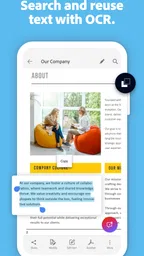
- OCR makes scanned text searchable and selectable.
- Supports scanning multiple pages into one PDF.
- Offers cloud storage integration with Adobe Document Cloud.
- Can export scans to PDF or JPEG.
What could be better
- Some advanced features require a paid subscription.
- Cloud features work best with an Adobe account.
- OCR accuracy can drop with poor lighting or handwriting.
- Large scans may take time to process or upload.
- PDF editing options are more limited than in desktop tools.





