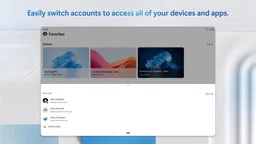
Windows App review
 Analysis by Appsdrops
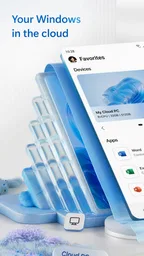
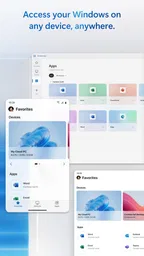
The annoying part of reaching a work PC from somewhere else is rarely the connection itself; it is losing time finding the right remote session, then discovering that the screen or controls make a simple task harder than it should be. I see Windows App as a way to bring remote PCs and virtual apps into one mobile starting point, rather than as a replacement for a laptop. Its value depends on how often you need that access and whether your organization has already set up the remote resources you are meant to use.
When remote access is part of the workday
This is a business app from Microsoft Corporation, and it is free to install. It is rated for Everyone, but the practical audience is narrower: people who need to connect to a remote Windows PC or use a virtual app for work or study. The app has a 4.3 average from around 37,000 ratings and has been installed over 10 million times. Those figures suggest broad use, though they do not tell me whether a particular workplace’s remote setup will be straightforward.
The distinction matters. This is not a general-purpose file manager, a cloud storage service, or a way to make every desktop program run locally on a phone. It provides a mobile route into remote computing. That can be useful when a desktop-only tool or work environment is out of reach, but the remote machine and access arrangements remain central to the experience.
In my view, the time-saving case is strongest for brief, specific tasks: checking something on a work PC, opening a virtual app, or making a small change while away from a desk. If you expect to spend hours doing detailed spreadsheet work or editing long documents on a small screen, the convenience of connecting may be outweighed by the effort of controlling a desktop through touch.
What to have ready before connecting
Before installing, I would ask the person or IT team responsible for the work environment which remote PC or virtual apps are available to me and how I am expected to access them. The app is a client, not a magic setup tool: installing it alone does not create a remote computer or grant permission to one. Sorting out access first prevents the frustrating situation of opening the app and having nowhere useful to go.
The app requires Android 10 or later. It was released on March 18, 2020, and its current version is 11.0.26071.13915. I would check that a device meets the OS requirement before planning to rely on it for work, especially if it is an older phone or tablet. This is a practical gate, not a minor detail: a remote-access tool is only helpful if it can be installed on the device you actually carry.
For a first session, I would begin with a low-stakes task rather than waiting until a deadline. Confirm that the intended remote resource appears, connect, and try the precise action you expect to perform on the go. A quick test reveals whether the sign-in process, network conditions, screen size, and controls work well enough for your routine. It also helps distinguish a problem with the app from an access issue that needs attention from your organization.
Small tasks where a phone can earn its place
A realistic use case is a manager leaving the office who remembers a detail that needs checking on a work PC before replying to a colleague. If the remote desktop is already available, the app can be a faster path than returning to the office or carrying a laptop for a one-minute confirmation. I would still keep the action narrow: check the information, make a small update if needed, then disconnect rather than treating the phone as a full desktop workstation.
It may also help someone who travels between locations but occasionally needs a specific virtual app. Instead of assuming that the mobile device must run that work software itself, the user can reach the hosted environment where the app is available. The useful question is not simply “Can I connect?” but “Can I complete the task comfortably once connected?” Reading a short status or checking a setting is a better fit than manipulating a crowded desktop interface with precise, repeated input.
One less obvious advantage of planning around remote access is that it can reduce the amount of work material kept on a personal device. When the task is performed on a remote PC or through a virtual app, the phone is serving as a way into that environment rather than necessarily becoming the place where the whole workflow lives. I would not treat that as a security guarantee or assume how an employer handles data; it is simply a useful workflow distinction to discuss with whoever manages the setup.
A second practical tip is to use the app for continuity, not as the only route to urgent work. If a task is important, test the connection and the exact controls in advance, and keep a more suitable device available for work that requires sustained typing or careful visual comparison. That small bit of preparation can save more time than trying to troubleshoot access while someone is waiting for an answer.
Where it removes friction—and where it adds it
The main friction it can remove is the need to be physically beside the remote PC for every small check. It gives a mobile user a way to reach remote computing resources from one app, which is easier to reason about than hunting for a different route each time. For a person who already uses a managed remote environment, that focused purpose is more useful than a broad collection of unrelated workplace tools.
But remote access introduces its own dependencies. You need a suitable remote PC or virtual app, working access, and a connection that is good enough for the task. A slow or unstable network can make the session feel less responsive, while a small display can turn ordinary desktop controls into fiddly targets. These are not reasons to dismiss the app; they are reasons to judge it by the work you need to do rather than by the fact that a connection is possible.
Compared with carrying a laptop, a phone is lighter and can be ready for a quick check, but it is a weaker choice for long sessions and complex input. Compared with a conventional remote-desktop tool, Windows App is most compelling when the destination is a Windows PC or virtual app in the Microsoft-oriented environment your workplace uses. If your organization relies on a different remote-access system, its designated client may fit better. If all you need is a document on your phone, a mobile version of that document app or a shared file may be simpler than opening a remote desktop.
There is also a useful boundary to keep in mind: the app does not make a remote workspace effortless merely by putting it on a phone. You still have to navigate the remote environment, and anything designed for a large screen may remain awkward in a compact form. I would choose tasks with a clear stopping point and avoid relying on it for work where a missed tap or difficult-to-read screen could cause costly mistakes.
Who should try it, and who should pass
I would recommend it to someone whose work already involves remote PCs or virtual apps and who regularly needs occasional access while away from a desk. It makes particular sense when the alternative is delaying a quick task, carrying a computer for a brief check, or interrupting a colleague to retrieve information from a desktop. The best results are likely to come from users who know which remote resource they need and have a practical reason to connect from a mobile device.
I would skip it if you have no remote environment to connect to, if your work is already comfortable in mobile apps, or if you expect it to replace a laptop for a full day of desktop work. I would also avoid making it your sole plan for a time-critical task until you have tried the connection under the conditions where you will actually use it. The convenience is real, but it is conditional on both access and a task that suits a phone.
My overall take is that Windows App is a focused business utility whose best feature is the time it can save on small, well-defined remote tasks. It does not remove every step: the remote resource must be available, and touch navigation still has limits. But when those conditions are met, having a mobile way to reach a work PC or virtual app can turn an inconvenient detour into a quick check. I would install it when that need recurs, test it before depending on it, and reach for a laptop or a native mobile app when the work demands more than a short remote session.
What we like
- Familiar Windows interface makes navigation straightforward.
- Built-in security tools help protect your device.
- Regular updates provide new features and security fixes.
- Supports a wide range of hardware and software.
- Accessibility settings accommodate different needs.
What could be better
- A Windows license may add to the cost of a new device.
- Updates can interrupt work when they require a restart.
- Some older computers may not meet hardware requirements.
- Preinstalled apps can take up storage space.
- System settings can feel scattered across multiple menus.





