






Video Meeting review
 Analysis by Appsdrops
When I choose a meeting app, I care less about a long feature list than about whether it feels easy to join, stays usable when a call gets busy, and works for people who do not want to create another account. Video Meeting is aimed at that straightforward use: it is a free communication app for video calls, webinars and chat, with joining without signup as part of its pitch. My overall impression is that it makes the most sense for casual or occasional meetings, while people planning demanding, highly structured sessions should weigh its simplicity against the controls they expect from established meeting platforms.
What it is like to get a meeting started
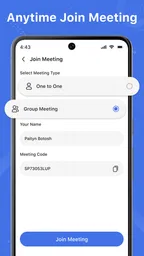
The appeal is the low-friction idea. If I need to bring a few people together quickly, an app that does not require every participant to register can remove a common obstacle: someone forgets a password, dislikes making an account, or simply wants to join and get on with the conversation. That makes Video Meeting worth considering for informal catch-ups, a quick group discussion, or a small organization that wants a less intimidating way to meet.
The developer is listed as Video Meeting and Conference App, and the app is presented as a communication tool rather than a specialist business suite. I would therefore approach it as a practical option for getting people connected, not assume it replaces the detailed scheduling, administration and collaboration workflows that some workplaces rely on. The difference matters: a meeting can be easy to enter yet still require careful preparation if the discussion is important.
Its listing describes HD video, webinars and chat, but those labels alone cannot tell you how a call will behave on your particular network or phone. In my view, the sensible expectation is that the experience depends on the conditions around the app: connection quality, device capability and how many things are running at once. I would test it with a low-stakes call before making it the only plan for a class, client presentation or event.
Speed is mostly about reducing friction
The strongest speed advantage suggested by the product’s approach is not a promise of instant video processing; it is the simpler route into a conversation. Skipping a signup step can make the beginning of a call feel quicker, especially when inviting people who rarely use meeting software. For a one-off conversation, that convenience may matter more than a complicated set of host tools.
There is a useful trade-off here. Fewer barriers can help guests join, but anyone organizing a meeting still needs to communicate the joining instructions clearly and leave a little time for people to get settled. I would send the invitation early, ask participants to open it before the scheduled start, and keep a backup way to contact the group. That small routine prevents a supposedly quick meeting from turning into a troubleshooting session.
Video can also be demanding in ordinary ways: a weak connection may make a live conversation less smooth, and an older or busy phone may have less room to handle several tasks at once. I would avoid judging the app from a single call made while moving between networks. A short test from the place where I expect to meet gives a more useful sense of whether the setup is comfortable.
Busy calls need a little planning
Video Meeting covers more than one kind of conversation, including webinars and chat, so it may appeal to people who sometimes host a presentation and sometimes just want to talk. Those are different workloads, though. A small conversation is forgiving when someone needs a moment to reconnect; a webinar with an audience waiting for a speaker is less so. I would reserve a rehearsal for the latter, even if the app looks simple to start.
One practical tip is to keep the first trial deliberately modest: invite a couple of people, try the same kind of connection you will use later, and check that everyone understands how to enter. This reveals more than exploring menus alone. It also helps identify whether a participant’s phone, network or familiarity with video calls is likely to be the weak point.
For a longer session, I would close unrelated apps and keep the phone on a stable surface with dependable power nearby. These are general precautions rather than special tricks for this product, but they are especially useful when the meeting itself is the main task. Switching repeatedly between a call and other demanding apps can make any mobile meeting less comfortable, and a webinar leaves less room to pause while someone sorts out their device.
Chat can be useful when a person needs to add a short note without interrupting a speaker, or when a group is coordinating what to discuss next. I would still avoid treating chat as a substitute for a proper record of decisions. If the meeting concerns work or a class, someone should capture key actions in the group’s usual notes or document workflow rather than assume that a conversation tool is also an archive.
Reliability means having a recovery plan
No meeting app can make every network and handset behave perfectly, so I judge reliability partly by how easy it is to recover when something goes wrong. The no-signup approach is helpful for access, but it also makes it worth telling guests in advance what to do if they get disconnected: try joining again, check their connection, and message the organizer through another channel if needed. That is a more dependable plan than expecting the host to solve every problem during a live presentation.
For a recurring group, I would establish a familiar routine: share the meeting details in the same place each time, start a few minutes early, and let participants know who to contact if they cannot enter. The routine matters more than it may seem. It reduces confusion for people who are not regular video-call users and gives the organizer a calm way to handle a late arrival.
There is also a difference between a tool that is convenient for casual calls and one that is suitable for critical meetings. If a session has strict attendance, sensitive workflows, complex presenter roles or a large audience, I would compare the host controls and operational needs carefully before relying on this app. A more established workplace platform may be the safer choice when an organization needs a familiar, standardized meeting process.
Think about the phone as well as the app
The stated minimum operating-system requirement is 7.0, which gives readers a concrete compatibility point to check before installing. It does not guarantee that every device running that version will feel equally responsive. A newer phone with spare memory and a good connection is naturally a more comfortable place to run live video than an older device already juggling many tasks.
Video calls can also use more battery and attention than text chat, so I would start a longer meeting with enough charge and avoid relying on a nearly empty phone. If the device becomes warm or the connection falters, closing background activity and moving to a steadier network are sensible first steps. I would not promise a particular resource footprint, because that can vary substantially with the handset and the call conditions.
The app is free, rated for Everyone, and its current version is 15.0. Those details make it approachable for a broad audience, but they do not remove the need to check that the device meets the operating-system requirement or that the intended participants are comfortable joining a video call. For a family conversation, that may be a small consideration; for a group with mixed devices, I would test with the least capable phone first.
How it compares with familiar alternatives
Against the usual choices in video communication, Video Meeting’s clearest distinction is its emphasis on joining without signup, paired with video, webinar and chat use. That can suit a group that values quick access over a deeply customized meeting environment. By contrast, people already using a workplace collaboration suite may prefer to stay inside it, especially if they depend on shared calendars, files, team spaces or administrative policies.
I would also distinguish an occasional meeting app from a service a company standardizes on. For a quick family call or a community discussion, a short path into the conversation is a real benefit. For a client-facing webinar, recurring training or a meeting that needs formal host management, I would first compare how well the app fits the group’s exact routine and test it with the actual presenters. The right choice is the one that participants can enter reliably and the organizer can manage without improvising.
There is no reason to install it just because video meetings are useful in general. If nearly all of your contacts already meet comfortably on another platform, switching adds little. Likewise, someone who needs advanced collaboration or carefully controlled large events should prioritize those requirements over the convenience of an uncomplicated join process.
Who I would recommend it to
I can see this app working for people who host occasional conversations, need to include guests who dislike account creation, or want one mobile tool that spans ordinary video chats and webinar-style sessions. It is also a reasonable candidate for a small group trying to make remote conversations less formal. The best test is a short, unimportant call with the people who will actually use it, not a guess based on the app’s description.
Its store presence suggests a meaningful audience: it has over 500,000 installs, an average rating of 4.0 from around 800 ratings, and roughly 80 written reviews. I take that as context rather than proof that it will suit every device or meeting. Ratings can tell me that people have tried it, but a personal trial is still the clearest way to assess call quality and ease of joining for my own group.
My performance verdict: Video Meeting looks most compelling when convenience is the priority and the call is straightforward. The no-signup angle can save time for guests, while its mix of video, webinars and chat gives it more than a single narrow use. I would not mistake a simple entry point for a guarantee of smooth performance under every condition, though. Test the setup, keep a recovery route available, and choose a more feature-rich alternative when the meeting demands deeper controls or a highly dependable event workflow.
What we like
- Join meetings quickly using a shared link.
- Mute your microphone whenever you need privacy.
- Switch between front and rear cameras during a call.
- Meeting controls are straightforward for new users.
- Useful for keeping in touch with remote participants.
What could be better
- A stable internet connection is important for smooth calls.
- Video quality may drop when the network is weak.
- Background noise can make conversations harder to follow.
- Using video calls for long periods can drain battery.
- Some features may require account access or permissions.





