





Opera: Private Web Browser review
 Analysis by Appsdrops
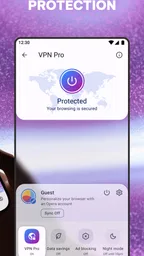
The first thing I’d do with Opera is treat it as a browser to try alongside the one already on my phone, not as a commitment to replace it. It handles everyday browsing, and its built-in ad blocker and VPN are the features most likely to make a first session feel different. My practical first goal would be simple: open a page I know well, compare how it feels, then decide whether Opera suits the way I browse.
What to expect from Opera on a phone
Opera: Private Web Browser is a mobile web browser from Opera, listed in the Communication category. It is free to install, rated for Everyone, and has grown to over 500 million installs. Its average rating is 4.8 from around 5.6 million ratings, which points to broad appeal, though those numbers alone can’t tell you whether its controls or privacy tools fit your habits.
The browser’s appeal is its mix of familiar browsing and extra tools in one app. Rather than installing a separate ad-blocking browser or relying on a VPN app for every task, you can explore those options within Opera. That convenience is useful when you want fewer apps to manage, but it also means you should take a moment to understand what each feature does instead of assuming that every privacy concern is automatically solved.
Opera has been available since November 8, 2010, and its current version is 103.3.5234.91185. In day-to-day use, I’d judge it less by its long history than by whether the pages I actually visit work well and whether its controls feel natural. A browser can have plenty of tools and still be a poor fit if finding tabs, settings, or a page again takes more effort than it should.
If you are moving from a typical phone browser, expect the basics to feel familiar: open a page, follow links, and return to something you viewed earlier. The change is more about how Opera brings its own browsing and privacy options into that routine. I’d give myself a short test session rather than try to configure every setting up front.
Start with a low-stakes browsing test
After installing, choose a site you visit often, such as a news page or a recipe you already know. Use it to check whether text is comfortable to read, menus behave as expected, and links open in a way that makes sense to you. This is more revealing than judging the browser on a single landing page, because familiar content gives you a clear baseline.
Then try a second kind of page: perhaps a store, a travel search, or a page with several embedded elements. That helps you notice when blocking changes what appears. If a page looks incomplete, don’t immediately conclude that Opera is broken; an ad blocker can affect page elements, and some sites rely on those elements for navigation or content. Knowing this early makes troubleshooting less frustrating.
Set up only what you need
For a first-time user, I recommend leaving optional tools alone until you have a reason to use them. Browse normally first, then look for the ad-blocking control if a page is crowded or distracting. If you want to use the VPN, find its setting and read the in-app explanation before enabling it. This staged approach makes it easier to understand which change affected your browsing.
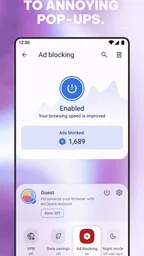
One useful habit is to test the ad blocker on a page where advertisements are visible, then revisit the same page after changing the relevant setting. That small comparison tells you more than switching several options at once. If a sign-in button, video, or menu stops working, you can narrow down the cause rather than guessing whether it was the VPN, the blocker, or the site itself.
Privacy tools also work best when you know their boundaries. A VPN can change how your connection is routed, but it should not be treated as a substitute for careful account security or sound judgement about what you share online. Likewise, blocking ads can make pages less cluttered, but it does not guarantee that every tracker or privacy risk has disappeared. I see these features as useful controls, not a promise of total anonymity.
Your first meaningful success
A realistic first win might be reading a long article on a busy mobile page without repeatedly closing intrusive-looking advertising. Open the article in Opera, see how the built-in blocker affects the page, and check that the text and navigation still work. If the page behaves properly, you have confirmed a practical benefit in a situation you are likely to encounter again.
Another good test is planning a quick outing. Search for a café or a nearby event, open a few results, and return to the original search. This checks the everyday rhythm of browsing: moving between pages, keeping track of what you found, and getting back to a useful result. If you tend to research on the go, that flow matters more than a list of features.
For a more deliberate comparison, try the same search in your current browser and Opera. Don’t focus only on speed, which can vary with the connection and the page. Notice whether ads make one version harder to use, whether a site’s buttons still work, and which browser makes it easier for you to continue. The answer may differ by site, and that is a sensible reason to keep both available while you decide.
Where the built-in tools help—and where they can get in the way
The ad blocker is most valuable when a page feels overloaded and you want a cleaner reading or shopping experience without reaching for a separate tool. The trade-off is that blocking can interfere with parts of a site that are not obviously advertisements. When a page breaks, temporarily adjusting the blocker for that situation is often a more useful response than abandoning the browser outright.
The VPN is convenient because it is part of the browser experience, but I would not choose Opera solely on the assumption that it replaces every dedicated VPN service. People who need detailed network controls, a particular set of locations, or protection for traffic beyond browser activity should compare a dedicated option with what Opera offers in the app. If all you want is a quick privacy-related tool while browsing, the built-in approach may be easier to try.
There is a similar trade-off in using one browser for many jobs. Keeping browsing and its extra tools together reduces app switching, but someone who prefers a very minimal browser may find the additional options unnecessary. If you rarely use ad blocking or a browser VPN and already like your default browser, switching may not improve your routine enough to justify learning a different interface.
Common confusion for new users
It is easy to confuse an ad blocker with a general page repair tool. If a video, form, or sign-in flow fails, the cause could be the site itself or a blocking setting. I’d first revisit the page and check whether it works with the relevant blocker setting changed, rather than clearing everything or repeatedly reloading. This is a simple way to isolate the problem.
It is also worth separating browser privacy from account privacy. Using a VPN does not make it safe to enter passwords on suspicious pages, and an ad blocker does not make every link trustworthy. I still look at the page I’m visiting and use strong account protections where available. These habits matter whether you browse with Opera or another app.
Some users may also wonder whether the app costs anything to begin using. Opera is free, though in-app purchases are listed from $7.99 to $39.99 per item. I would check the purchase details in the app before confirming anything, especially if you are exploring optional extras. You can try the core browser experience without treating every paid item as necessary.
How it compares with familiar alternatives
Compared with a phone’s preinstalled browser, Opera’s strongest distinction is the inclusion of its own ad-blocking and VPN tools. That may suit someone who wants to experiment with a less cluttered page or a browser-level privacy option without building a setup from several apps. A default browser can still be the better choice if it already fits your habits, syncs with the devices you use, or makes essential tasks easier for you.
Compared with a dedicated privacy browser or VPN app, Opera offers a more combined approach. The convenience is real, but a specialist tool may provide a better fit for people who want extensive controls or use privacy tools outside web browsing. I would choose based on the task: Opera for ordinary browsing with accessible extras, and a dedicated alternative when the requirement is more specific than everyday web use.
Opera is used at a large scale, and its 100,000 reviews add another perspective beyond its rating. Still, popularity is not a substitute for checking your own sites. Pages vary, and the best browser is the one that reliably supports the things you do most, not necessarily the one with the longest feature list.
Who I’d recommend it to
I’d suggest giving Opera a try if you browse on your phone often, dislike cluttered pages, and want an ad blocker and VPN available within the same browser. It is also a reasonable option for someone who likes testing alternatives without paying to install the app. Start with a familiar site, then use the tools only when a real browsing problem gives you a reason.
I’d hesitate to recommend it as an automatic replacement for everyone. If your current browser already handles your routine smoothly, you may not notice enough improvement. If you need specialized VPN controls, or a particular website repeatedly fails when blocking is enabled, another browser or a separate privacy tool may serve you better. The right choice depends on what you actually browse, not just what a browser says it can do.
A sensible next step
My advice is to keep the first session focused: open a familiar page, check how it reads, and test the blocker only if advertising gets in the way. Once that works, try a site you rely on for forms, shopping, or video so you can spot compatibility issues before making Opera your default. If you decide to enable the VPN, do so after reviewing its in-app controls and remembering that it is one part of online privacy, not a complete security plan.
Opera is easiest to recommend as a practical alternative to test, not a browser everyone must switch to. Its combination of everyday browsing and built-in tools gives it a clear purpose, while occasional site friction and the limits of any single privacy feature call for realistic expectations. I’d keep using it if its blocker improves the pages I visit and its workflow feels comfortable; otherwise, I’d stick with the browser that makes my daily tasks simpler.
What we like
- Built-in ad blocking can make pages feel less cluttered.
- Free VPN adds privacy on public Wi-Fi.
- Private tabs keep browsing separate from regular tabs.
- Data-saving options can help reduce mobile usage.
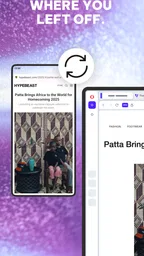
- Sync can keep bookmarks and open tabs available across devices.
What could be better
- The VPN may offer limited server choices.
- Some websites may not work properly with ad blocking enabled.
- Sync requires an Opera account.
- The browser includes shortcuts and content feeds that may feel busy.
- VPN availability and features can vary by region.





