


QR Code Reader: QR Code Maker review
 Analysis by Appsdrops
When I need to scan a QR code quickly, I want an app that gets out of the way: open it, point the camera, and understand what the code is asking me to do before I follow through. QR Code Reader: QR Code Maker is a free shopping-category utility from BestAppsHub, aimed at that everyday task rather than at managing a whole collection of shopping tools. Its appeal is straightforward, but the right choice depends on whether you only need occasional scans or want a more capable scanner-and-code workflow.
What matters when choosing a QR scanner
I judge a scanner less by how many features it advertises and more by how reliably it fits the moment. A code on a product label, a restaurant menu, or a printed notice should be easy to frame, and the result should be clear enough to assess before I act. If I only scan now and then, a dedicated app can be convenient; if scanning is rare, the camera app already on my phone may be enough.
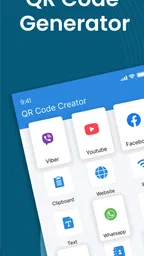
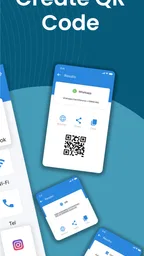
This app’s store summary describes both reading QR codes and making them, so it is intended to cover more than one direction of the task. That combination can be useful if I sometimes need to retrieve information and sometimes need to create a code to share. Still, I would choose it for that practical scope, not assume it includes advanced editing, bulk tools, or other capabilities that are not established.
There is also a safety habit worth keeping with any scanner: treat a decoded link as a destination to inspect, not an instruction to follow automatically. A QR code can make a web address less visible than ordinary text. I prefer to pause, check what the scan presents, and decide whether the next step makes sense. A scanner is most useful when it supports that deliberate choice rather than encouraging a reflexive tap.
A simple tool for ordinary errands
QR Code Reader: QR Code Maker has reached over a million installs and holds an average rating of 4.1 from around ten thousand ratings. Those figures suggest that it has found a substantial audience, though they cannot tell me whether it will suit a particular phone, lighting condition, or scanning routine. The app is free to download, rated for Everyone, and its current version is 7.1.
Its release date was June 1, 2020, and the listed minimum operating-system requirement is version 7.0. That broad compatibility can matter for someone using an older Android device, especially if the built-in camera does not make QR scanning easy to reach. I would still check that the app is available and works as expected on my specific device before relying on it for a time-sensitive task.
The shopping classification makes sense for practical scanning around purchases: checking a code on packaging, opening a retailer’s digital information, or using a code supplied at a checkout. But the app is not a shopping marketplace. I would not install it expecting product discovery, price comparisons, or a store catalogue; the value is in handling QR-code tasks that can arise while shopping.
Where this app is a sensible fit
The clearest case for it is someone who wants a separate, straightforward place to scan and make QR codes. Keeping that task in a dedicated app can be easier than remembering which camera shortcut or phone setting reveals a built-in scanner. That is particularly handy for a person who scans codes only occasionally and wants a recognizable app icon ready when a printed code appears.
One useful workflow is to scan a code on a parcel or product while shopping, inspect the destination, and then decide whether opening it is worthwhile. A second is to create a code when sharing information with another person, rather than asking them to type a long string by hand. I find the combination of reading and making more practical than a scanner-only tool when both tasks come up, although it does not by itself prove that the creation options are elaborate.
A small but useful habit is to avoid scanning from an awkward angle when a code is on glossy packaging. Reflections and cramped placement can make any camera-based scanner struggle. I would first move the item into even light, hold the phone steady, and give the code a clear view. This is not a special trick unique to this app; it is a realistic way to reduce frustration with the kind of everyday scanning it is meant to support.
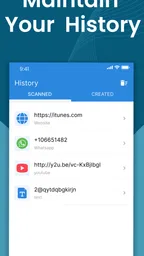
Another trade-off is how I handle codes I may want to revisit. If the app presents a destination, I make a note of what I need before leaving the screen rather than assuming every scanner keeps a searchable history. That approach is useful for a receipt insert, warranty card, or event notice: I can save the relevant information in a place I already use, such as my notes, instead of building an uncertain workflow around the scanner.
The app includes in-app purchases ranging from $2.99 to $49.99 per item. Since the core download is free, I would start with the free experience and only consider a purchase if the app clearly presents a feature I personally need. That keeps a simple scanning task from turning into an unnecessary expense. I would also check the purchase screen carefully before confirming anything, particularly if I am installing the app for a one-off job.
Where another option may be better
For someone who scans a code once every few months, the phone’s built-in camera may be the better choice. It avoids adding another app and may be all that is needed for a quick link or menu. The decision is not that one approach is universally superior: a dedicated scanner is easier to find when scanning is a recurring habit, while a built-in tool keeps occasional use simple.
People who need a more controlled workflow should compare it with scanner apps that explicitly document features such as organized scan history, batch processing, or detailed code customization. I would not assume QR Code Reader: QR Code Maker offers those capabilities simply because it can read and make codes. If I needed to produce many different codes for work, or manage them as a library, I would look for a tool that clearly explains those specific functions before switching.
There is a similar distinction for privacy-conscious users. A QR scanner necessarily needs to interpret the code, but I would want to understand an app’s permission requests and handling of scanned information before using it with sensitive material. I cannot infer those details from its name or purpose. If a code contains private account, payment, or workplace information, I would choose a scanner whose privacy practices I have checked and avoid scanning anything I would not be comfortable exposing.
Some people may also prefer a scanner built into a broader utility suite, especially if they already use that suite and trust its interface. The upside is fewer separate apps; the downside can be extra menus around a task that should take seconds. This BestAppsHub app is more appealing when the reader wants a dedicated QR tool and does not mind keeping it alongside other apps. It is less compelling if the existing camera already scans codes quickly and reliably.
Switching without making scanning harder
Moving to a dedicated scanner is usually a low-effort change if I only use it for new scans. I would install it, test it with a harmless printed code, and check whether the result is presented in a way I find comfortable before depending on it at a checkout or while travelling. That trial also helps answer a practical question: does opening a separate app feel easier than using the camera shortcut I already know?
If I am replacing another scanner, I would first preserve anything I need from its saved scans or notes. I would not count on those records transferring automatically. The simplest switch is to keep the old app available until I have confirmed that any important destinations or code content are stored somewhere I can access independently. For casual scanning, there may be nothing to migrate at all.
On an older device, the minimum operating-system requirement of 7.0 is a useful starting point, but compatibility on paper is not the same as a smooth experience. Before depending on it, I would try a few different codes in ordinary conditions: a well-lit printed one, a small code, and one displayed on another screen. That gives a more honest picture than judging a scanner from a single easy test.
My recommendation
I would recommend QR Code Reader: QR Code Maker to someone who wants a free, dedicated Android app for basic QR reading and code creation, and who values having both tasks under one icon. Its broad install base and 4.1 average rating make it a reasonable option to consider, but neither figure replaces a short personal test. The key question is whether its straightforward scope matches your own routine.
I would skip it if my camera already handles QR codes well, if I need a clearly documented system for organizing large numbers of scans, or if I cannot establish that its permissions and privacy approach suit the material I plan to scan. I would also be cautious about paying for extras before identifying a specific need, since the app is free to start and offers in-app purchases.
For everyday use, my practical recommendation is to try it with ordinary, non-sensitive codes and see whether the separate scanner-and-maker setup saves you time. If it does, it can be a handy companion for shopping and quick information sharing. If your needs go beyond occasional scans or simple code creation, a more specialized alternative—or the camera already on your phone—may be the better fit.
What we like
- Scans QR codes quickly with a simple camera interface.
- Creates QR codes for sharing useful information.
- Can save generated codes for later access.
- Useful for quickly opening links from printed codes.
- A lightweight tool for occasional QR tasks.
What could be better
- Camera access is required to scan codes.
- Poor lighting can make scanning less reliable.
- Generated codes may need testing before sharing.
- Unclear code sources can lead to unsafe websites.
- Advanced editing options may be limited.





