





Fly Delta review
 Analysis by Appsdrops
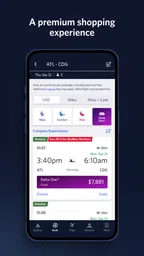
When I’m traveling, I want the airline’s app to make the important details easy to find without pretending it can remove every airport headache. Fly Delta is most useful as a place to manage a Delta trip: it brings flight information and boarding passes into the same mobile experience. I’d recommend it to people who regularly fly with Delta, especially anyone who prefers checking trip details on a phone rather than hunting through email. It is less compelling if you rarely use Delta or want one app to organize journeys across several airlines.
Useful when your trip is already with Delta
This is a free travel app from Delta Air Lines, Inc., in the travel and local category. Its central job is straightforward: give Delta passengers access to boarding passes, flight information, and other trip-management tools. That narrow focus is a strength when I need airline-specific details, but it also sets a clear boundary. It is not a general-purpose travel planner, and I would not choose it as my only app for a trip involving several carriers.
The app has a 4.8 average from around 625,000 ratings, with more than 10 million installs. Those figures suggest that many travelers find it useful, although they cannot tell me whether it will suit my particular route or travel habits. It is rated for Everyone, and the release history goes back to February 14, 2011. The current version is 7.17.2, and it requires Android 8.0 or later.
My practical recommendation is to install it once a Delta booking becomes part of your plans, then use it as a companion to your confirmation email and ordinary travel preparations. The app can put airline details closer at hand; it should not be treated as a substitute for checking that your booking and travel documents are in order. Keeping that distinction in mind makes the experience more useful and less frustrating.
Where it earns a place in a travel routine
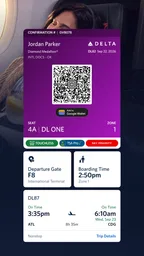
A boarding pass is most valuable when it is easy to retrieve at the moment you need it. Keeping the pass and flight information in the airline’s own app can reduce the need to switch between a booking email, a browser, and other travel tools. I find that convenience especially appealing when I am moving through an airport and want to check the airline’s information rather than reconstruct the trip from scattered messages.
There is a useful workflow here: once you have a Delta trip to manage, open the app before travel day and become familiar with where your pass and flight details appear. That small bit of preparation is more valuable than waiting until you are in a queue to learn the interface. I would still keep the confirmation email accessible, since relying on one app alone is not a great habit when a boarding pass is important.
For a realistic example, imagine leaving home for a Delta flight while juggling a bag, a phone, and a ride to the airport. Having the airline’s trip information in one place gives you a straightforward first stop when you want to review the flight or bring up the pass. It does not guarantee that every travel problem will be solved in the app, but it can make the airline-specific part of the trip less scattered.
Trust starts with a clear role
I judge trust in a travel app partly by whether I understand why I am opening it. Fly Delta has an identifiable purpose: managing travel with Delta. That is more reassuring than a tool whose role is vague, but a clear purpose alone does not establish how every piece of information is handled. I avoid treating an airline app as a private notebook and recommend sharing only what is needed to manage the trip.
The developer is Delta Air Lines, Inc., which makes the connection between the app and the airline easy to understand. That matters when I am deciding where to look for airline-specific trip information. At the same time, the developer’s identity should not be mistaken for a complete explanation of permissions, data practices, or account controls. I would review the choices shown on my own device and in the app before deciding what I am comfortable enabling.
Travel details can be sensitive in an everyday, practical way. A boarding pass and flight information relate to where and when someone is traveling. I therefore treat the phone itself as part of the security picture: use a screen lock, avoid leaving a trip display open for others to see, and be deliberate about who can access the device. Those are sensible habits regardless of which airline app holds the pass.
Make choices at the moments they matter
My advice is to pay attention when the app requests access or asks you to make an account-related choice, rather than tapping through automatically while distracted. Read the prompt, decide whether it is relevant to how you intend to use the app, and revisit device settings if you later want to change an enabled permission. I would not assume a particular permission is necessary unless the app explains why it needs it for the action you are taking.
This is especially worth doing before a trip, when it is easier to make a calm decision than it is in a crowded terminal. If all you need at that moment is a boarding pass or flight information, focus on those tasks and consider optional choices separately. A travel app can be convenient without needing to become the center of every part of your phone use.
Account access is another point where I favor deliberate choices. Use credentials you can manage safely, and take a moment to understand the account options presented in the app. If you share a device, sign in only when appropriate and avoid leaving it accessible to someone else. These steps are not a claim about Delta’s particular account safeguards; they are practical ways to keep control of information on a personal device.
What it does better than general travel tools
Compared with a general travel organizer, Fly Delta has the advantage of being focused on Delta’s own flights and boarding passes. A general planner may be better for collecting hotel, rail, and multiple-airline details in one itinerary, but it may not be the first place I would look for an airline’s own trip information. I see the two approaches as complementary: use this app for Delta travel and a broader organizer if your itinerary spans several providers.
That distinction matters for people who fly different airlines from one trip to the next. Installing a separate app for every carrier can make a phone feel cluttered, while relying only on an all-purpose planner may not give you the airline-focused workflow you want. If Delta is a frequent choice, keeping its app available is a reasonable trade-off. If your Delta flights are rare, an email-based routine or a general travel app may be enough.
One non-obvious advantage of a dedicated airline app is that it gives you a single place to check the airline-facing portion of a journey, rather than treating the confirmation email as the entire travel experience. The trade-off is that the app’s usefulness depends on having a Delta trip to manage. It cannot make a mixed-carrier itinerary feel unified by itself, and I would not expect it to replace broader planning tools.
Small habits that make it more useful
Before departure, I would open the app while I still have time and confirm that I can reach the trip information I expect to use. This is a simple test of readiness, not a promise that a phone will always be available or that every airport situation will go smoothly. If access matters, keep your booking details somewhere else you can reach as well, such as the confirmation message you already received.
I would also avoid waiting until the boarding area to learn how the app is organized. A brief check at home helps separate two different problems: an unfamiliar interface and a change or question about the trip itself. If something is unclear, having time to look for the relevant information is better than trying to solve it while boarding is approaching.
Finally, treat the boarding pass as useful but not as a reason to stop paying attention to the rest of your travel documents and plans. The app’s role is to help with Delta travel management, not to remove the need for ordinary preparation. That expectation feels balanced: use the convenience, but keep a backup route to essential information.
Who should choose it—and who can skip it
I would choose Fly Delta if I have an upcoming Delta flight and want the airline’s boarding pass and flight information readily available on my phone. It is also a sensible option for frequent Delta travelers who would rather keep airline-specific tasks in the airline’s own app. Being free makes it easy to try for a trip without treating the installation as a major commitment.
I would skip it if I do not fly Delta, or if I prefer to keep all travel arrangements inside a single cross-airline planner and have no need for a dedicated airline app. It is also not the right answer for someone looking for broad destination research or a complete itinerary manager. Its value comes from being tied to Delta travel, so outside that context there is little reason to keep it at the center of a travel routine.
A cautious, practical verdict
My view is positive but deliberately limited: Fly Delta has a clear role, and that clarity is what makes it useful. It brings key airline-trip tasks closer together and can spare me some searching when I need a pass or flight information. I would use it for a Delta journey, prepare it before leaving, and keep another way to retrieve essential booking details.
For trust, I would base my decision on the controls and explanations I can actually see in the app and on my device, not on assumptions about unseen data practices. Check prompts before granting access, make account choices intentionally, and protect the phone that holds your travel details. With those habits, this is a practical airline companion rather than an all-purpose travel solution—and that is exactly the kind of tool I would recommend to a friend who flies Delta.
What we like
- Boarding passes are easy to retrieve from the app.
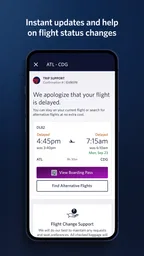
- Flight status updates help travelers track schedule changes.
- The app supports mobile check-in for many Delta flights.
- Saved trips make itinerary details easy to find.
- SkyMiles account features are available in one place.
What could be better
- Some features require an active internet connection.
- The app may use significant battery during travel.
- Disruptions can make rebooking options harder to navigate.
- Not every airport supports all mobile boarding pass features.
- Users may need to sign in again after app updates.





