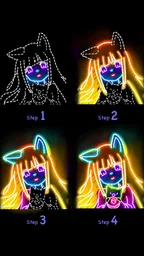
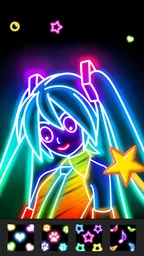
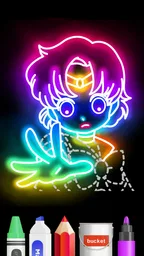
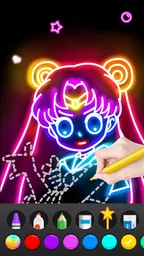
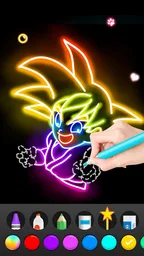
Draw Glow Comics review
 Analysis by Appsdrops
I’d recommend Draw Glow Comics to someone who wants to doodle a little story without first learning a full digital-art program. Its appeal is the glow-brush look: instead of aiming for polished, conventional comic art, you can make bright lines and simple panels feel playful with relatively little effort. That makes it a pleasant choice for a quiet break, though it is not the tool I’d reach for when precision, detailed lettering, or a production-ready comic matters.
Where a quick drawing session can get stuck
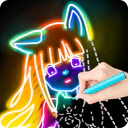
The first thing to understand is the app’s narrow focus. Draw Glow Comics, made by ColorJoy, is a comics drawing app built around glowing brushes. It is not the same kind of experience as reading a catalog of published comics, nor should you expect the depth of a general illustration studio. If you open it hoping to browse stories or find a complete comic-making course, you may feel you landed in the wrong place. Its main purpose is making your own comic-style drawings.
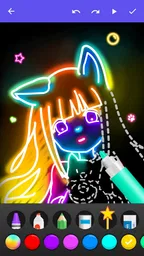
That focused approach is also why it can be inviting. A blank page can feel intimidating in a conventional art app, where there may be many tools and settings to choose from. Here, the glow effect gives even a simple outline a clear visual character. In my view, that lowers the pressure to draw beautifully: a few expressive marks can be enough to suggest a character, a prop, or a dramatic moment.
The friction is that a distinctive brush style can also become a limitation. Glowing strokes are excellent for playful effects, but they may not suit every scene. If you want subtle shading, realistic textures, or clean professional line art, the central look may feel too conspicuous. I’d treat the glow as a visual choice rather than assume it can replace every kind of comic-drawing tool.
There is also a useful expectation to set before starting: a comic is more than a collection of striking drawings. Even a short one needs a readable sequence, enough contrast to separate details, and a clear place for any dialogue. A bright brush can make a panel lively, but too many glowing marks can compete with the action. I find it helps to decide what the reader should notice first, then keep the rest of the panel quieter.
Start with a small scene, not a whole issue
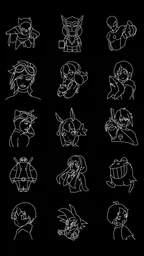
For a first session, I’d draw one moment rather than plan a long story. Try a character discovering something unexpected, with one strong gesture and a simple background. This makes it easier to judge whether the brush style suits your idea before you invest time in a larger project. It also gives you a clear test: can someone understand the action from the drawing alone?
A practical trick is to leave empty space where words could go, even if you are not adding dialogue immediately. Bright strokes can make a panel feel full quickly, and open space helps keep the important shapes legible. If you are making a joke or a tiny story for friends, this simple planning step can matter more than adding extra decoration.
Setup checks before you draw
Draw Glow Comics is free to install, with in-app purchases listed at $1.99 per item. It is rated for Everyone and requires Android 6.0 or later. Those details make it approachable for casual use, but I’d still check that the device is running a compatible system before troubleshooting a problem that may simply be a setup mismatch. The current version is 1.0.30.
The app has an average rating of 4.4 from around 20,000 ratings, and it has been installed over 5 million times. That suggests it has found a broad audience, but popularity does not guarantee that its particular drawing style will match your needs. I would use the first session to test the feel of the glow brushes and the basic drawing experience, rather than assume it will work like a full-featured art suite.
If the app does not open or behaves unexpectedly, I’d start with the usual low-risk checks: close and reopen it, make sure the device has enough free space for normal use, and check whether the operating system meets the minimum requirement. If you recently updated the app or the device, restarting can also clear a temporary hiccup. These steps are sensible first moves, not a promise that every issue has the same cause.
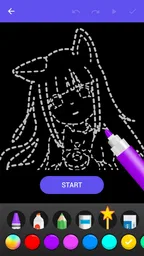
Before making a drawing you care about, spend a minute learning how the app responds to your input. Try a few strokes on a throwaway sketch and see how controlled the glow looks on your screen. If you are using a finger, broader gestures may be easier than tiny details; a stylus can feel more deliberate when the device supports one, but I would not assume that it turns the app into a precision illustration workstation.
It is also worth thinking about the setting where you plan to draw. A quick sketch during a commute or a short break suits an app centered on immediate visual effects. A long session to create a carefully lettered comic may call for a larger screen and a workflow that gives you more control over panels and text. The difference is not that one approach is wrong; it is that the app’s strongest use is casual, expressive drawing rather than elaborate page production.
Recover a sketch without making the problem worse
If a drawing session goes off course, pause before repeatedly tapping controls or starting over. First work out whether the issue is the artwork itself or the app’s response: is a stroke simply not what you intended, or has the whole interface stopped reacting? For an ordinary drawing mistake, the safest approach is to use the available on-screen controls carefully and test the next action on a small area. I would avoid guessing at unfamiliar controls on a sketch that took a long time to make.
When the app becomes unresponsive, close and reopen it once rather than cycling through repeated actions. Then try a small test drawing to see whether the problem returns. If only one session seems affected, that points to a different situation from a consistent failure every time you launch the app. Keeping those cases separate makes troubleshooting less frustrating and helps you avoid blaming the brush style for a temporary device issue.
For a multi-panel idea, I’d plan the beats on paper or in a note first: what changes from the opening image to the final one, and where does the reader look next? Then draw the key action in each panel with a clear focal point. This is a useful workaround for the common creative snag of having a fun effect but no story direction. It also reduces the temptation to fill every space with glow just because the brush makes it easy.
If you are creating something to share, review the whole sequence at once before calling it finished. A single panel may look vivid on its own but feel visually noisy beside another. Look for repeated shapes or colors that pull attention away from the action, and simplify where needed. That kind of editing is particularly valuable with luminous marks, which naturally attract the eye.
When the app may not be the cause
Not every disappointing result means the app is malfunctioning. If strokes look less controlled than expected, the cause may be the way you are drawing on a small screen, the size of your gestures, or the complexity of the image you are attempting. Try a simpler shape and see whether the same problem remains. If the trouble appears only when you attempt tiny lettering or intricate anatomy, that may be a mismatch between the task and the app’s casual, glow-focused approach.
Likewise, a comic that feels hard to read may need clearer composition rather than more effects. Give the main character or action a strong silhouette, keep the background from competing, and reserve bright accents for the details that matter. This is one of the best ways to get more out of the app without expecting it to solve story and layout decisions automatically.
If you need advanced page management, dependable text layout, or fine control over illustration, a dedicated comic or drawing program is likely a better fit. Those tools can take more effort to learn, but they are designed for jobs where precision matters. On the other hand, if your goal is a lighthearted drawing with a luminous style, that extra complexity may be unnecessary. I’d choose based on the finished result you want, not on which app has the longest feature list.
Who will enjoy it, and who should look elsewhere
I can see Draw Glow Comics working well for a younger artist, a casual doodler, or anyone who wants to turn a spare few minutes into a colorful visual gag. It is also a reasonable choice for making a small, personal comic where charm matters more than immaculate technique. The Everyone age rating supports its broadly approachable positioning, though parents should still make their own decision about any app their child uses.
I would skip it if I were planning a lengthy comic with carefully typeset dialogue, intricate backgrounds, or a consistent professional finish. I’d also look elsewhere if I wanted to read comics rather than draw them. In those cases, a dedicated reading app or a more capable illustration tool is a better match. The key trade-off is simple: a distinctive effect can make casual art more fun, but a specialized look is not a substitute for broad creative control.
As a comics app, Draw Glow Comics has a clear personality and a practical niche. It is free to try, developed by ColorJoy, and has been available since October 4, 2017. The combination of an established audience and a 4.4 average rating is encouraging, but I would still judge it by whether its drawing style feels enjoyable on your own device.
My recommendation is to approach it as a relaxed sketchbook for bright, simple comic ideas. Start with one panel, keep the composition readable, and test the brushes before committing to a larger project. If the glow effect makes you want to keep drawing, that is the app doing its job. If you find yourself fighting the style or wishing for more control, move to a tool built for detailed comic production instead. Its best quality is how quickly it gives a casual drawing a lively, recognizable look, and its main limitation is that this same focus will not suit every artist or every story.
What we like
- Glow effects make comic art stand out.
- The drawing process is approachable for beginners.
- A range of colors supports varied designs.
- It works well for creating quick visual ideas.
- Finished artwork can be shared with others.
What could be better
- Small screens can make detailed drawing difficult.
- Glow effects may not suit every comic style.
- Advanced artists may want more precise controls.
- Creating polished artwork can take time.
- Some tools may require practice to use well.





